Onboarding
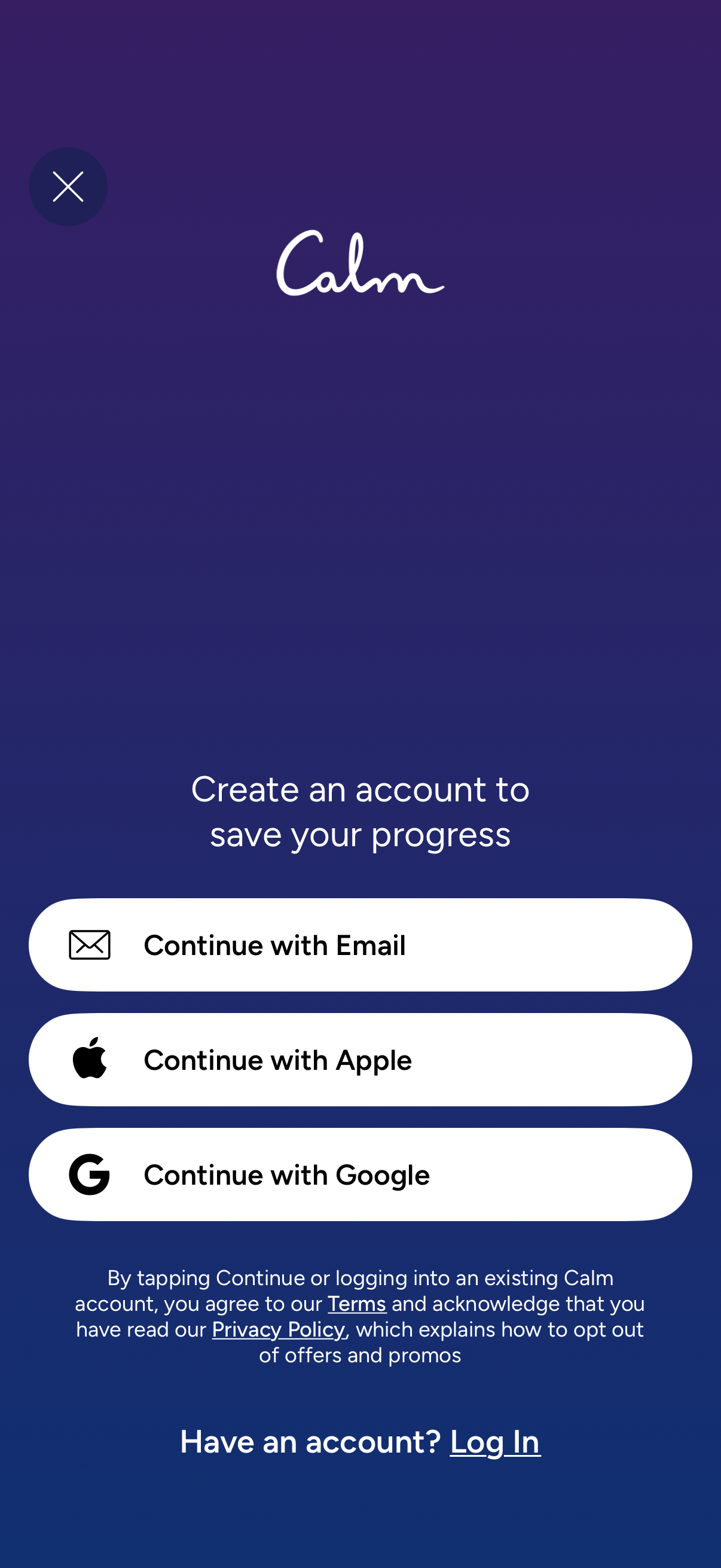
Account creation/login gate screen prompting users to create an account to save progress, with primary sign-in options to continue with Email, Apple, or Google. Includes a close (X) dismiss button, Terms and Privacy Policy links, and a “Have an account?
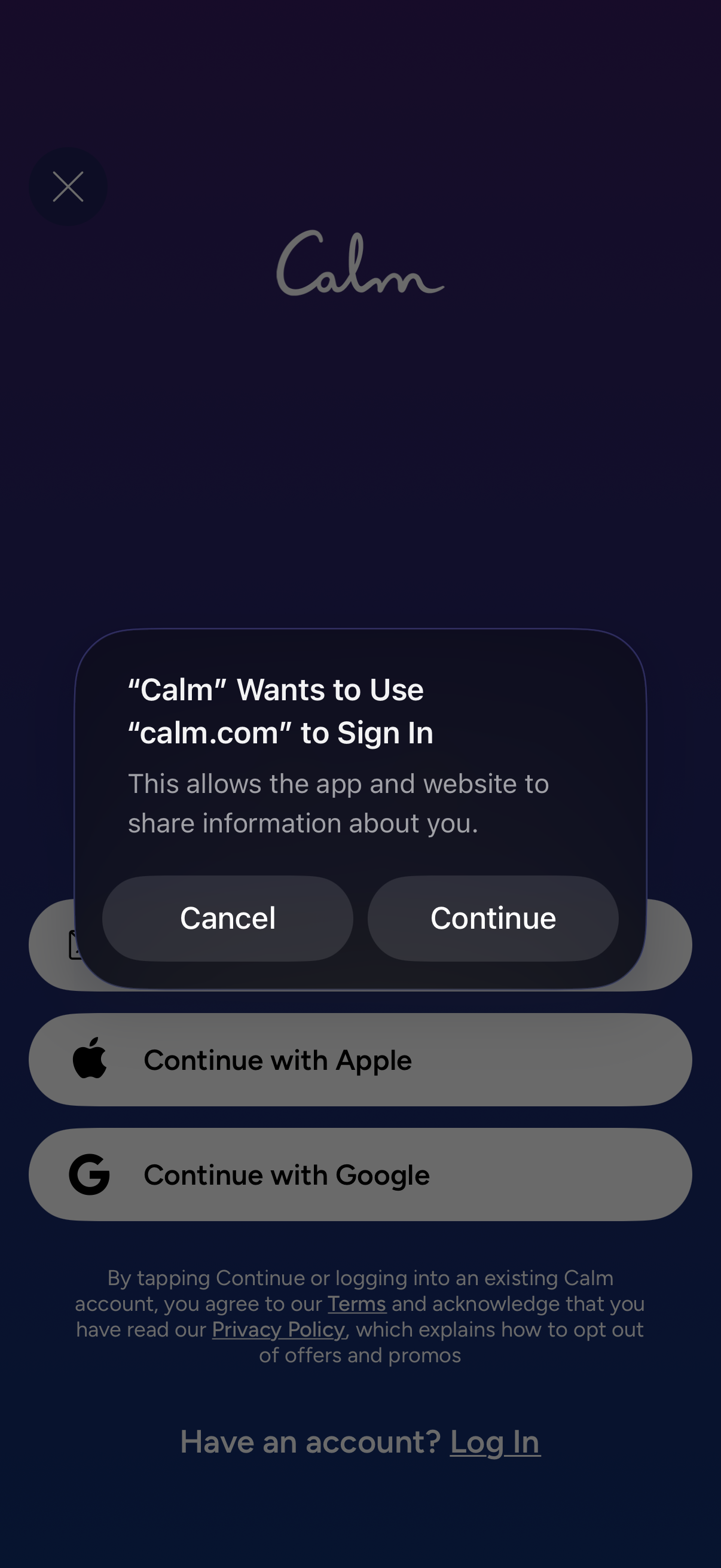
OAuth sign-in permission modal prompting the user to allow the Calm app to use calm. com for authentication, with primary actions Cancel or Continue.
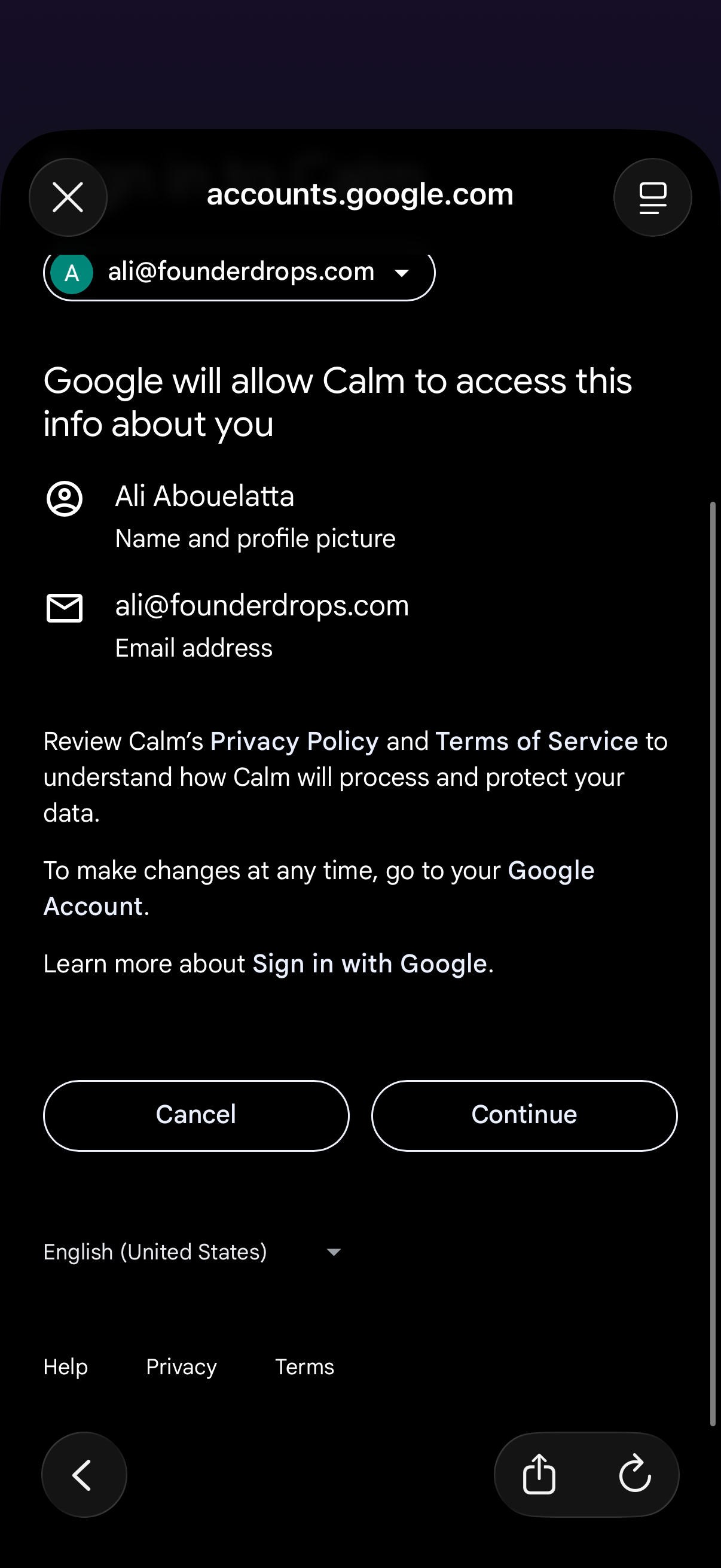
Google OAuth consent screen for “Sign in with Google” showing what profile data the app will access (name/profile photo and email address) with links to privacy policy and terms. Primary actions let the user cancel or continue to grant permission and proceed with account connection.
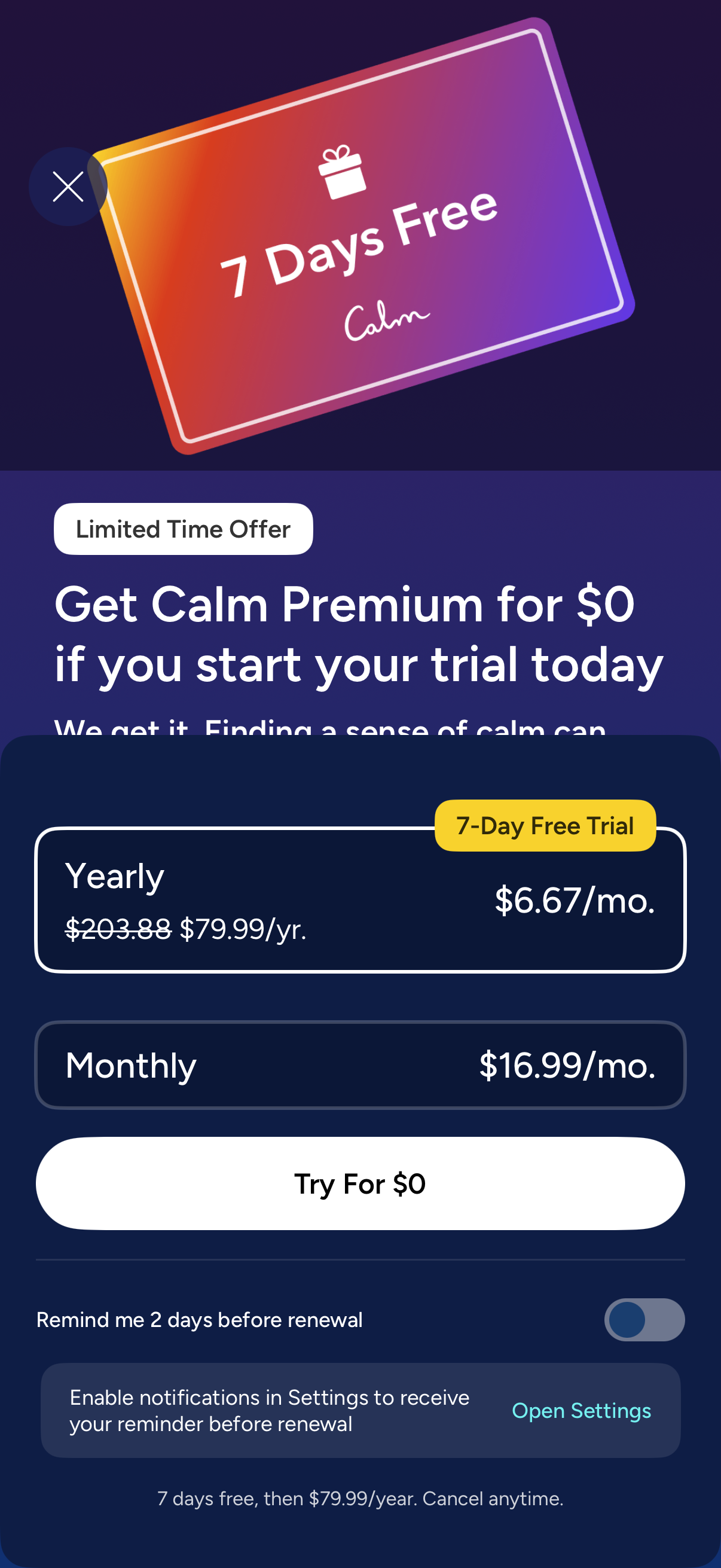
Subscription upsell paywall offering a limited-time 7-day free trial for a premium plan, with selectable yearly and monthly pricing options and a primary “Try for $0” CTA. Includes close button, trial/renewal disclosure, and a toggle to enable a renewal reminder via notifications with a link to open device settings.
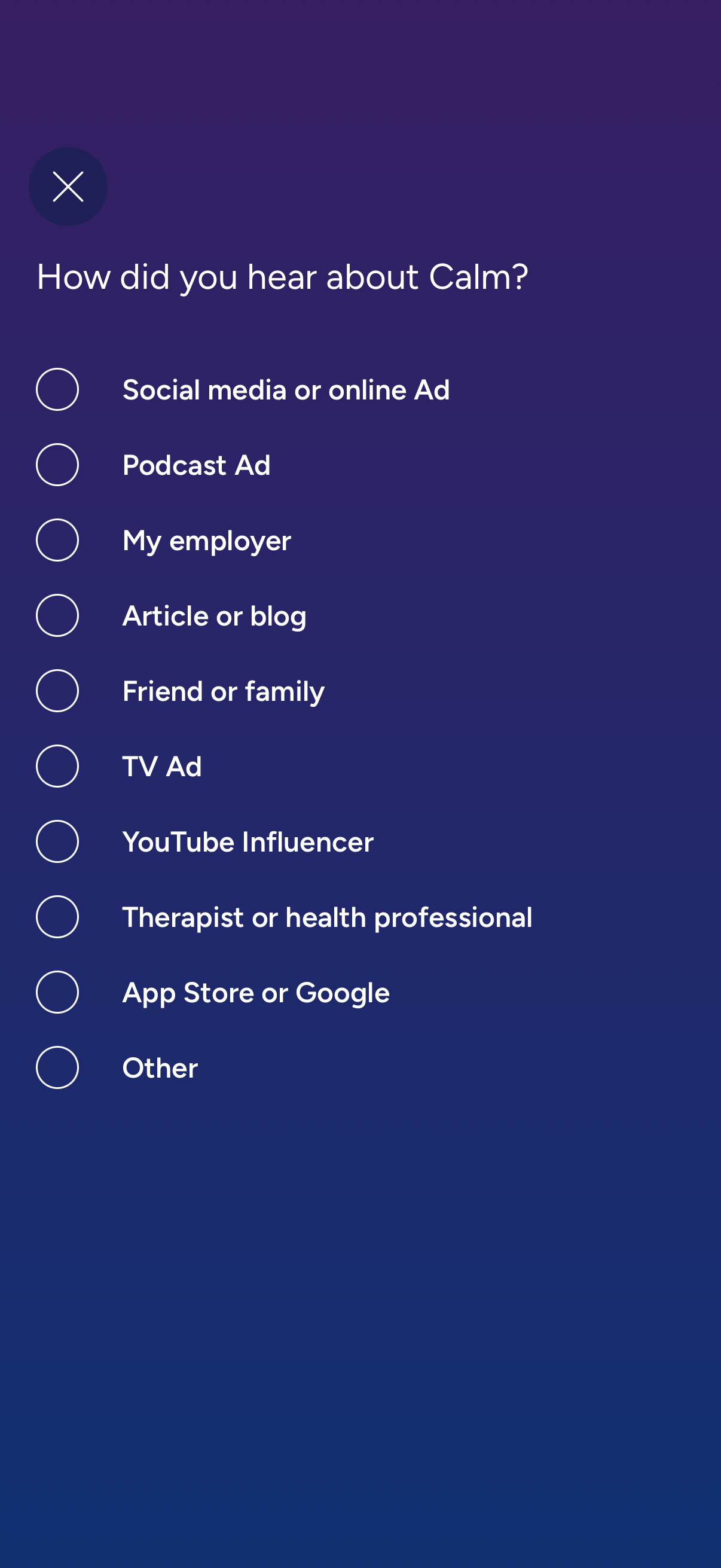
Onboarding survey screen asking “How did you hear about [the app]? ” with a single-select radio list of acquisition sources (social media/online ad, podcast ad, employer, article/blog, friend/family, TV ad, YouTube influencer, therapist/health professional, app store/search, other) and a close button to dismiss.
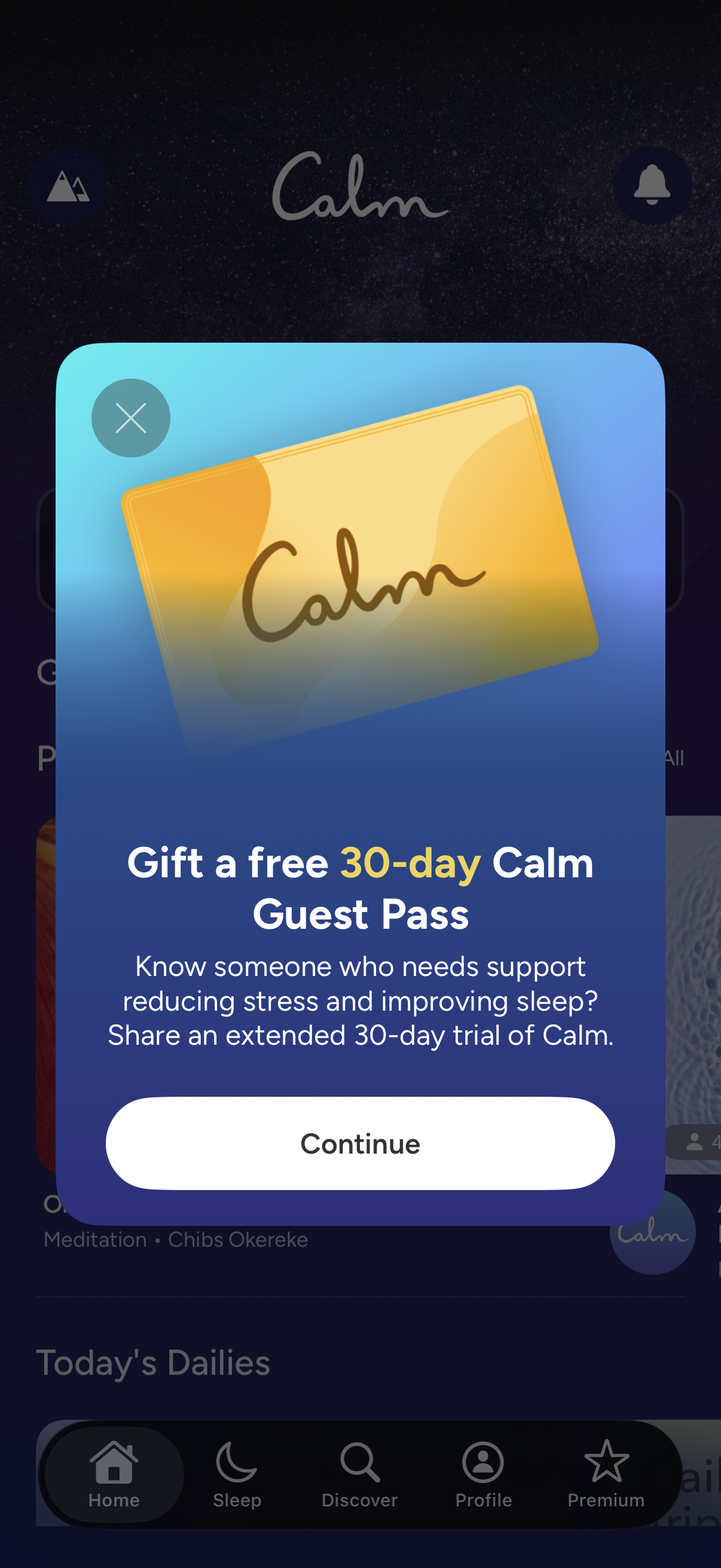
Promotional modal popup in a meditation and sleep app offering to “Gift a free 30-day Calm Guest Pass,” explaining the benefit of sharing an extended trial to help someone reduce stress and improve sleep. The overlay includes a close (X) icon and a primary “Continue” CTA to proceed with gifting/sharing the trial.
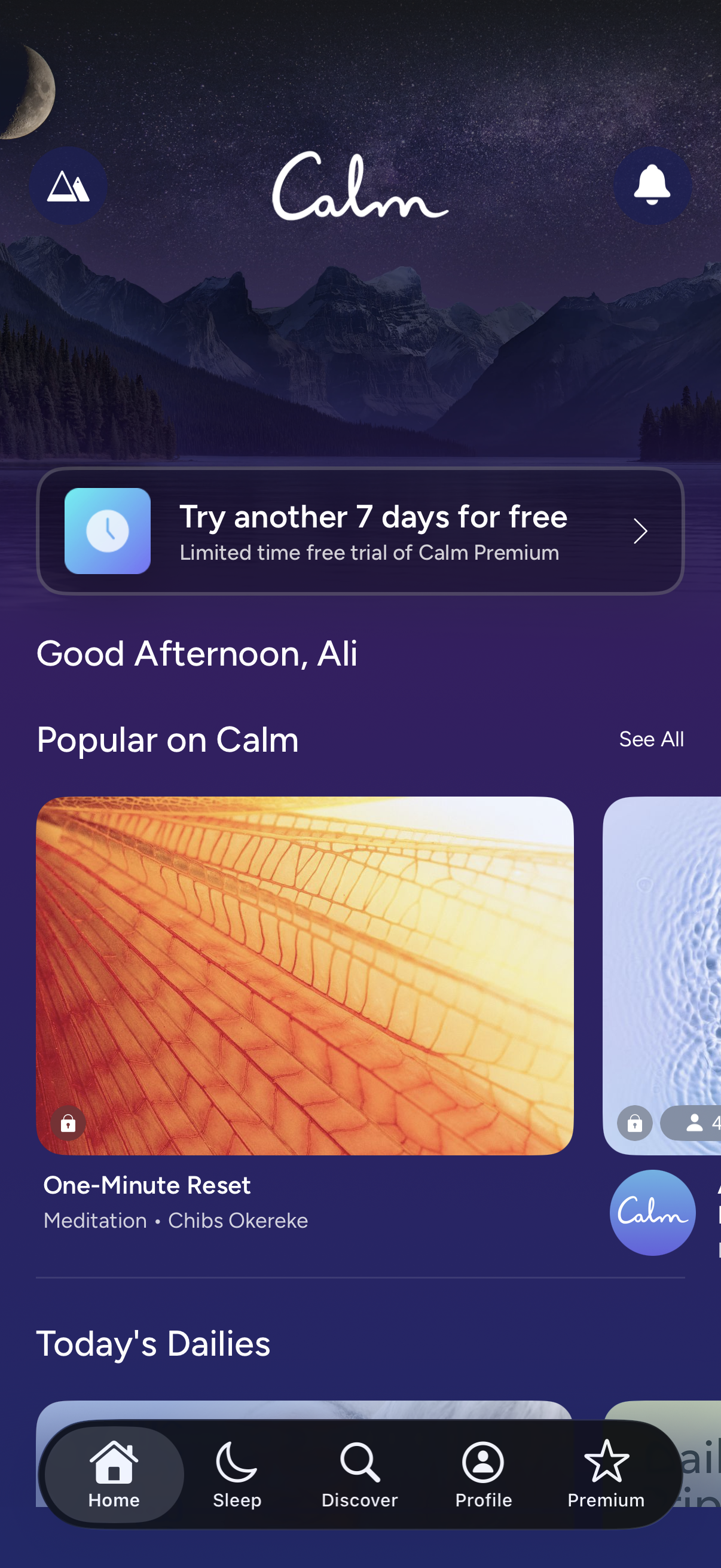
Meditation and sleep app home dashboard showing a promotional banner to start a free Premium trial, a personalized greeting, and curated content sections like “Popular” and “Today’s Dailies” with tappable audio cards (some locked). Top icons provide access to notifications and settings, and a bottom tab bar navigates Home, Sleep, Discover, Profile, and Premium.