Onboarding

App splash screen with a solid bright green background and centered Brainly logo, shown during app launch/loading with no user actions or navigation options.
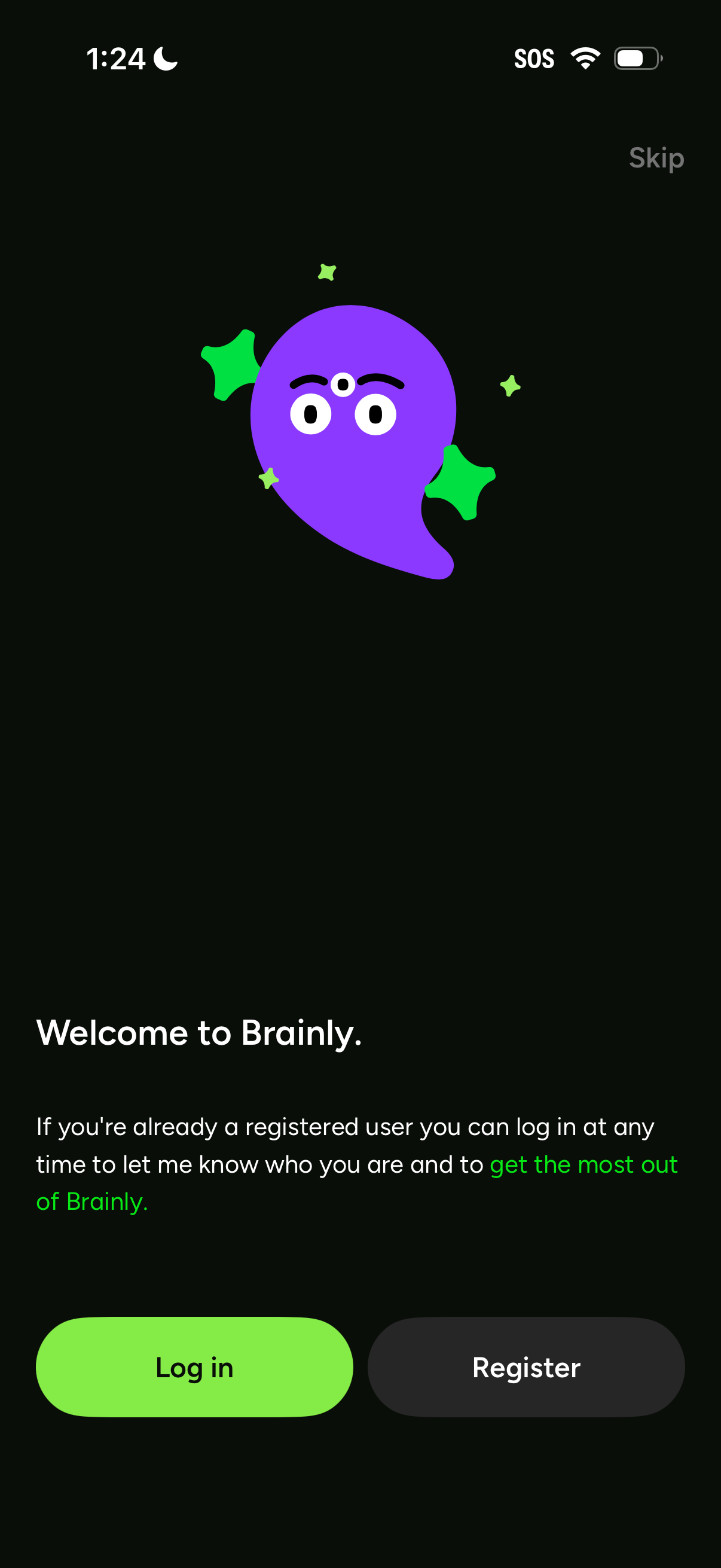
Welcome/onboarding screen prompting users to access the app with primary actions to Log in or Register, plus a Skip option. Intro text explains benefits for registered users and encourages signing in to get the most out of the app.
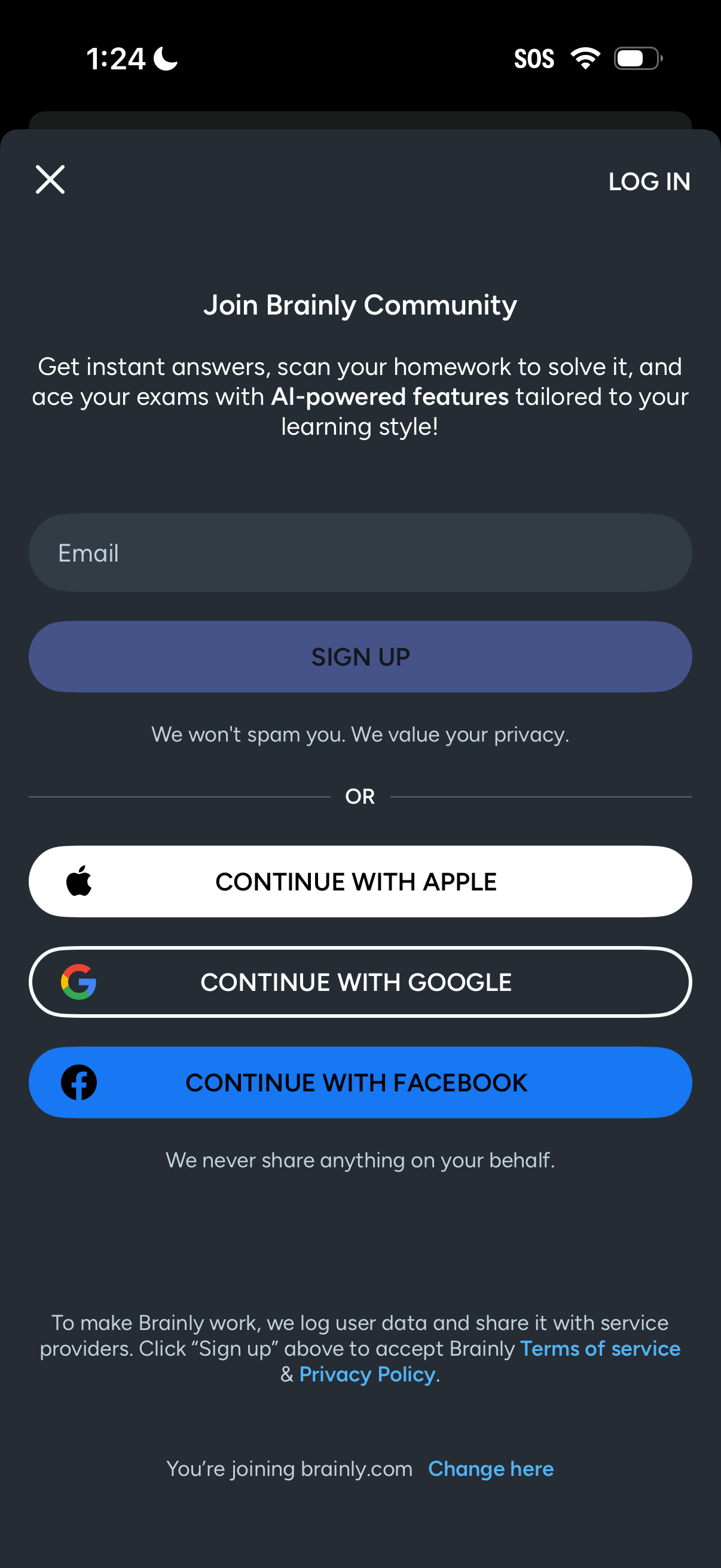
Sign-up modal for a learning/community app prompting users to “Join” with an email field and primary Sign Up button, plus a link to Log In and close the dialog. Offers social authentication options to continue with Apple, Google, or Facebook and includes privacy/terms disclosures.
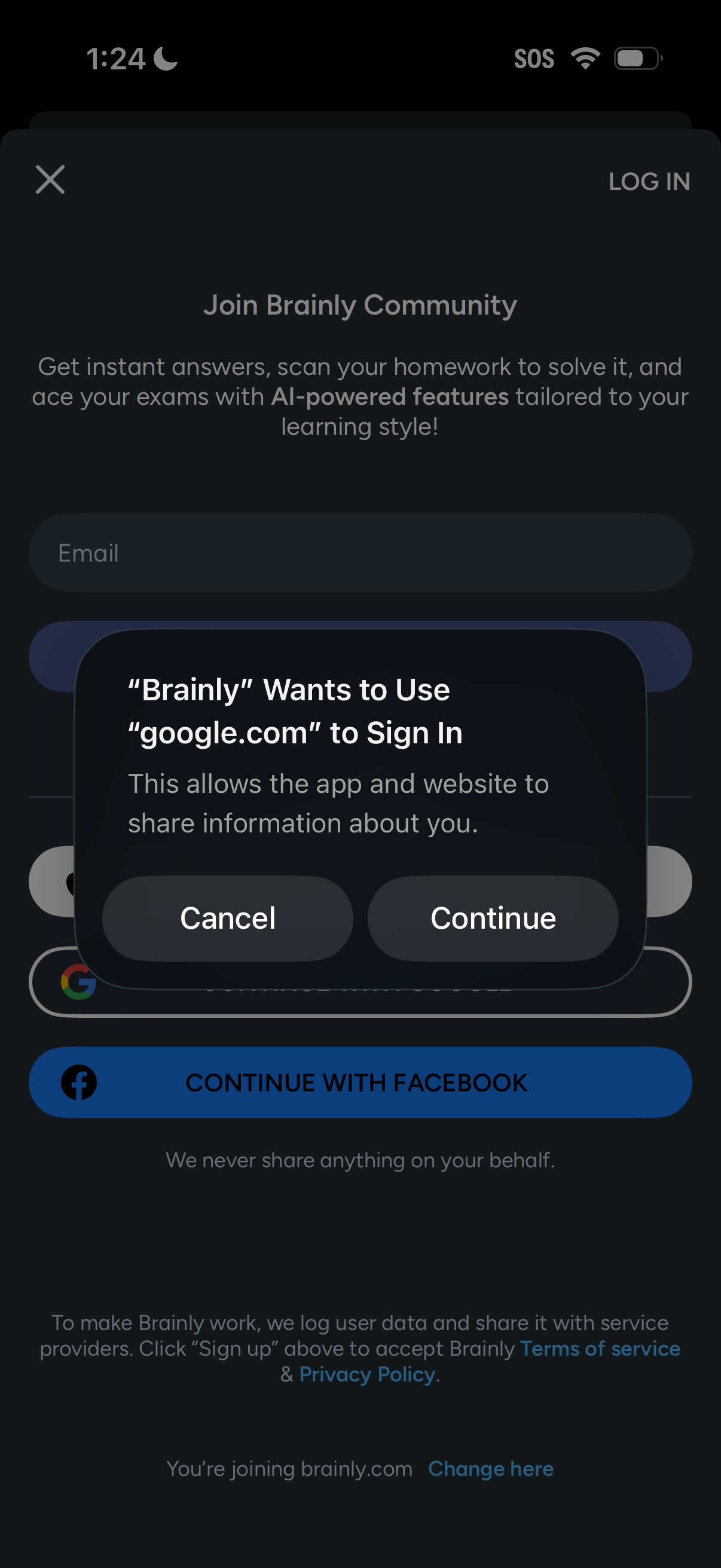
Sign-up/login screen for an education homework-help app prompting users to join the community, with an email field and social sign-in options like Google and Facebook. An iOS system permission modal overlays the page asking to allow Google OAuth sign-in with Cancel and Continue actions.
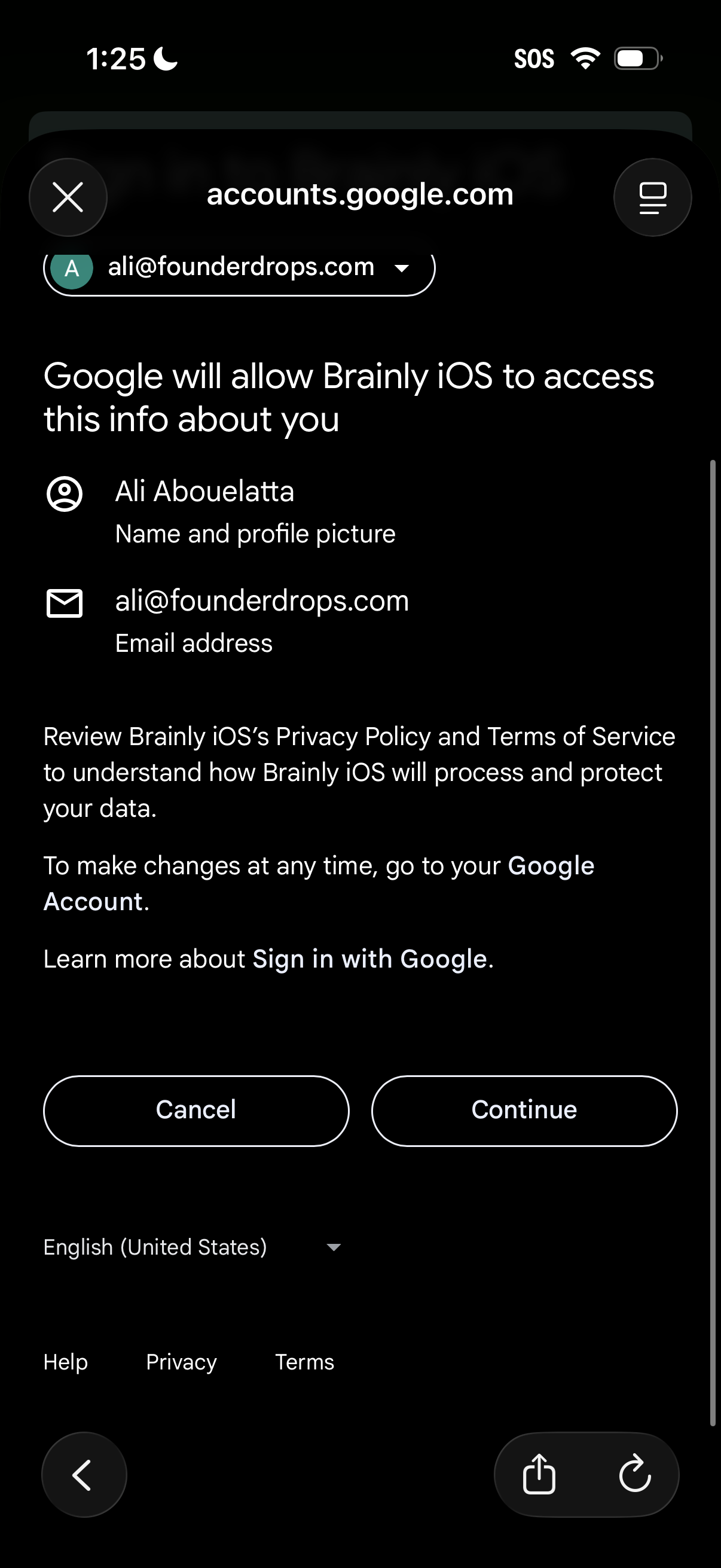
Google Sign-In OAuth consent screen in a mobile web view showing what account data an app will access (name/profile picture and email address) with options to cancel or continue. Includes account selector dropdown, links to privacy policy/terms, and language selection.
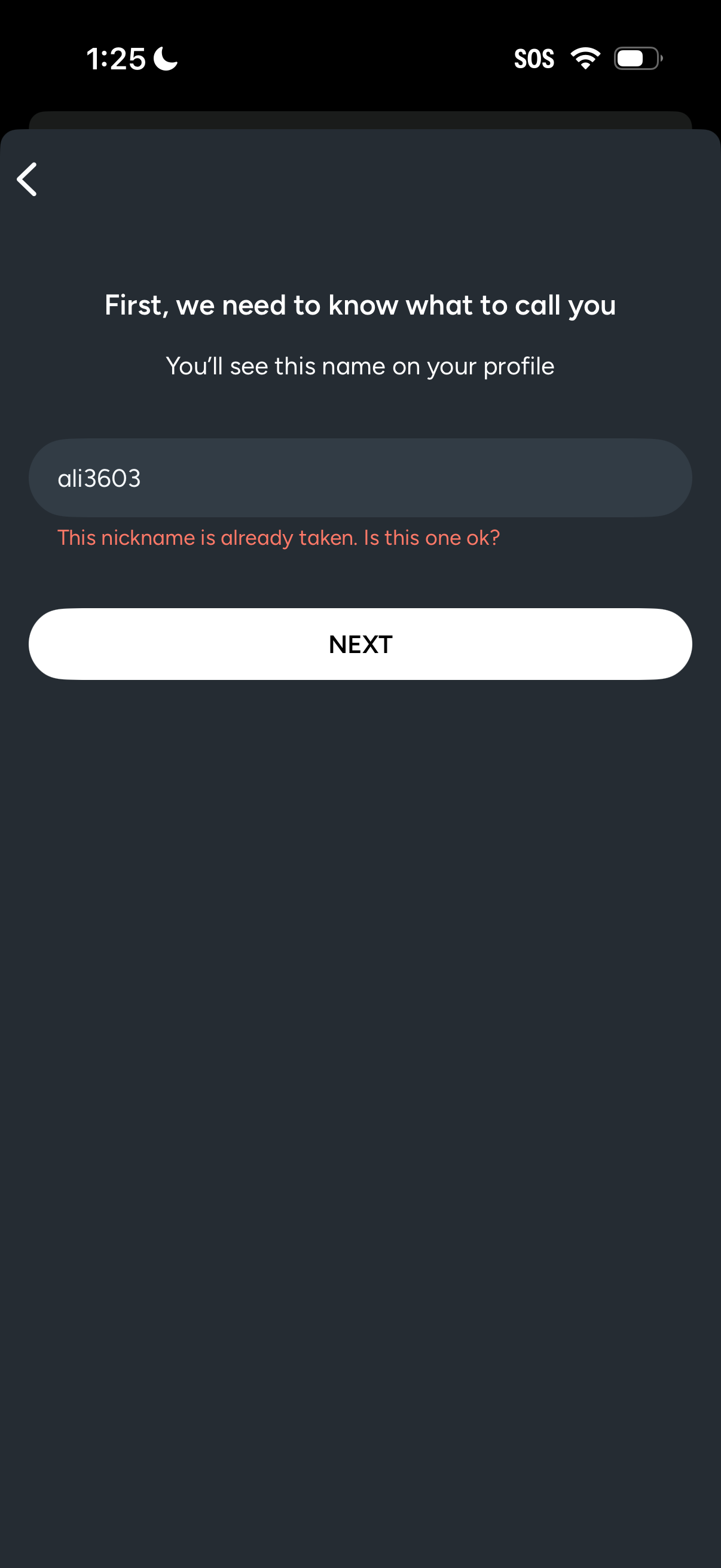
Onboarding profile setup screen prompting the user to choose a display name/nickname, with a text field and inline validation error indicating the nickname is already taken. Primary action is a “Next” button with a back navigation option.
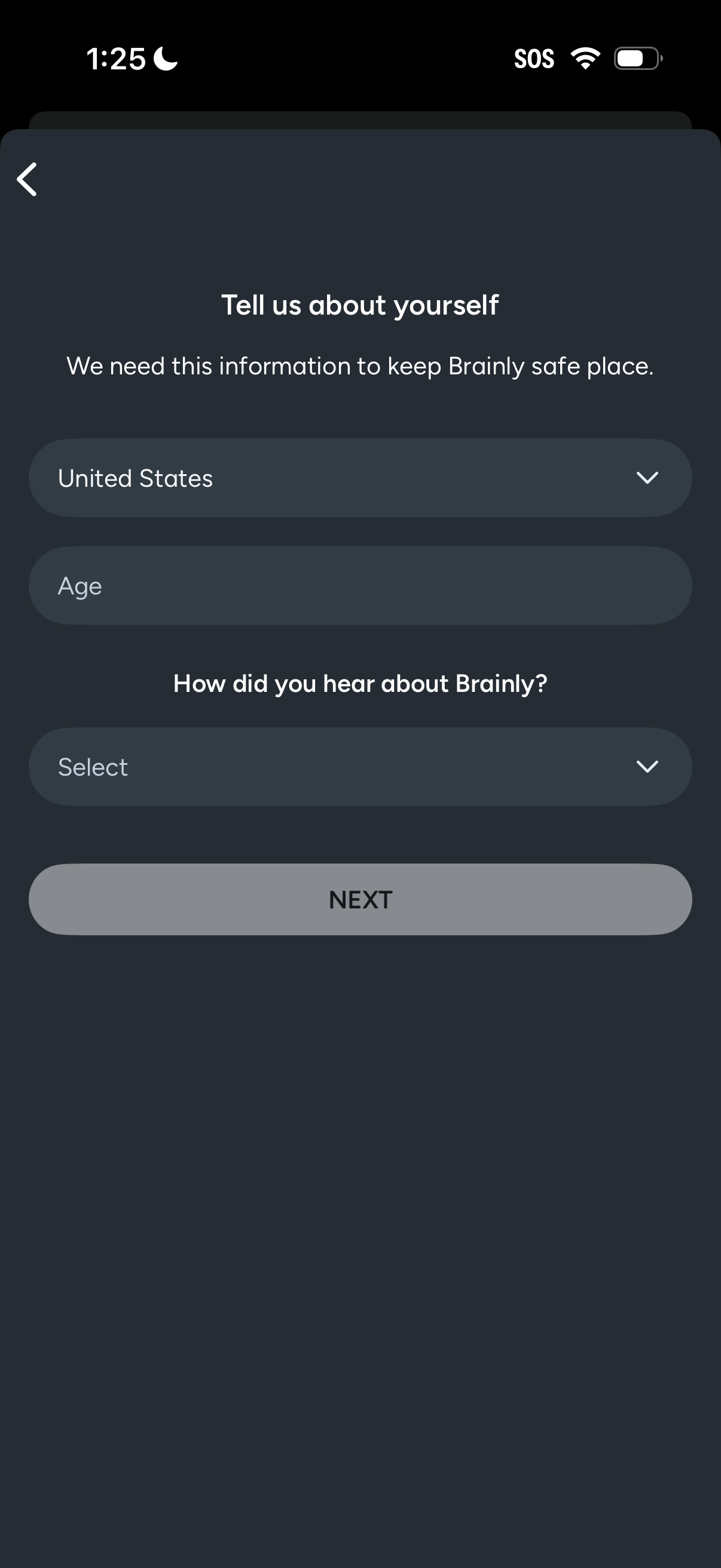
Onboarding profile information form asking the user to tell about themselves for safety, with fields to select country/region, enter age, and choose how they heard about the app from a dropdown. Includes a back arrow and a primary “Next” button to continue registration.
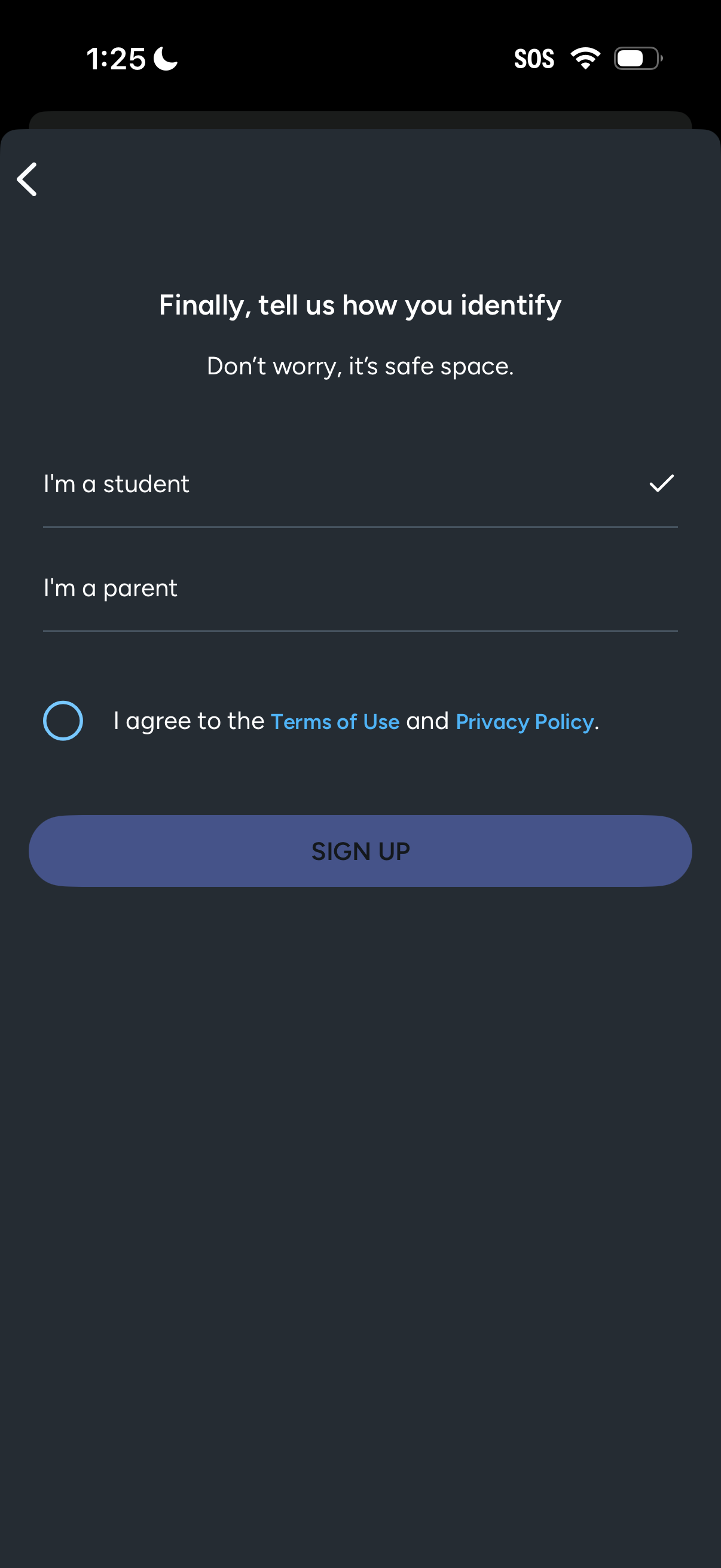
Sign-up onboarding screen asking the user to choose how they identify (e. g.
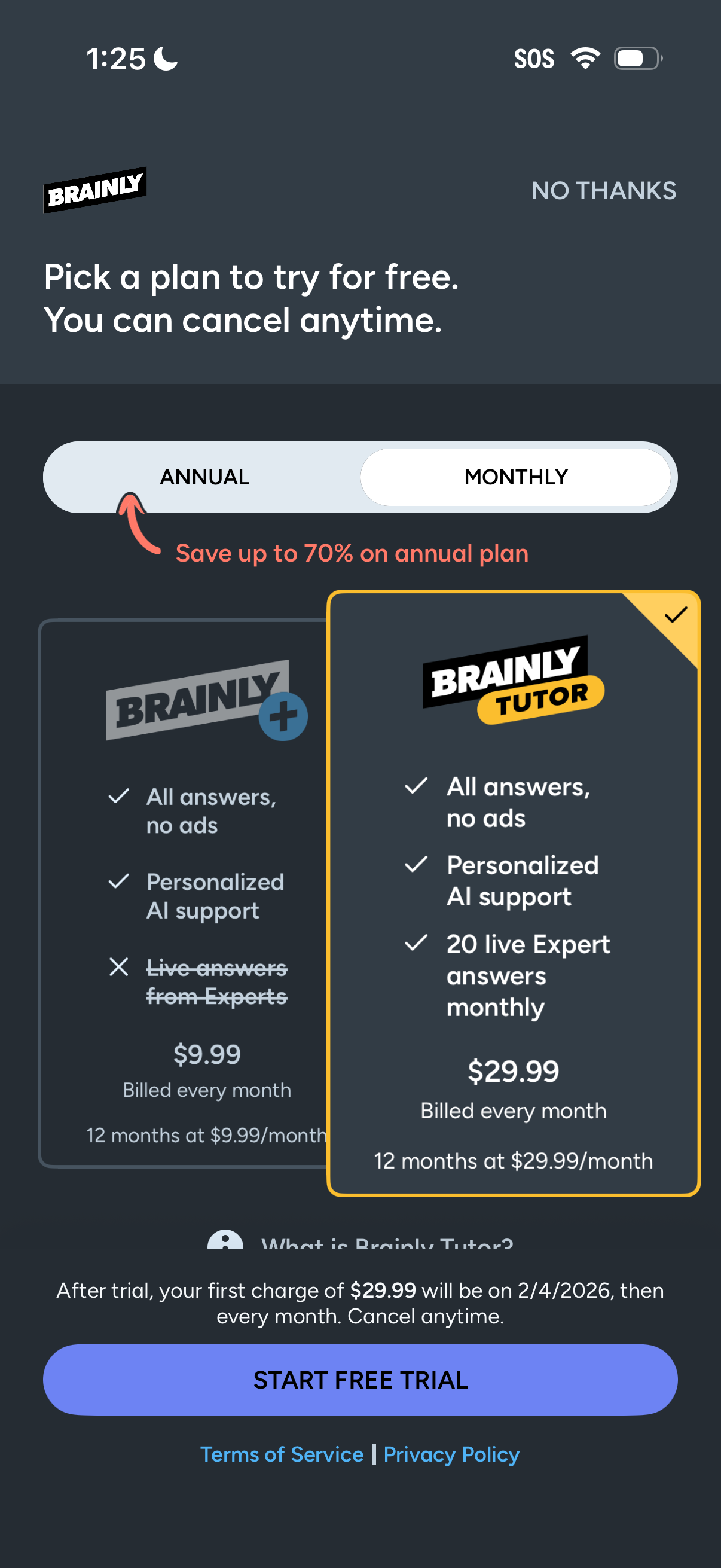
Subscription paywall screen prompting users to pick a free trial plan with an annual/monthly toggle and plan comparison cards showing features (answers/no ads, AI support, live expert answers), pricing and billing terms. Includes “Start free trial” primary CTA, a “No thanks” dismissal option, savings message for annual, and links to terms/privacy.
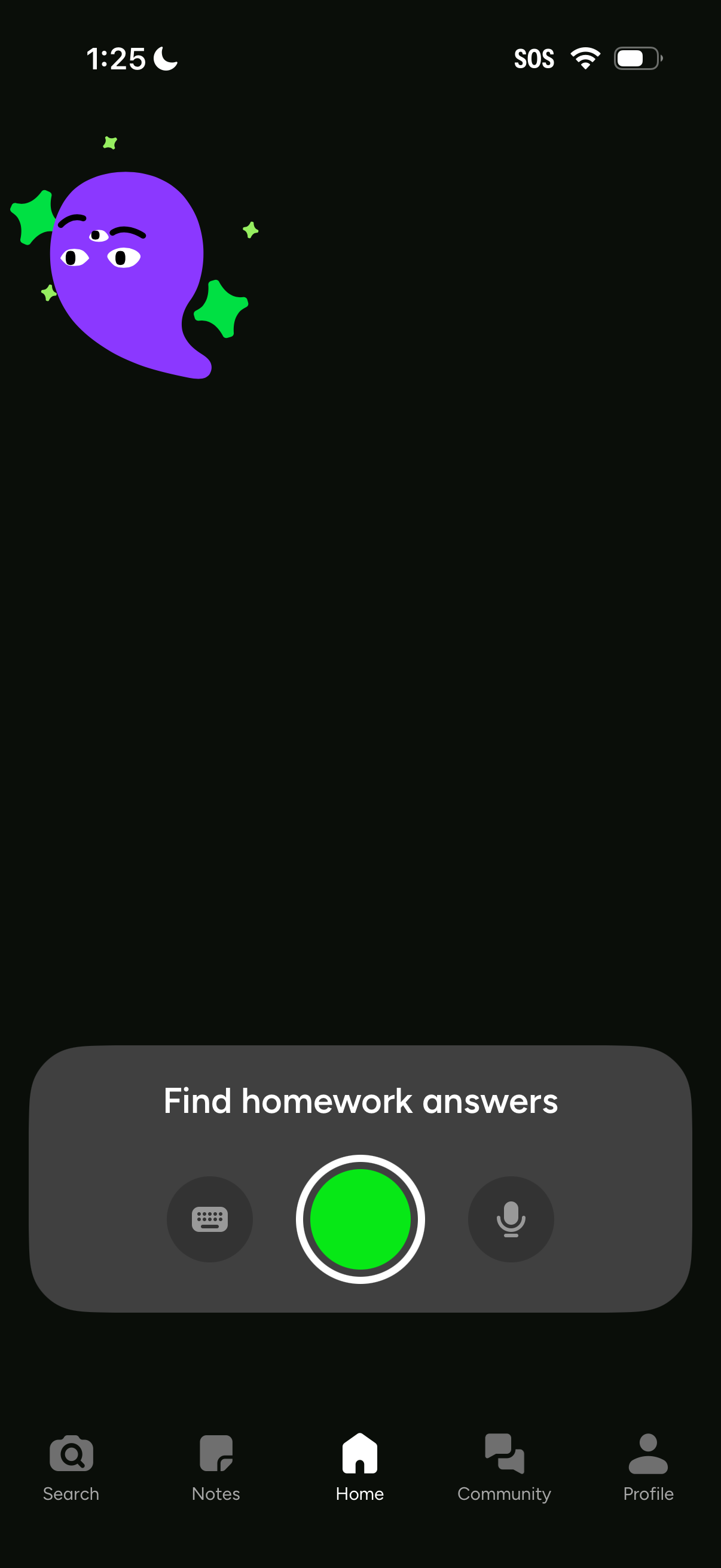
Home screen of a homework help app centered on “Find homework answers,” featuring a large camera capture button for scanning questions plus quick actions for typing with keyboard or using voice input. Bottom tab navigation includes Search, Notes, Home, Community, and Profile.
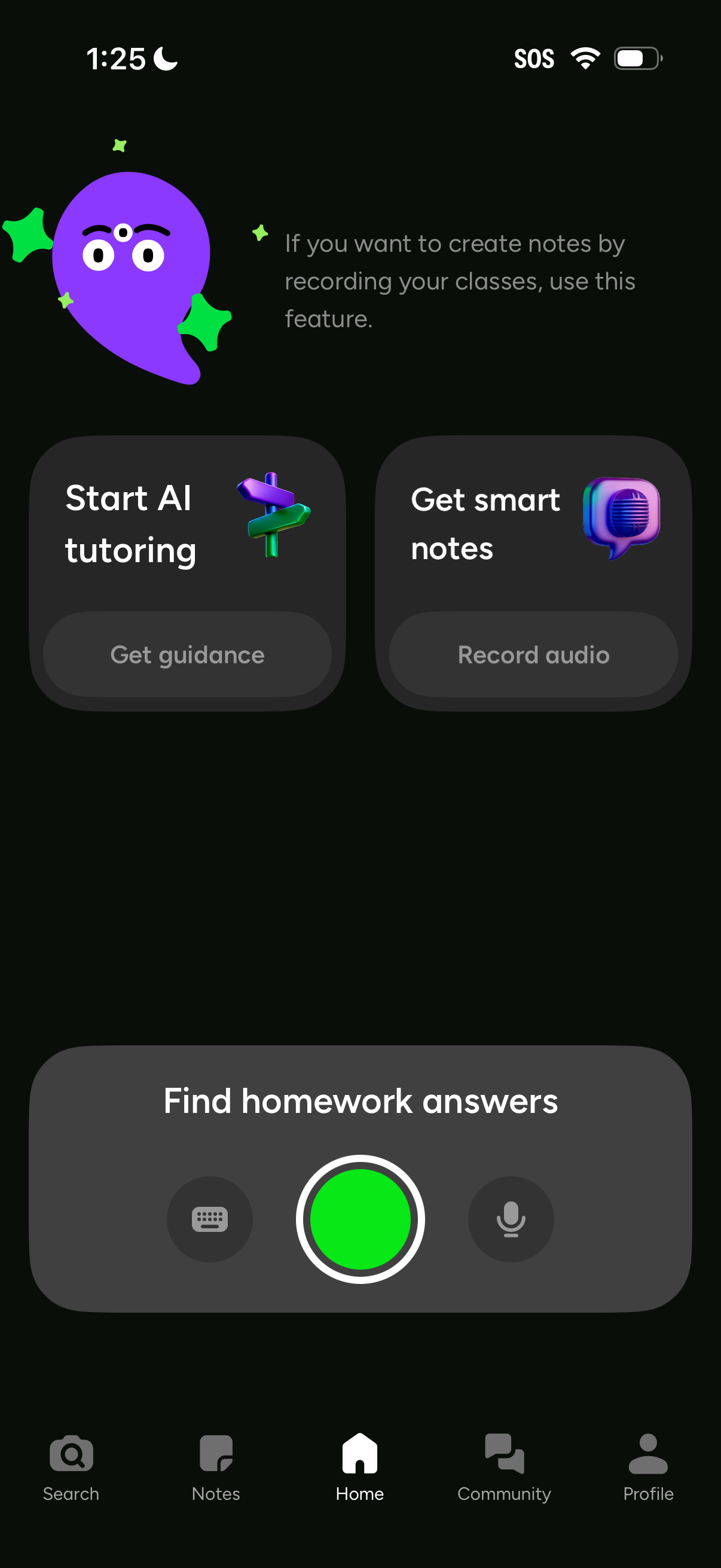
Home screen of an AI study assistant offering quick actions to start AI tutoring or generate smart notes by recording class audio. A prominent “Find homework answers” input with microphone and keyboard options is paired with bottom navigation for Search, Notes, Home, Community, and Profile.
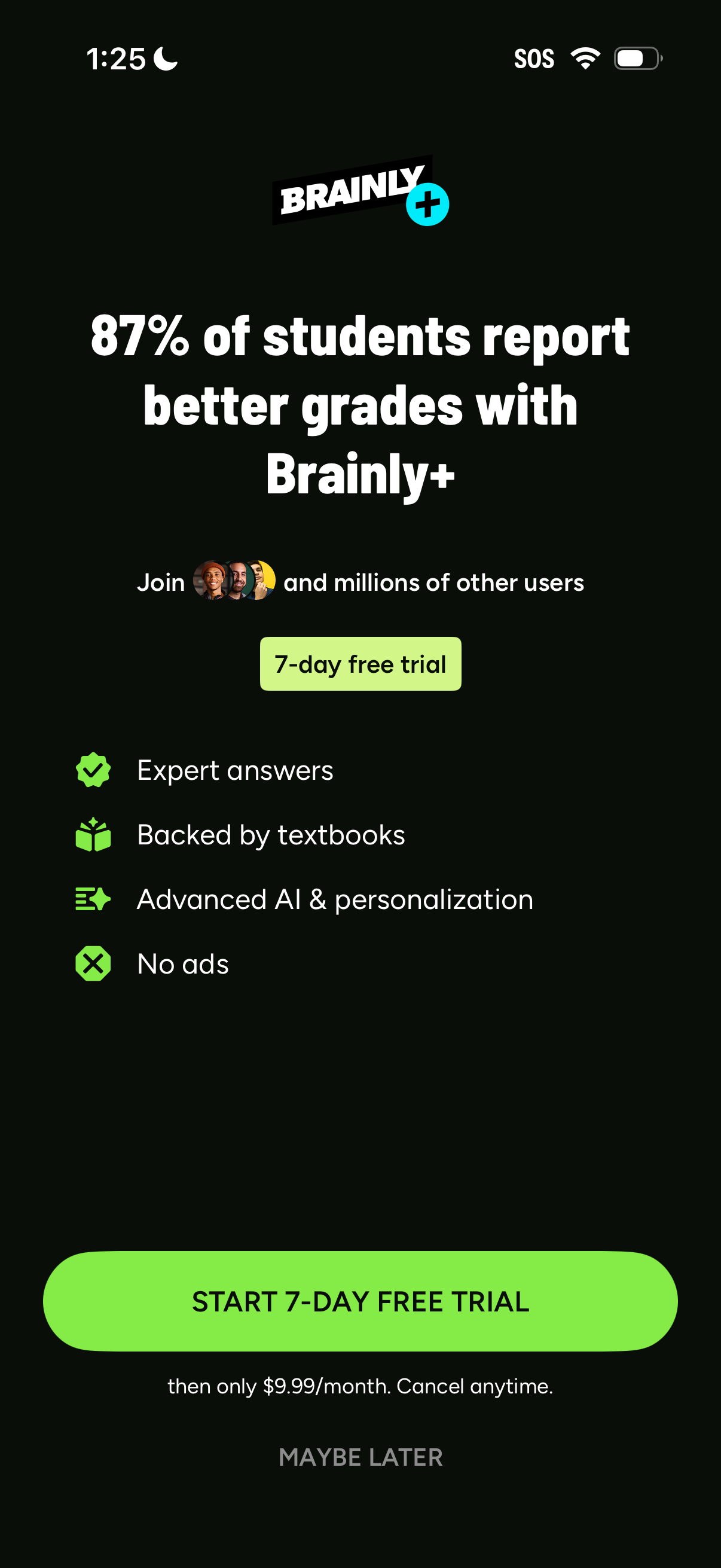
Subscription upsell paywall for an education/study help app promoting Brainly+, highlighting benefits like expert answers, textbook-backed content, AI personalization, and no ads. Primary CTA starts a 7-day free trial with pricing details and a secondary “Maybe later” option to dismiss.