Onboarding
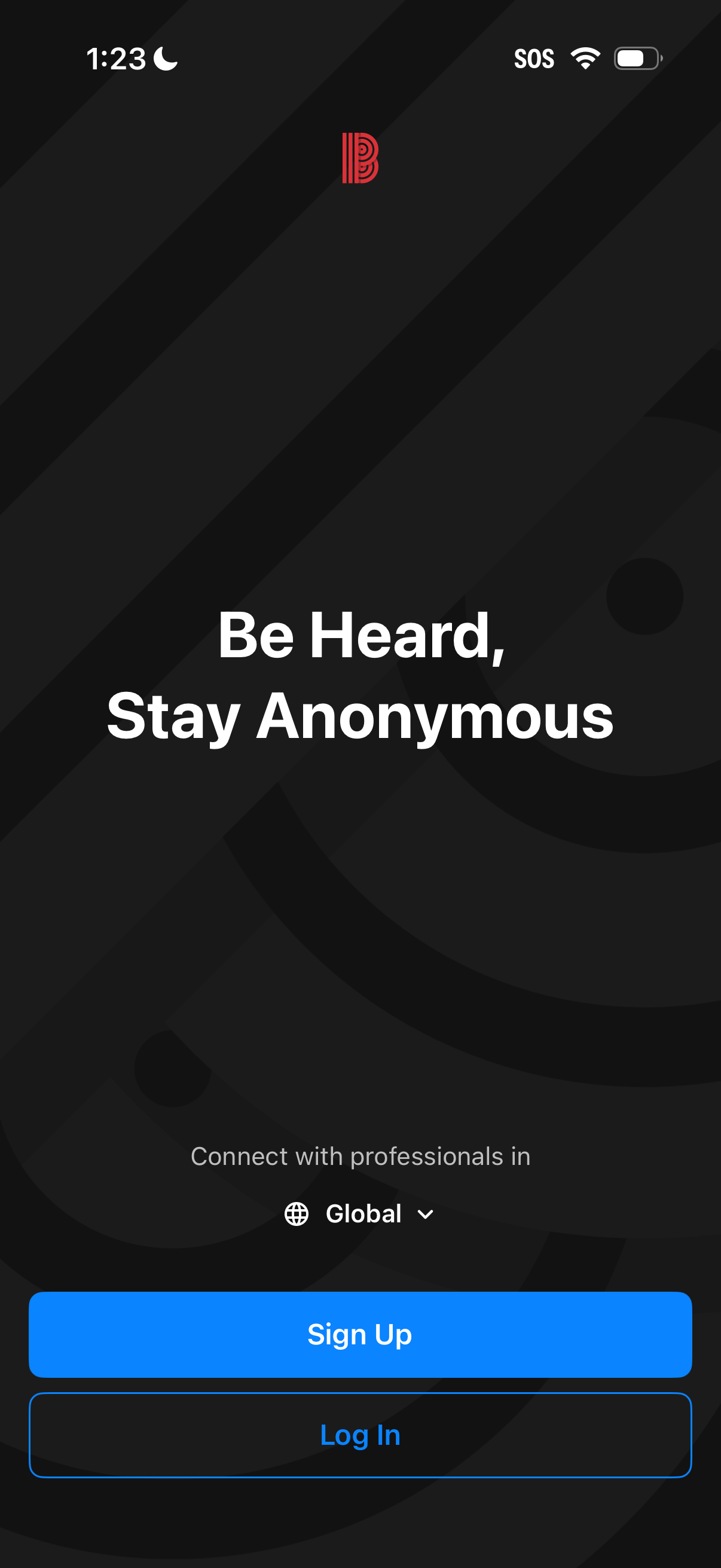
App welcome/onboarding landing screen promoting anonymous communication with a tagline and a region selector (Global). Primary actions are prominent Sign Up and secondary Log In buttons for account access.
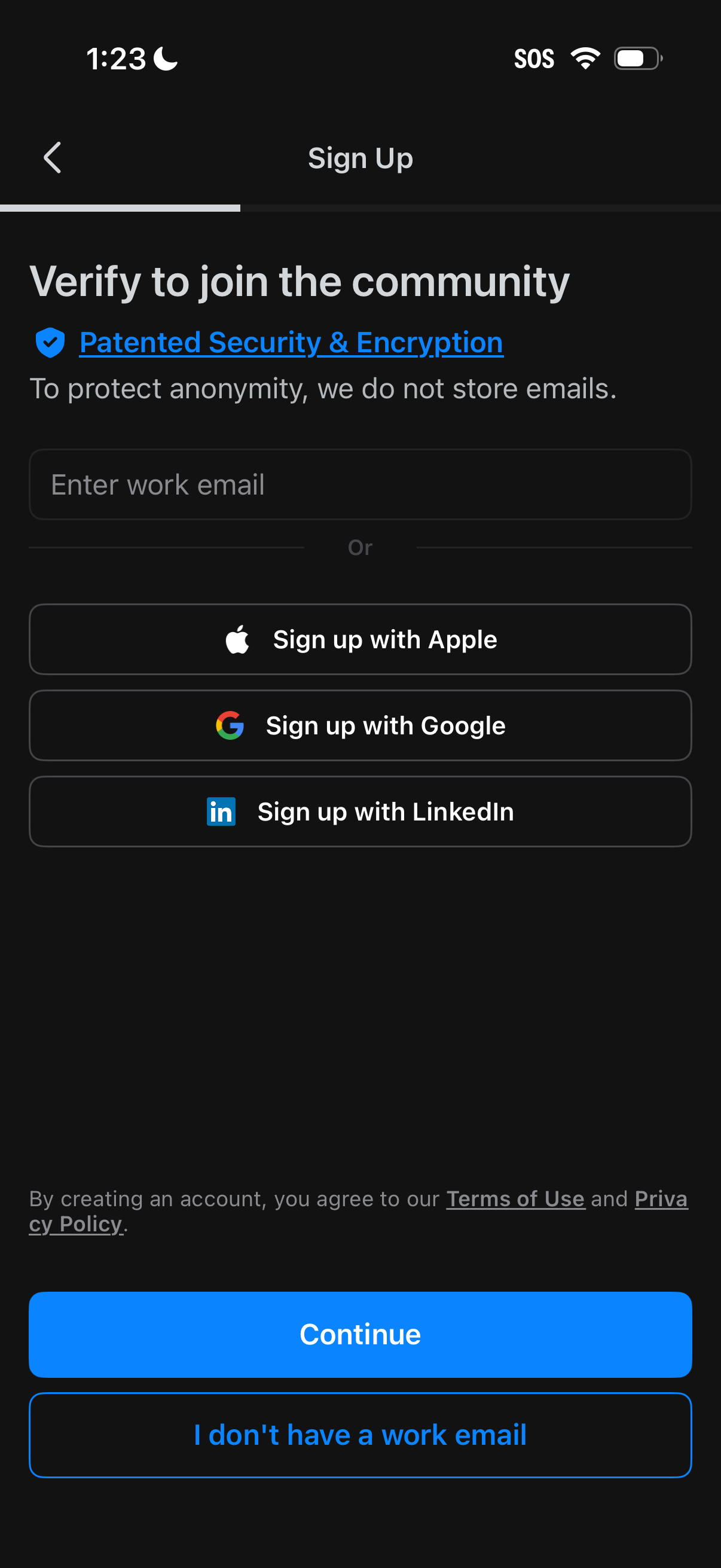
Sign up and verification screen prompting users to enter a work email to join a community, with messaging about security, encryption, and anonymity. Offers alternative SSO options to sign up with Apple, Google, or LinkedIn, plus primary actions to Continue or indicate “I don’t have a work email,” along with links to Terms of Use and Privacy Policy.
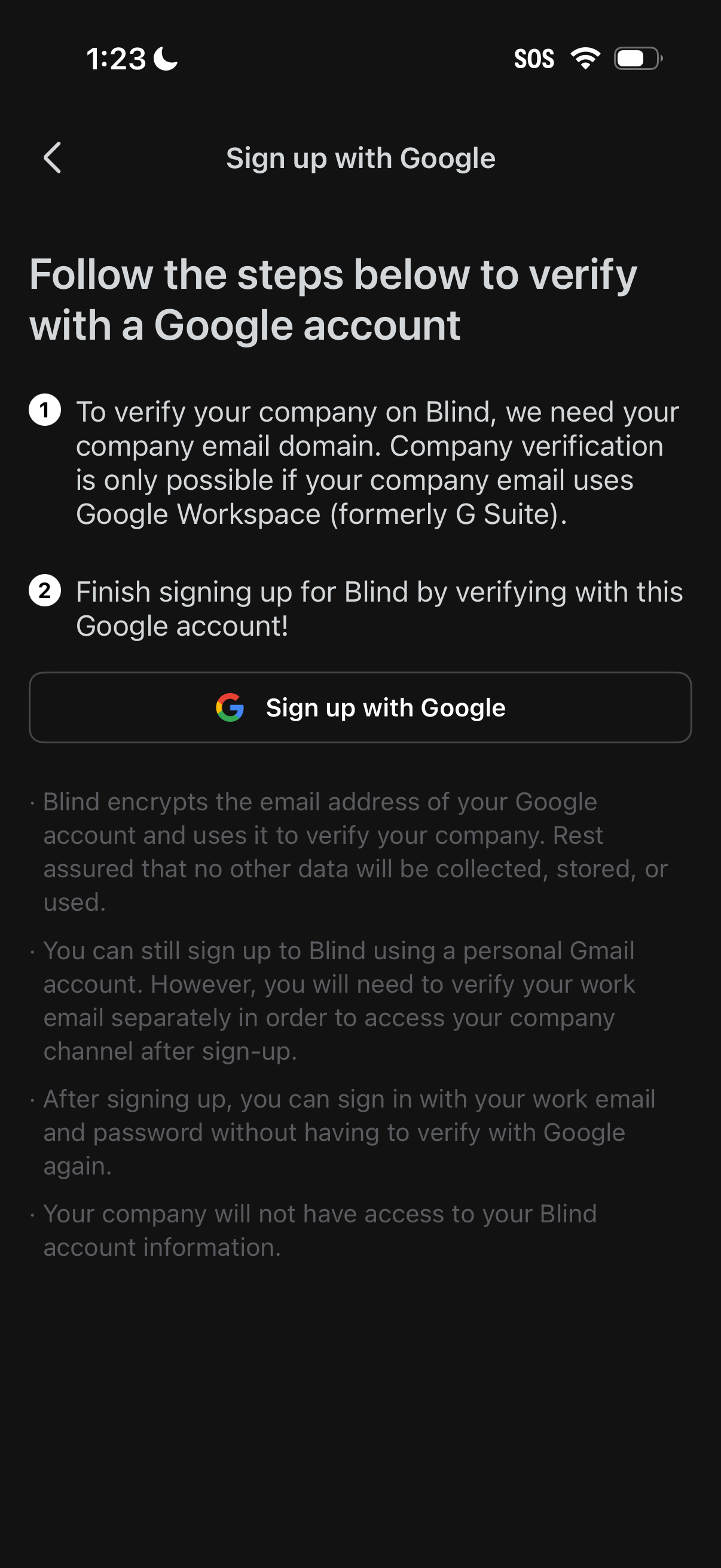
Signup verification screen prompting users to verify their company by signing up with a Google account tied to a Google Workspace company email domain. Provides step-by-step instructions and a primary “Sign up with Google” button to complete account creation and company verification.
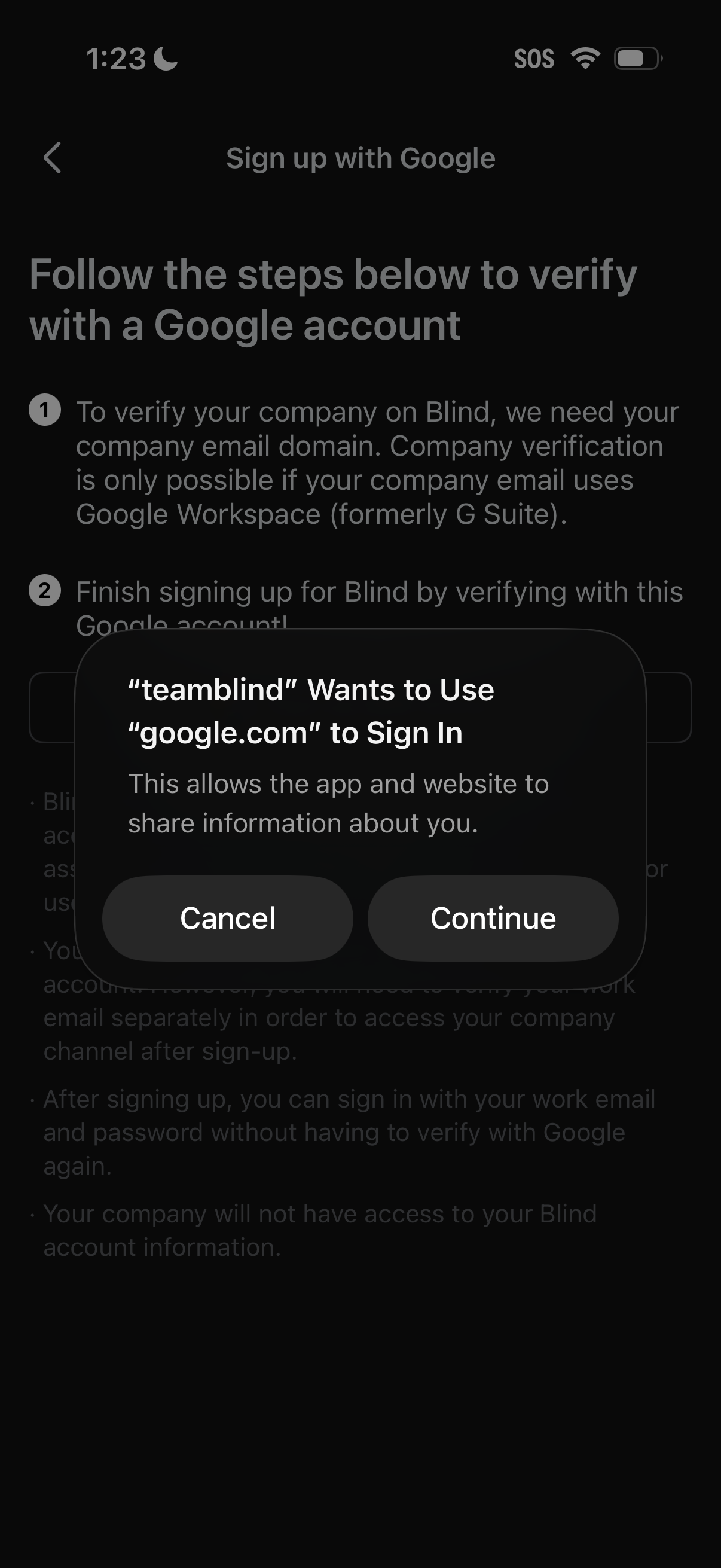
Google account sign-up and verification screen explaining steps to verify a company email domain via Google Workspace, with an iOS permission modal asking to use google. com to sign in.
Full-screen in-app content viewer or webview loading state with a horizontal progress bar and close (X) button in the header. Includes navigation/back controls and a share action in the bottom toolbar for exiting or sharing the viewed content.
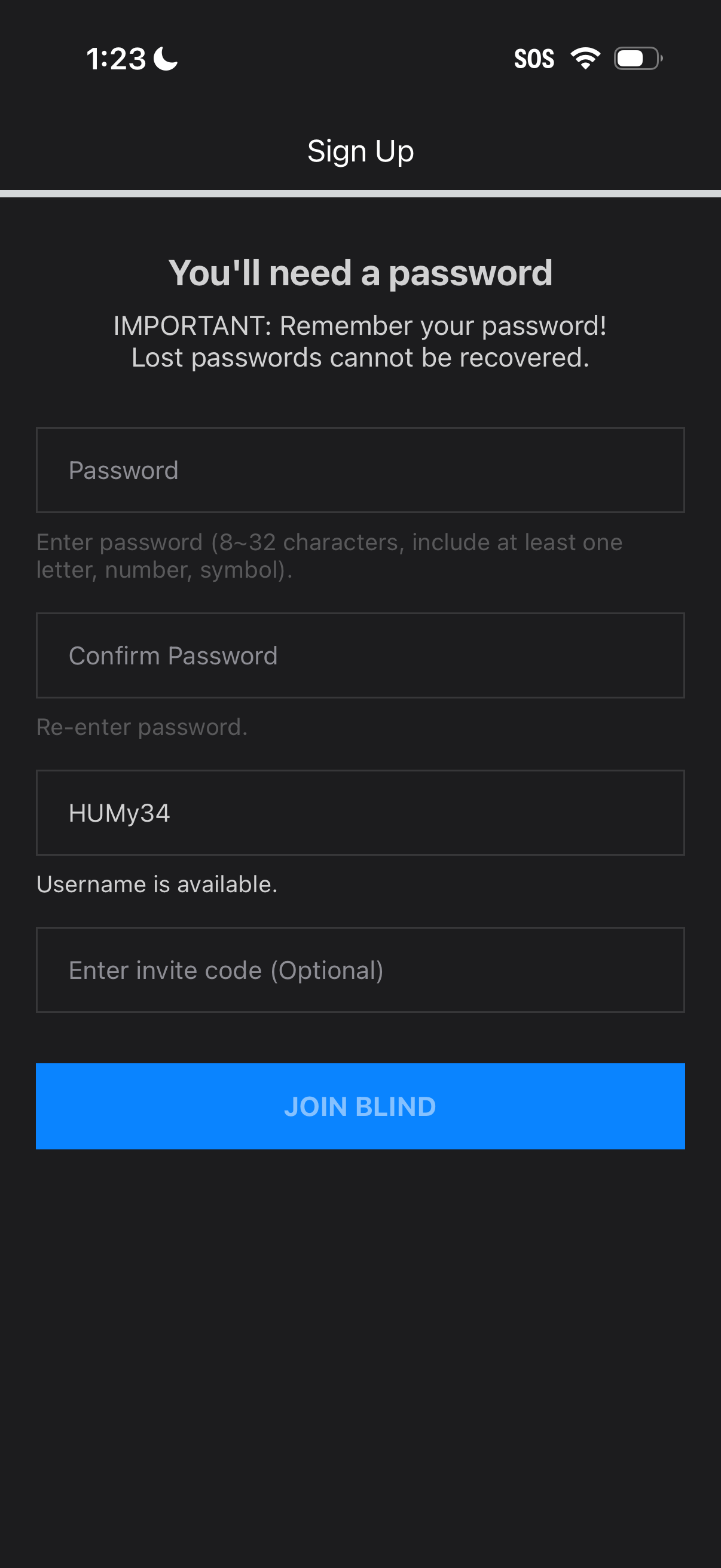
Sign up screen prompting the user to create an account password with guidance on password requirements and a warning that lost passwords can’t be recovered. Includes fields for password, confirm password, username with availability status, optional invite code entry, and a primary “Join” call-to-action button.
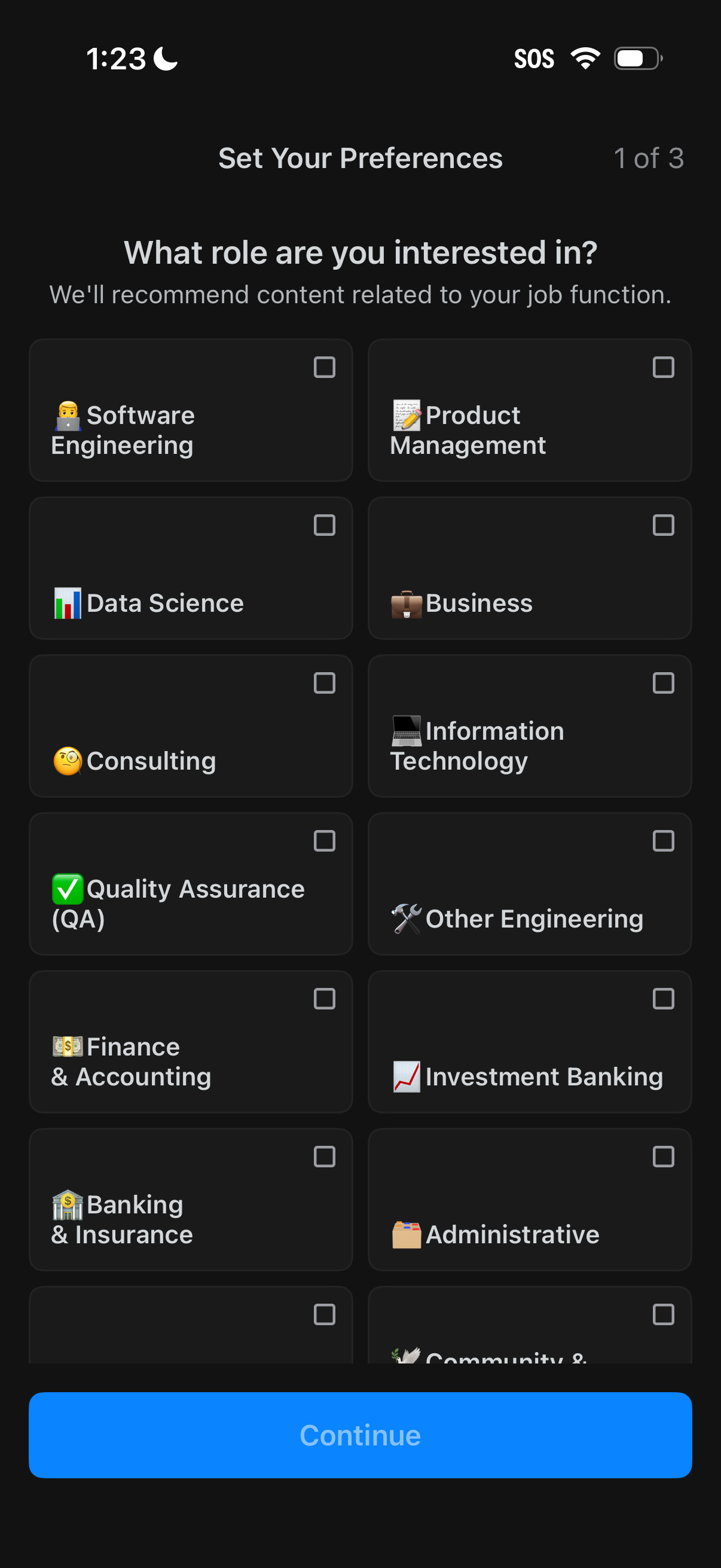
Onboarding preferences screen asking users to select the job roles they’re interested in to personalize recommended content, shown as a multi-select grid of role cards with checkboxes. Includes step indicator (1 of 3) and a primary Continue button to proceed.
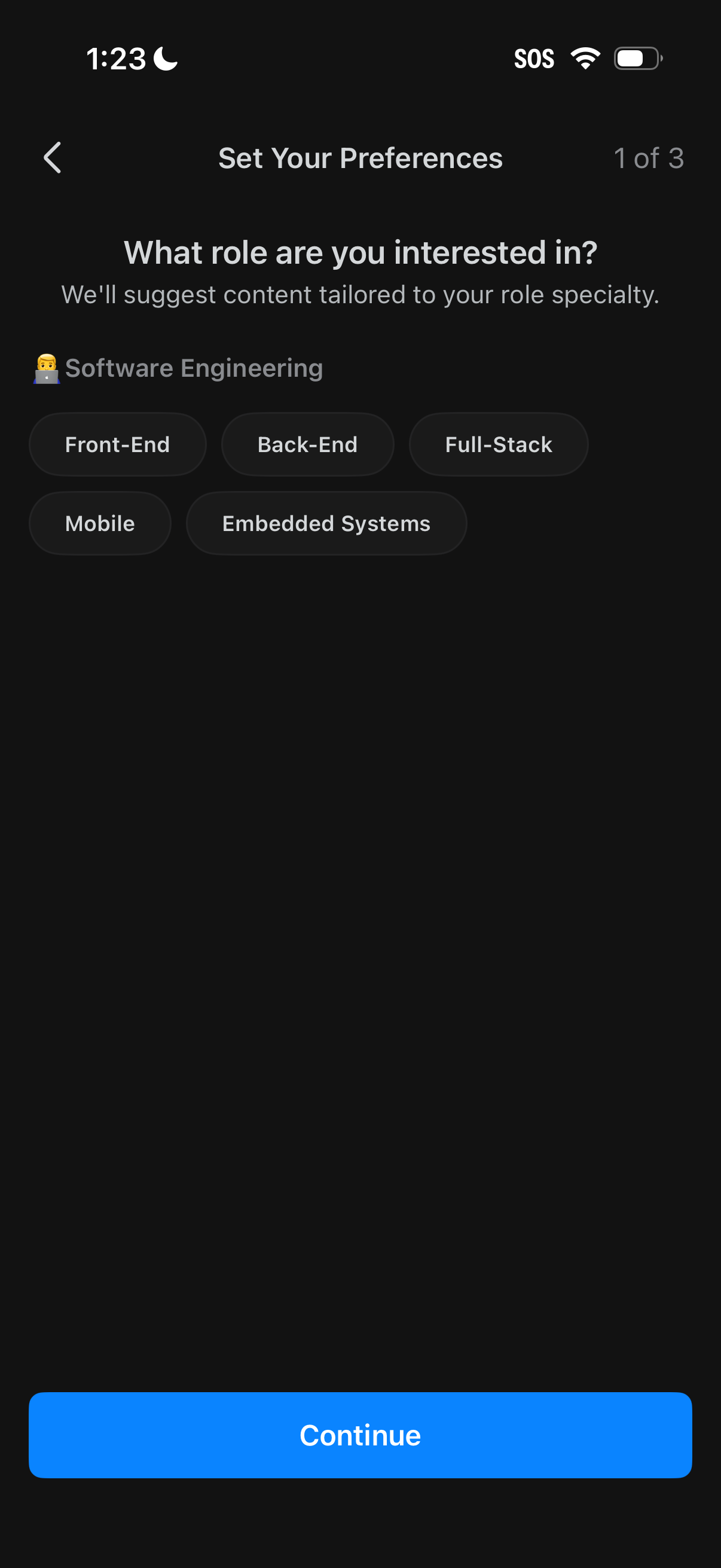
Onboarding preference setup screen asking the user what role they’re interested in to personalize suggested content, with selectable chips for software engineering specialties (Front-End, Back-End, Full-Stack, Mobile, Embedded Systems). Includes step indicator (1 of 3), back navigation, and a primary Continue button to proceed.
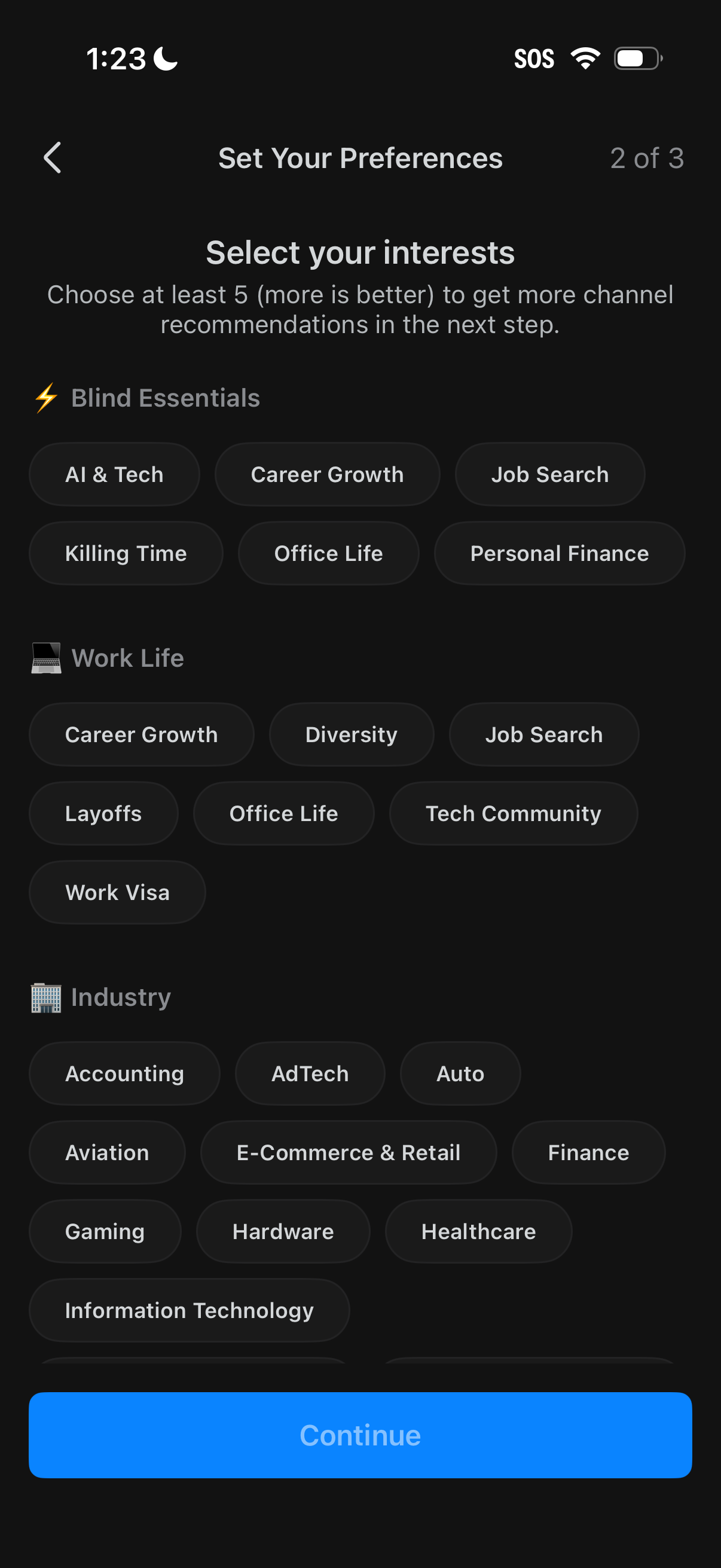
Onboarding preferences screen prompting users to select at least five interests from categorized pill tags (e. g.
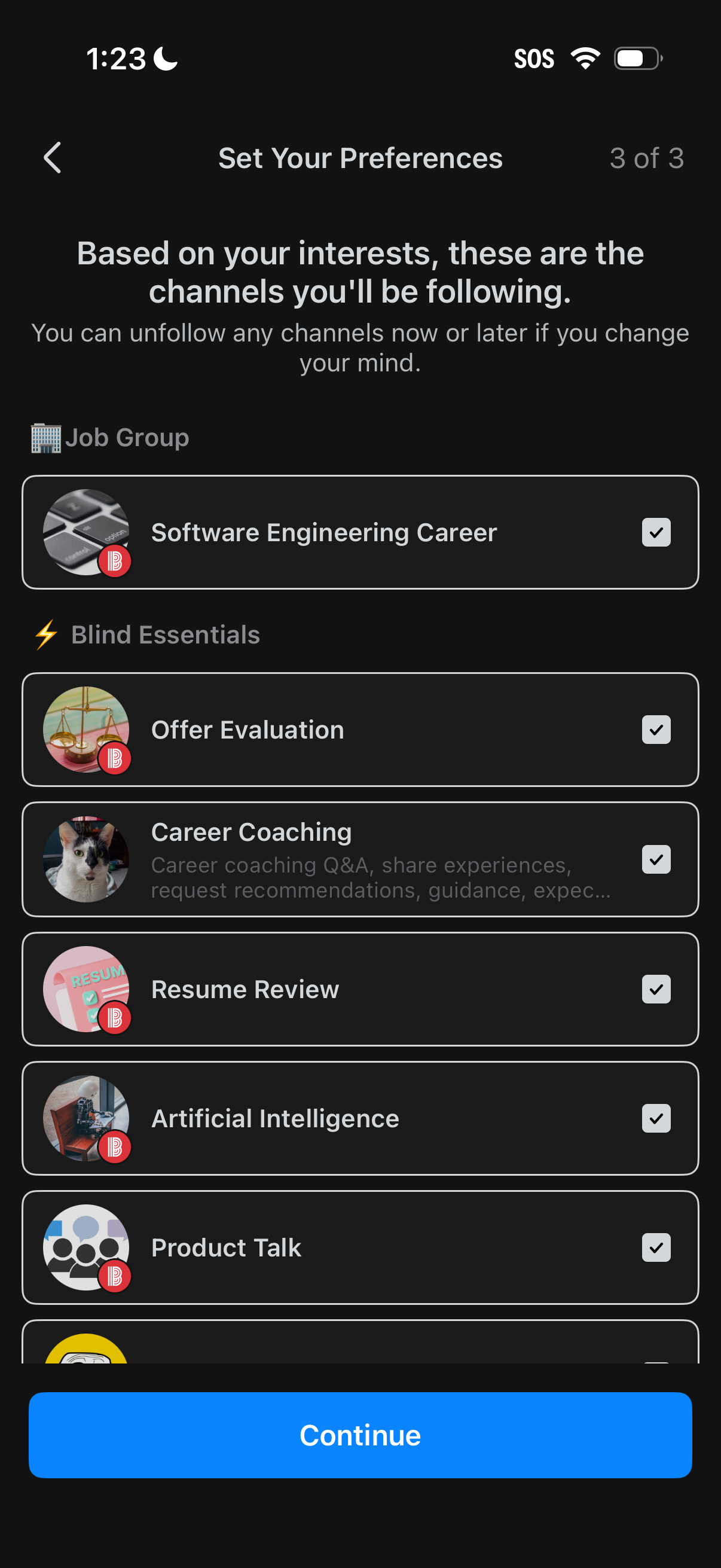
Preference setup screen (step 3 of 3) showing recommended discussion channels to follow based on selected interests, with a scrollable list of channel cards and checkmarks to unfollow or toggle selections. A primary Continue button completes onboarding and confirms the chosen channels.
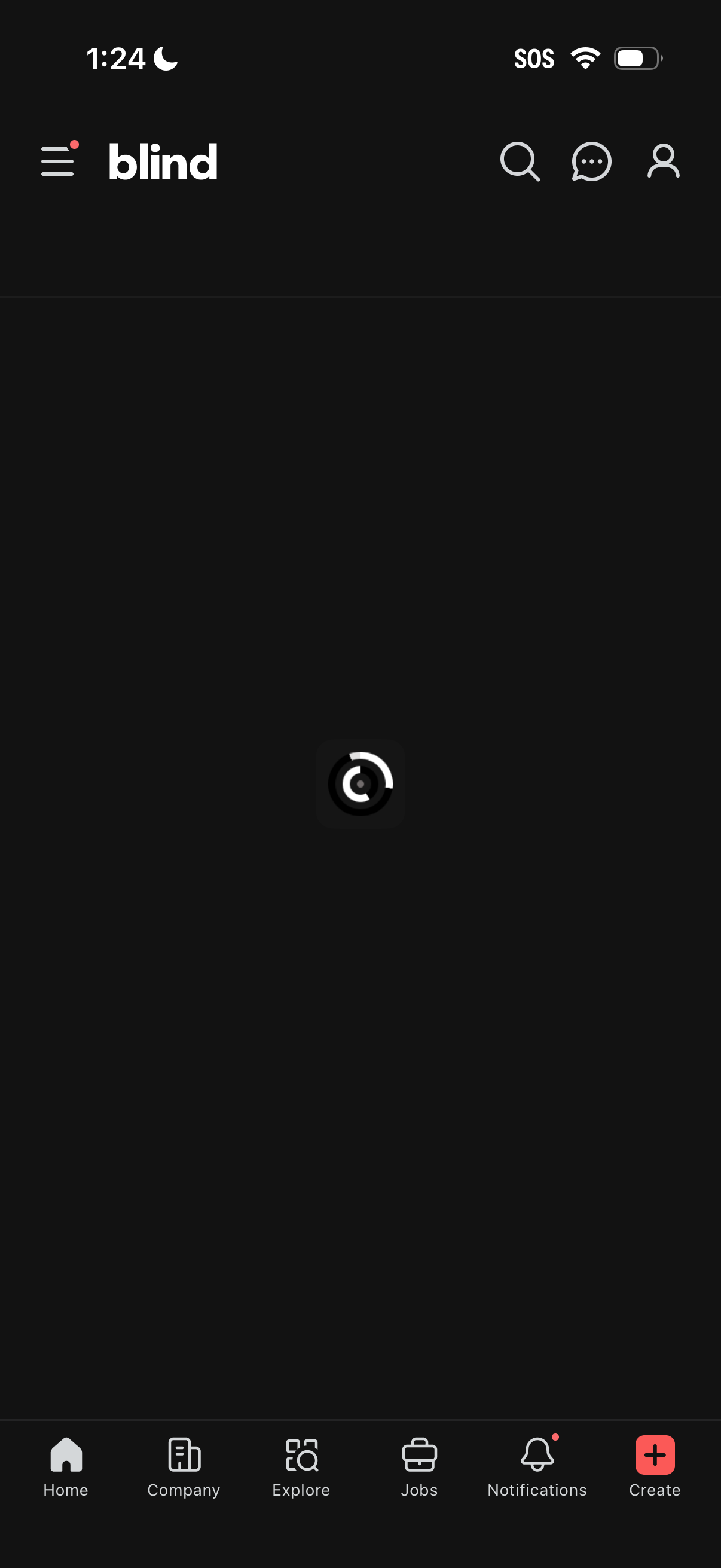
Dark-mode home feed loading screen for a professional anonymous community app, showing a central spinner while content loads. Top navigation includes hamburger menu, search, messages, and profile, with a bottom tab bar for Home, Company, Explore, Jobs, Notifications, and a Create (+) action.
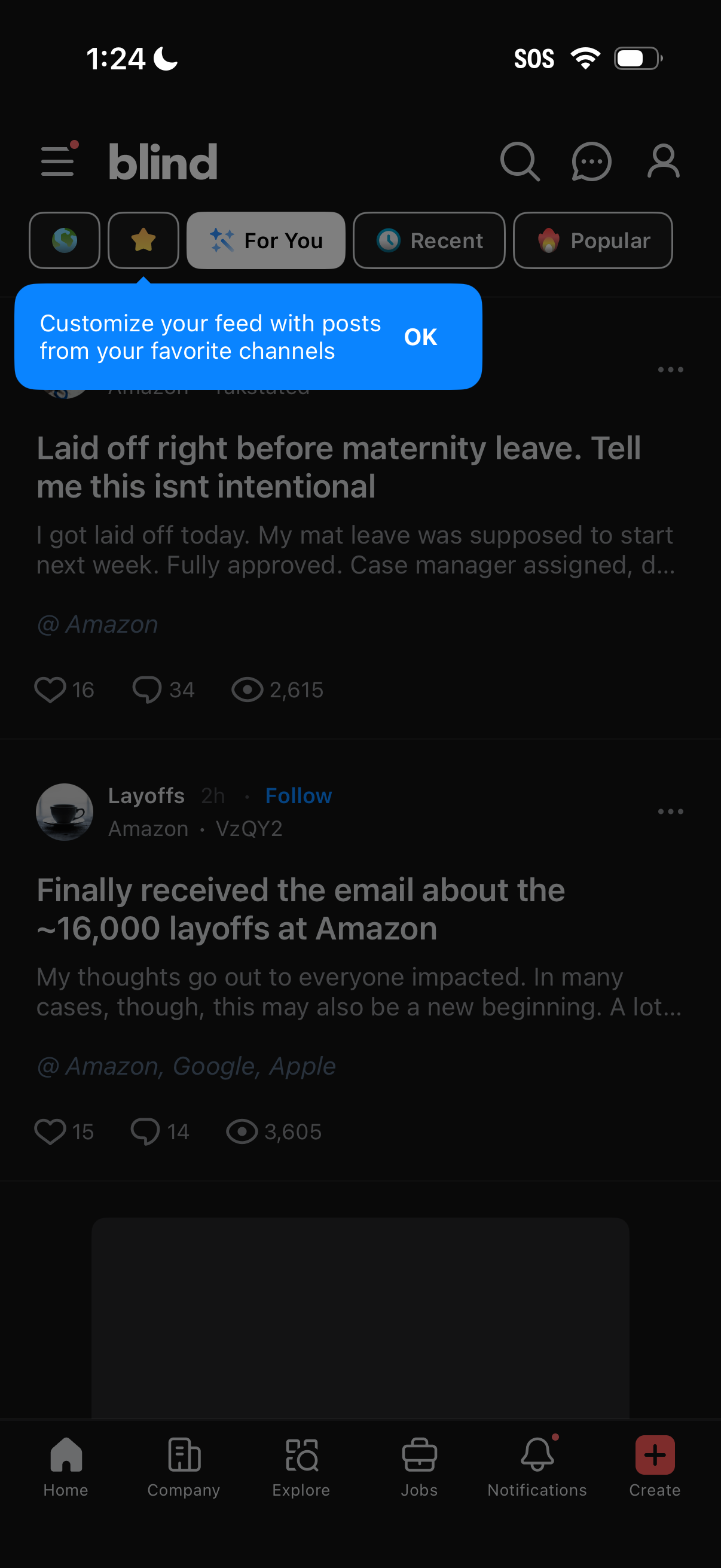
Social/community app home feed showing a “For You” timeline with tabs for For You, Recent, and Popular plus a channel filter row, and a banner tip prompting users to customize their feed with an OK button. The feed displays post cards with channel name and follow action, engagement stats (likes, comments, views), and top-right icons for search, messages, and profile along with a bottom navigation bar (Home, Company, Explore, Jobs, Notifications, Create).
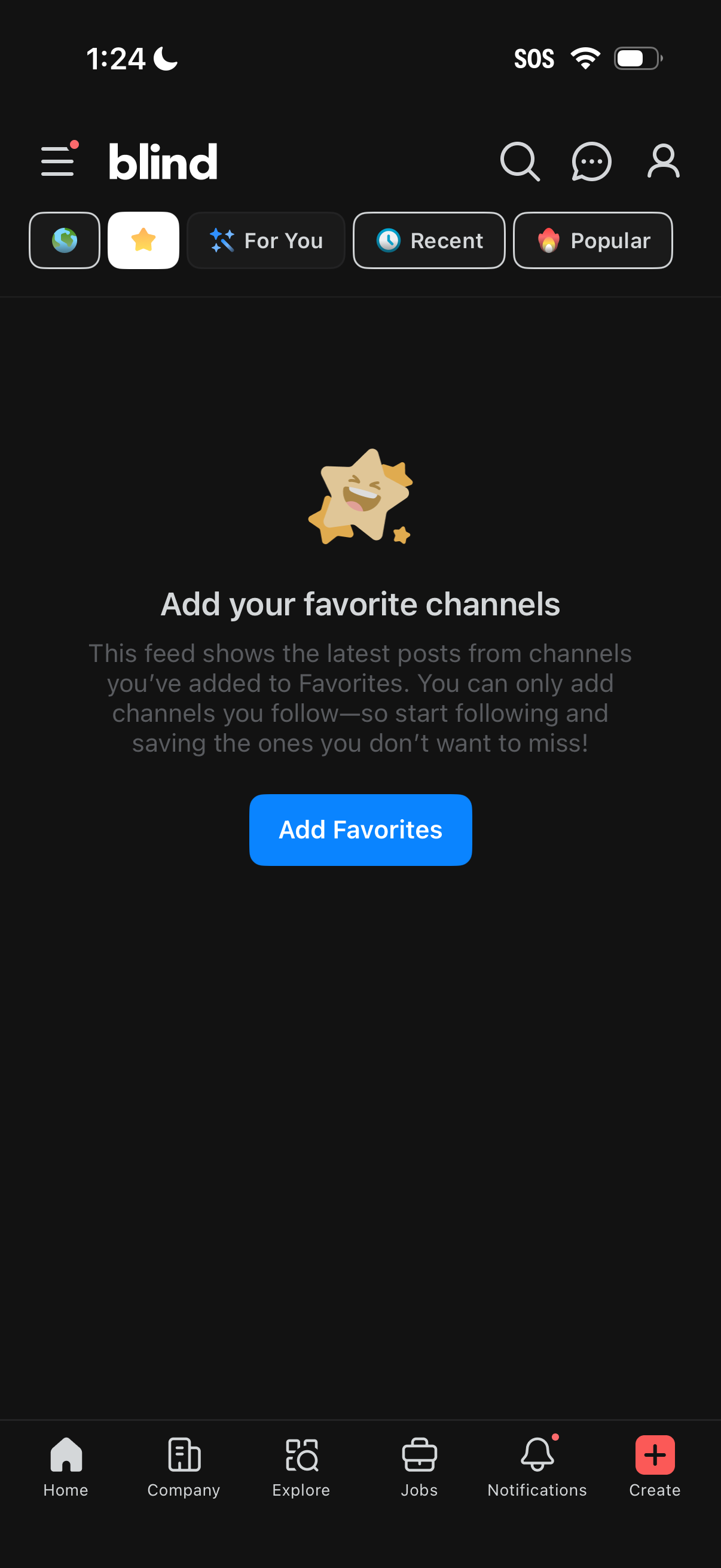
Empty state on a community feed prompting the user to add favorite channels, with a primary “Add Favorites” call to action. Includes feed filter tabs (For You, Recent, Popular) and top-bar actions for menu, search, messages, and profile alongside a bottom navigation bar.