Onboarding
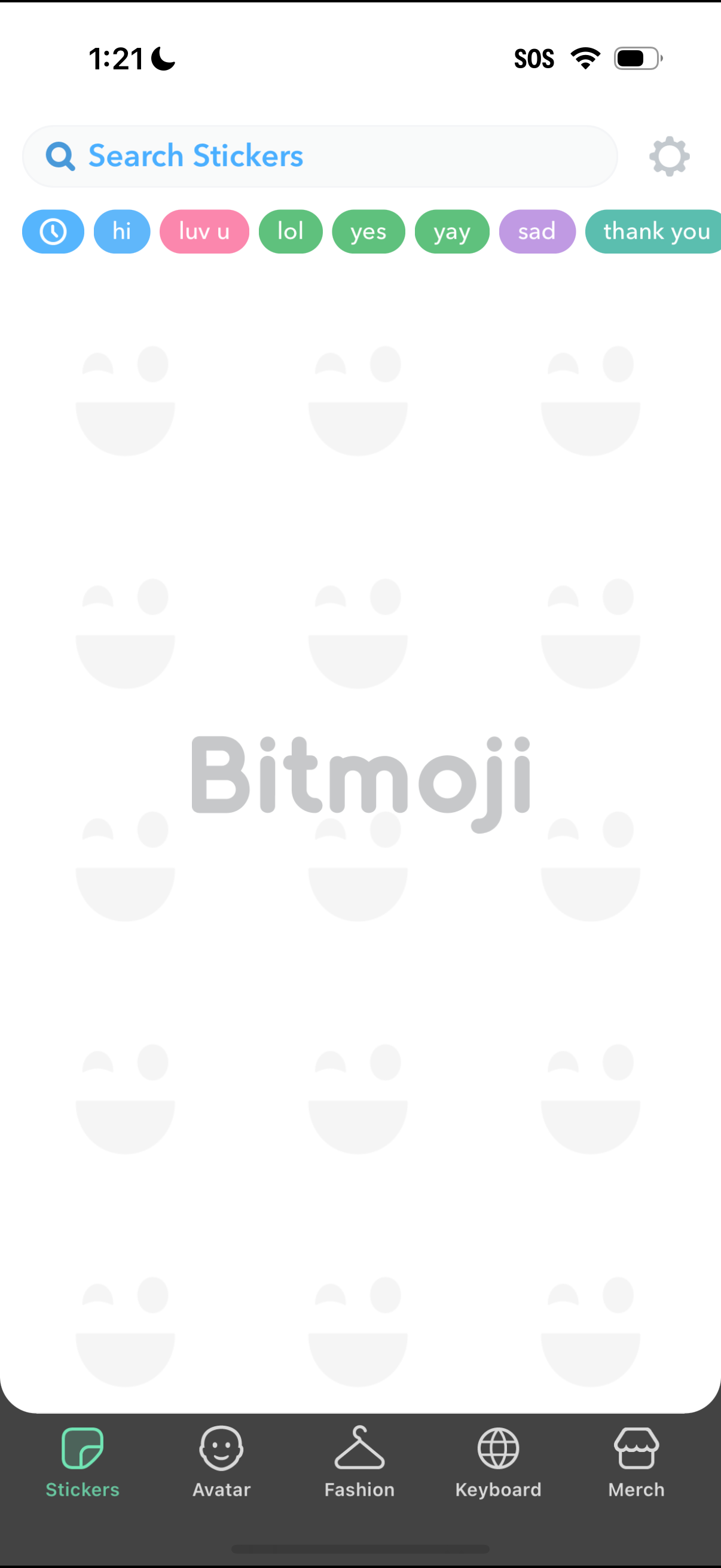
Sticker search and discovery screen for an avatar/emoji app, featuring a “Search Stickers” bar with quick filter chips (e. g.
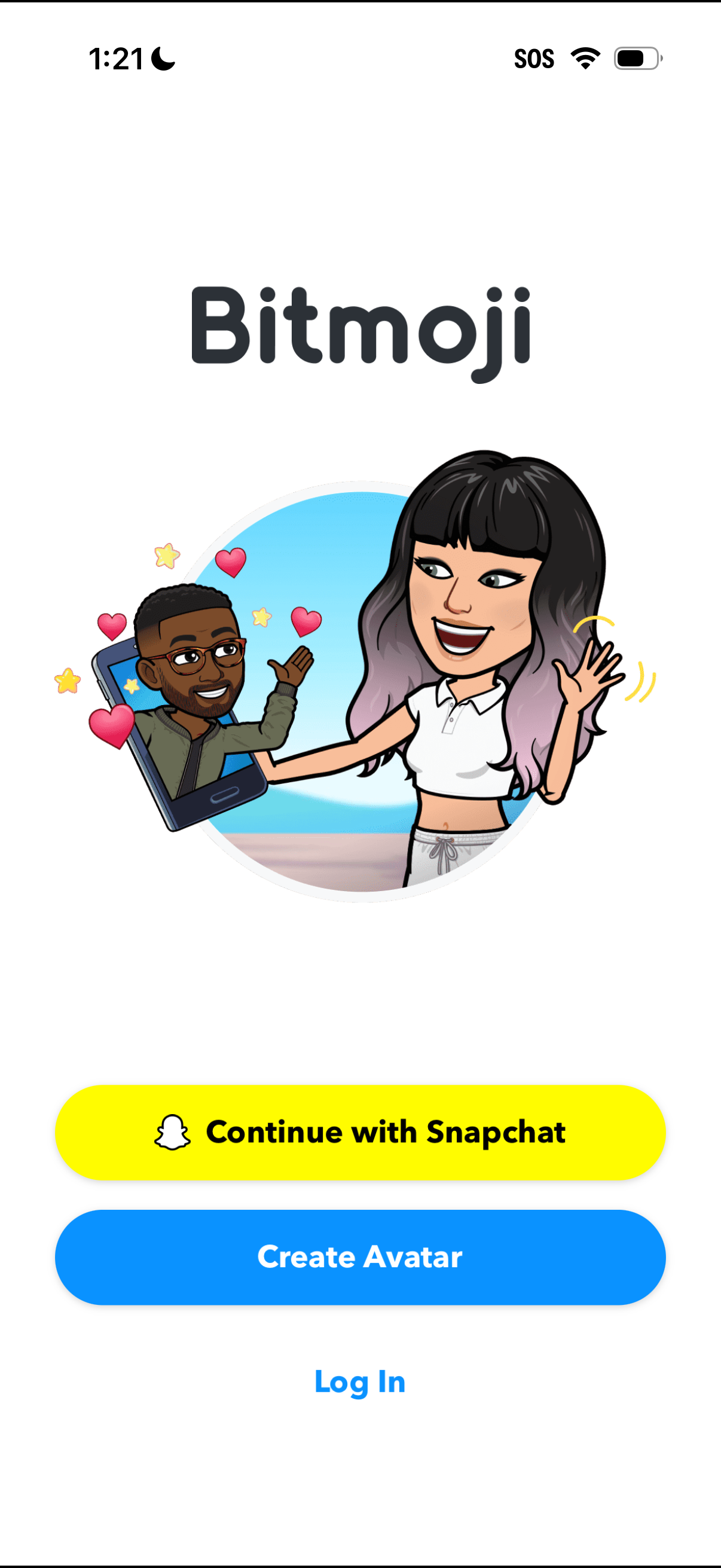
Bitmoji welcome/auth screen offering sign-in options and onboarding entry points. Primary actions include continuing with Snapchat (SSO), creating a new avatar, or logging in.
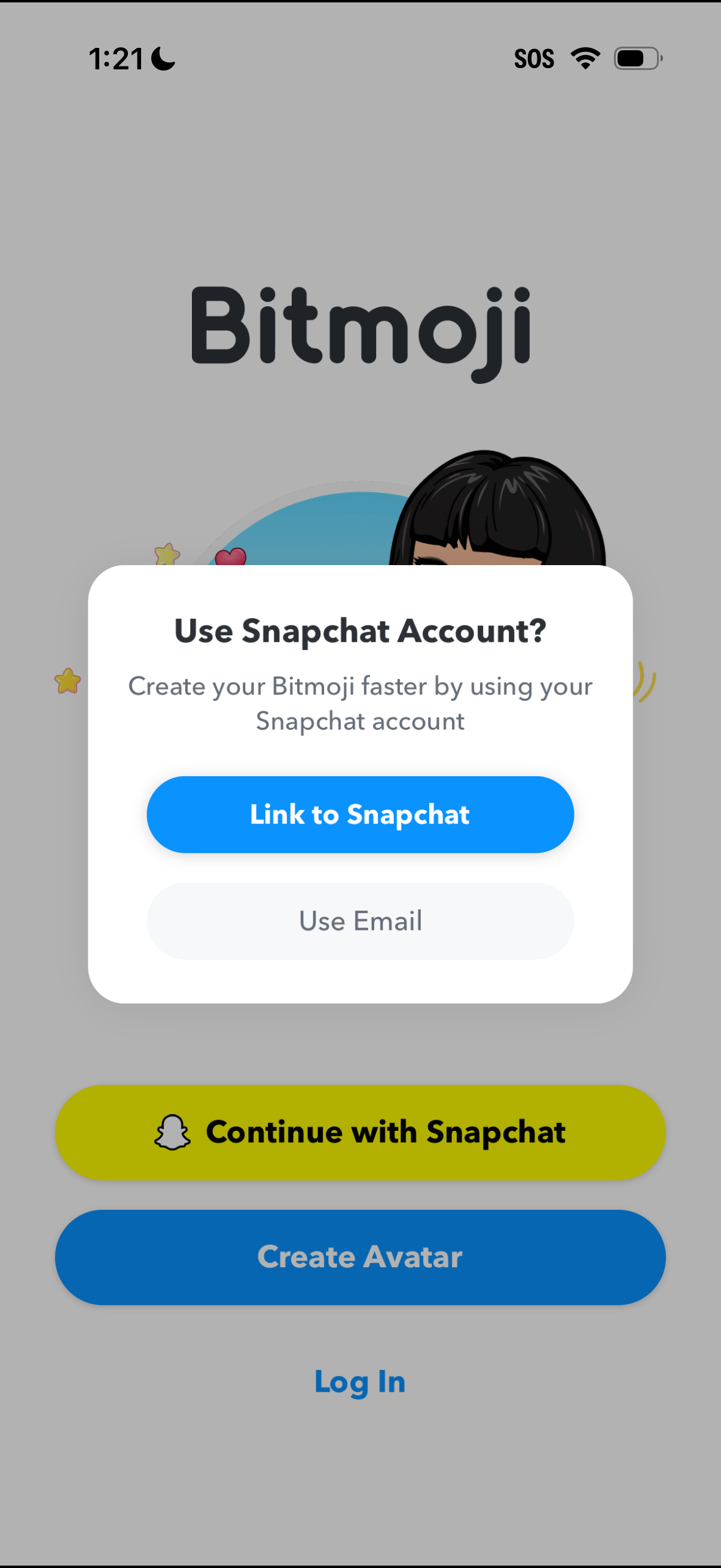
Bitmoji onboarding screen with a modal prompting users to create an avatar faster by using a Snapchat account, offering primary CTA to link to Snapchat and a secondary option to use email. Background entry options include Continue with Snapchat, Create Avatar, and Log In.
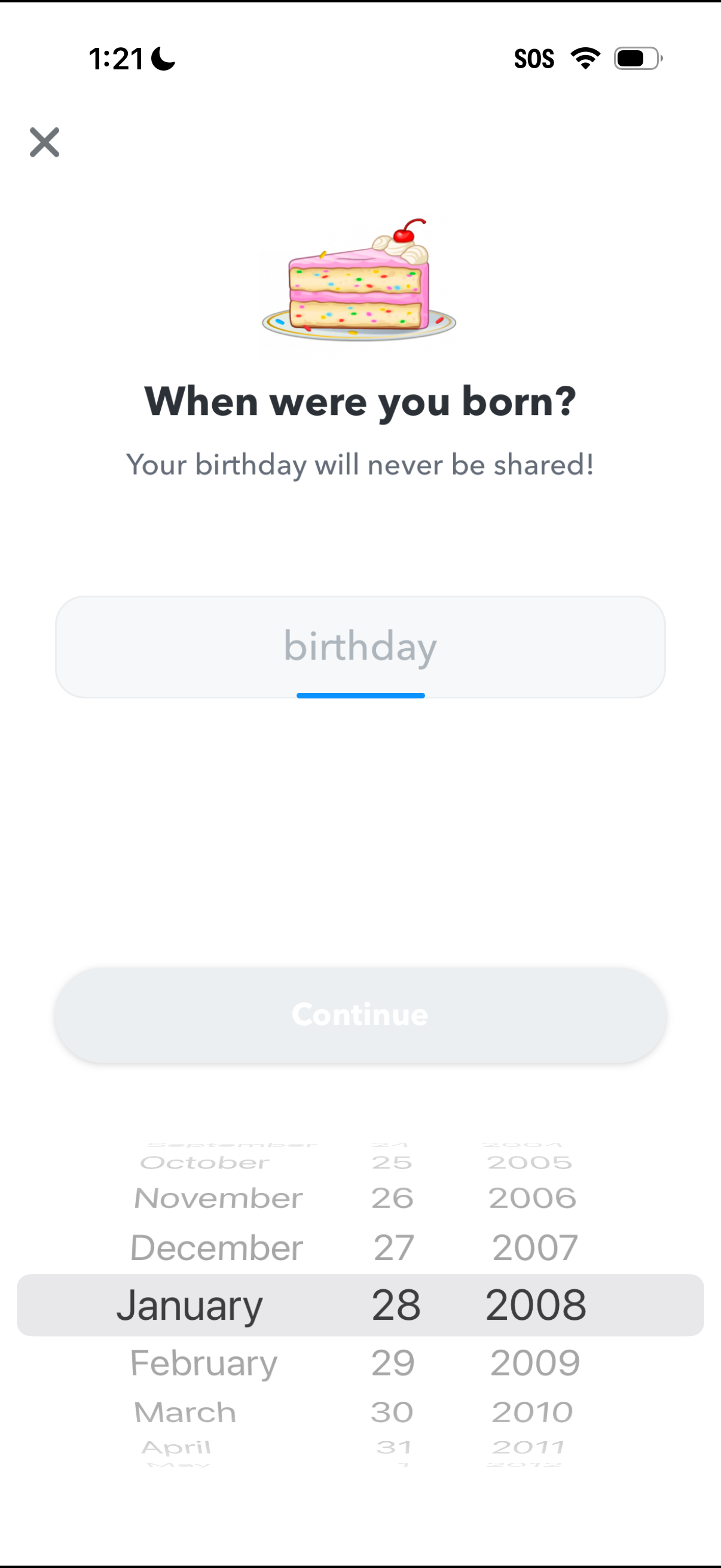
Onboarding profile setup screen asking “When were you born? ” with a birthday privacy note, a date-of-birth picker (month/day/year) and a disabled Continue button until a valid date is selected, plus a close icon to exit.
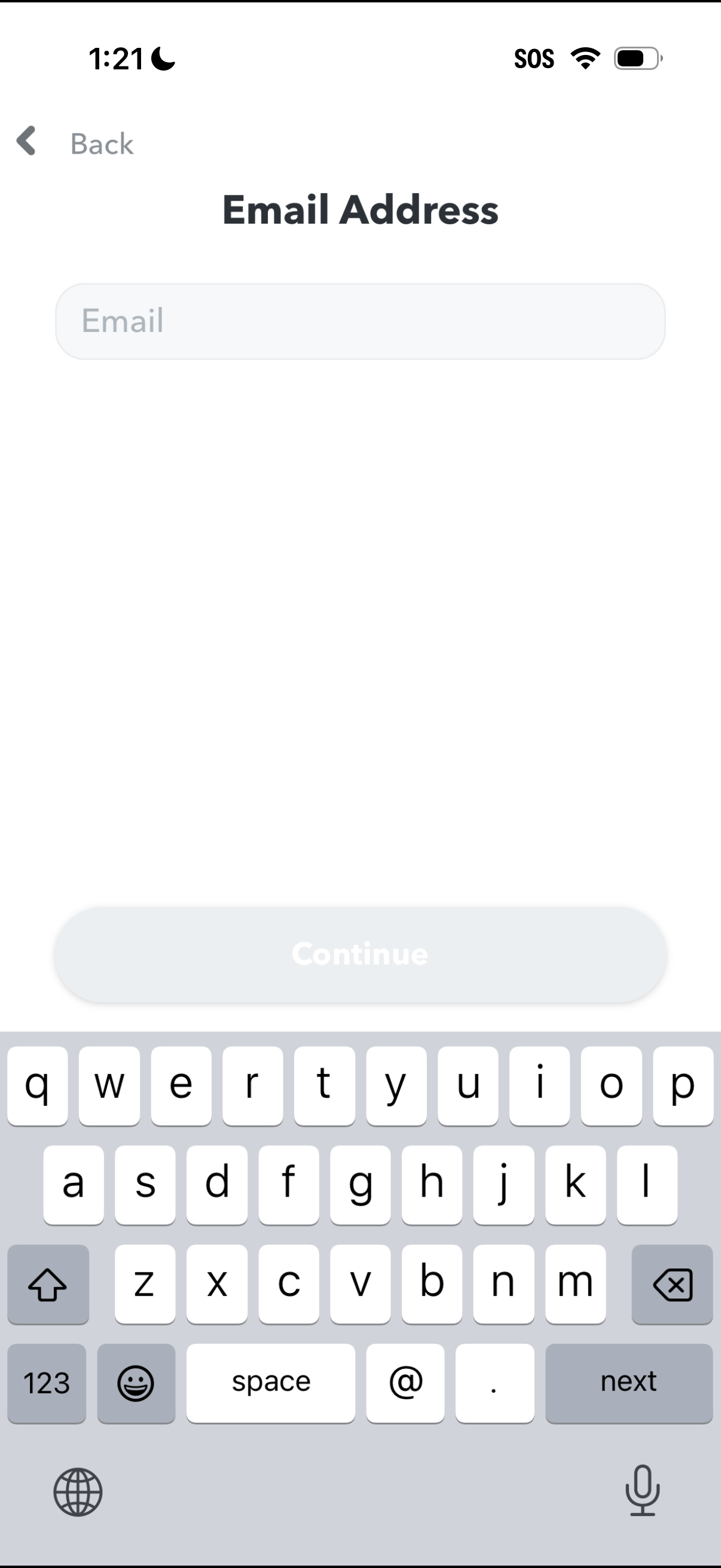
A simple onboarding/account form screen prompting the user to enter their email address in a single text field, with a back navigation option. A disabled “Continue” button at the bottom becomes available after a valid email is entered.
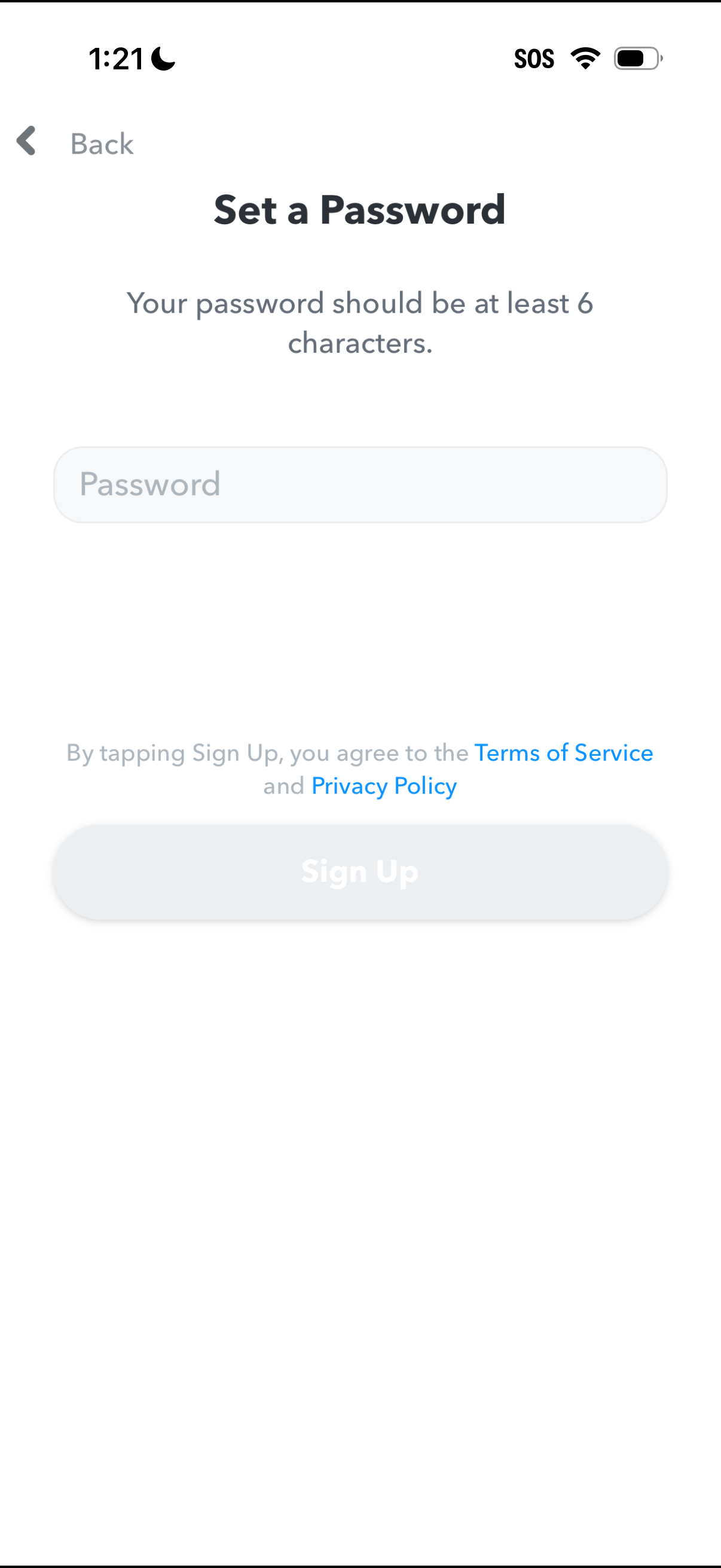
Account sign-up screen prompting the user to set a password with a minimum 6-character requirement, including a single password input field and a disabled “Sign Up” button until valid. Includes back navigation and links to Terms of Service and Privacy Policy consent text.

Minimal full-screen overlay or modal with a close (X) button in the top-left, showing an empty state/loading placeholder with no content or actions visible beyond dismissing the screen.
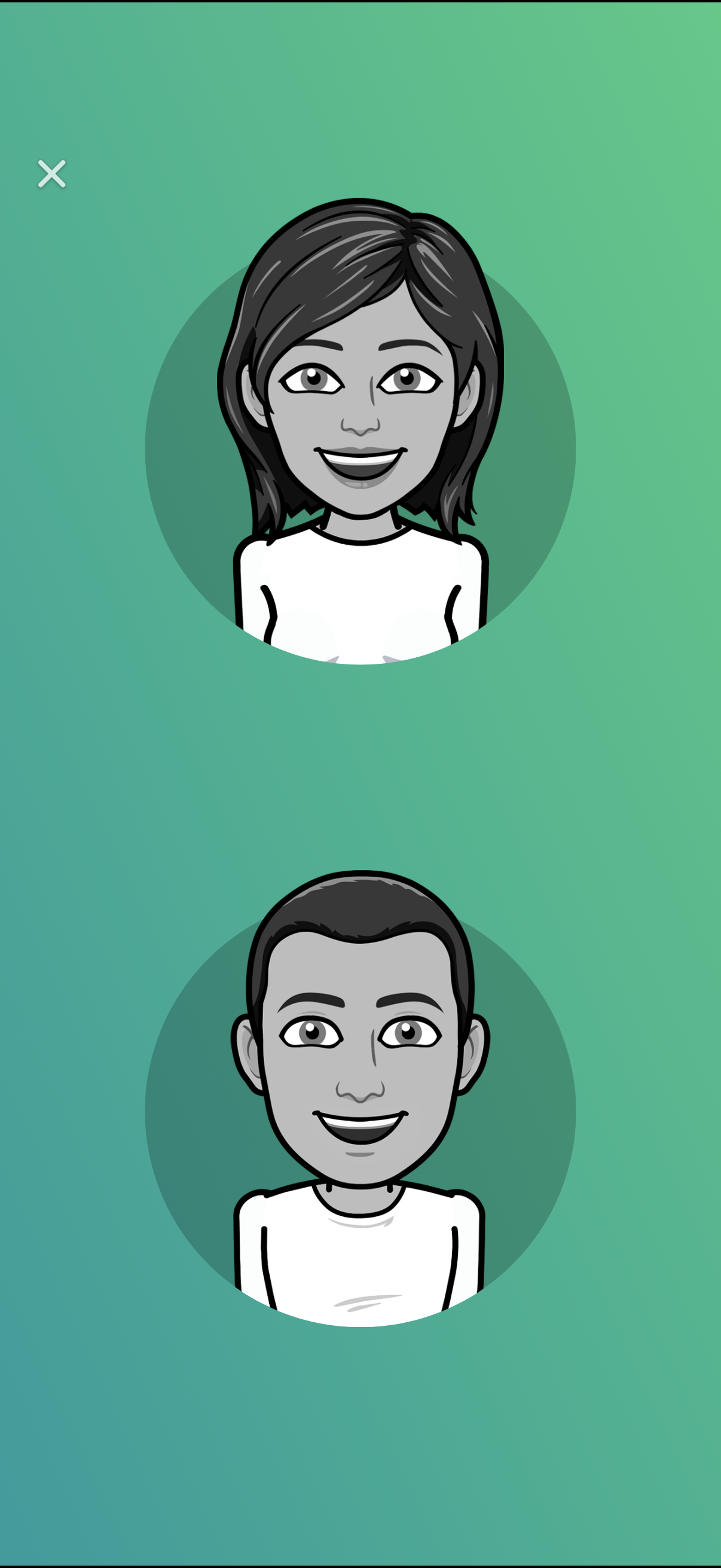
Simple selection screen showing two large avatar/profile options (female and male) on a plain background, with an X button to close or dismiss the modal. Designed for choosing a user character or profile avatar before continuing.
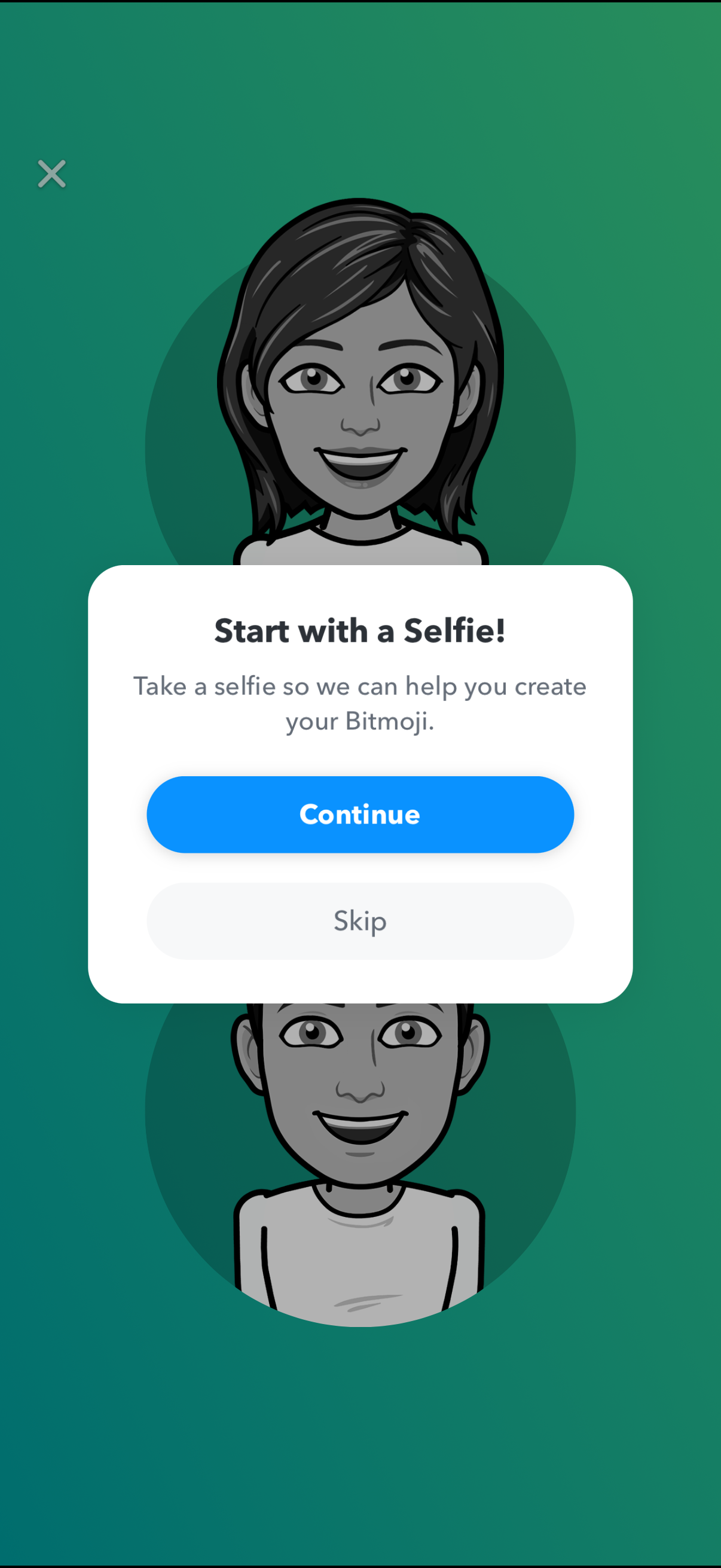
Onboarding prompt to create an avatar by taking a selfie, explaining it will be used to generate a Bitmoji. Modal includes primary CTA “Continue” to start selfie capture and secondary “Skip,” with a close (X) option.
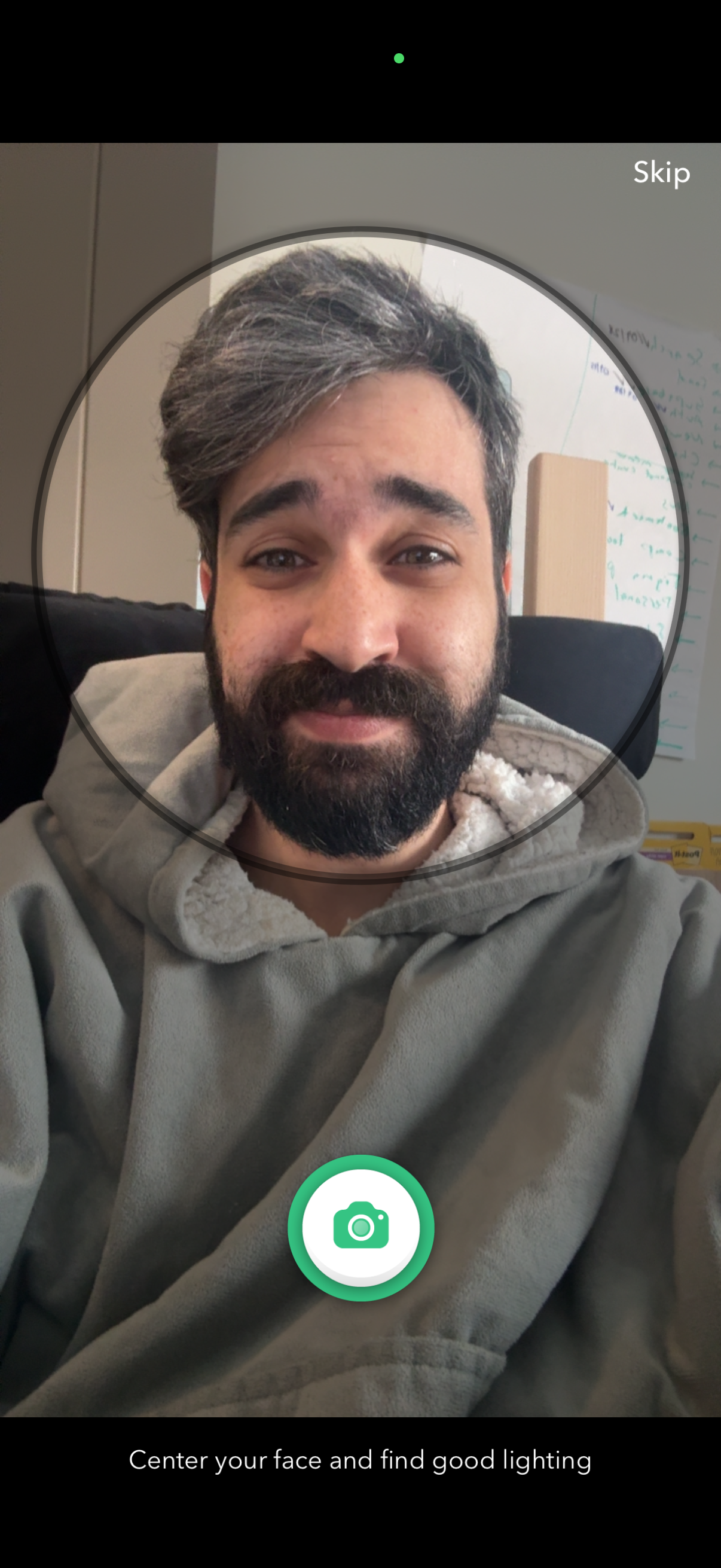
Selfie camera capture screen for setting a profile photo with a circular face guide overlay and tip text prompting the user to center their face and find good lighting. Includes a large shutter button to take the photo and a “Skip” action in the top corner to bypass this step.
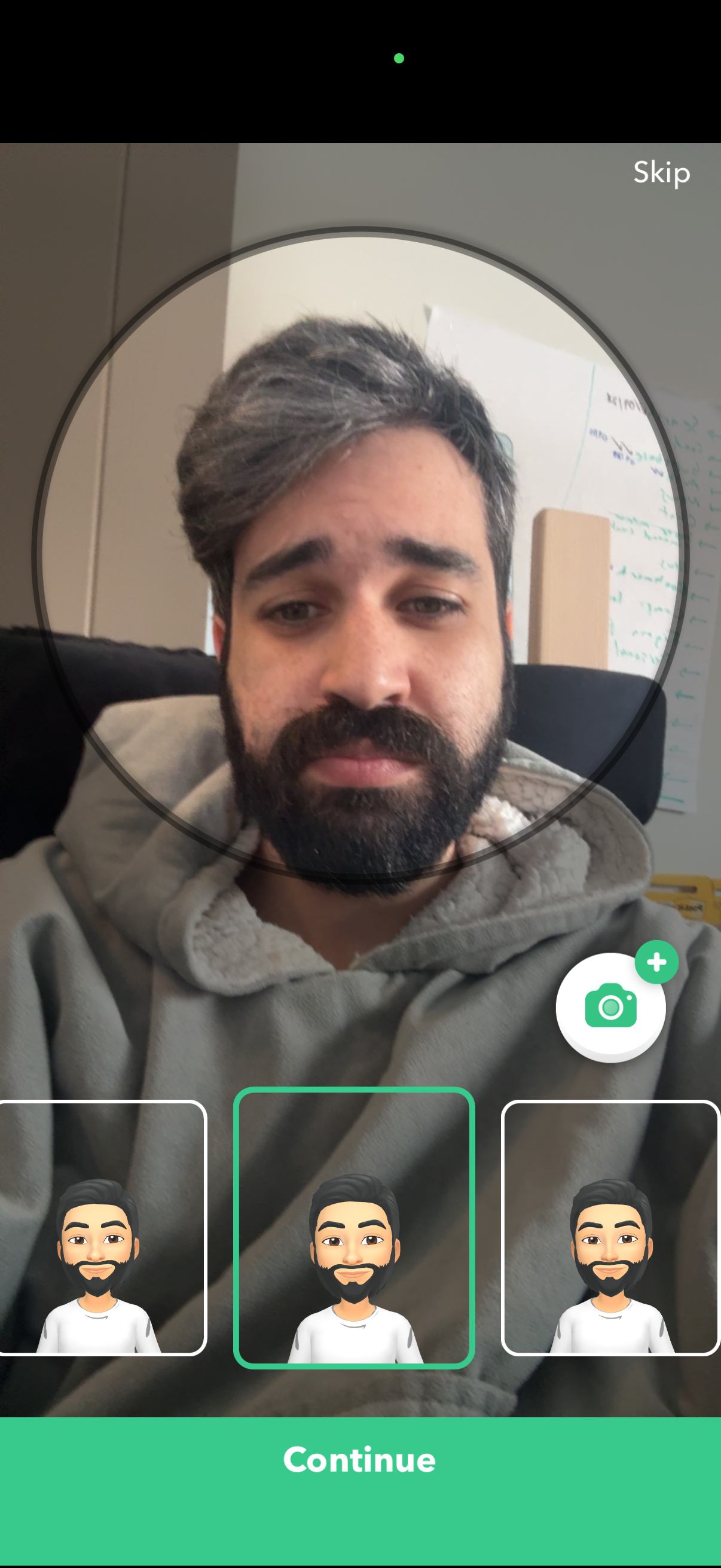
Selfie camera capture screen for creating a profile/avatar, showing a circular face alignment frame, a camera button with add icon, and preview options for different avatar styles. Users can skip the step or tap Continue to confirm and proceed.
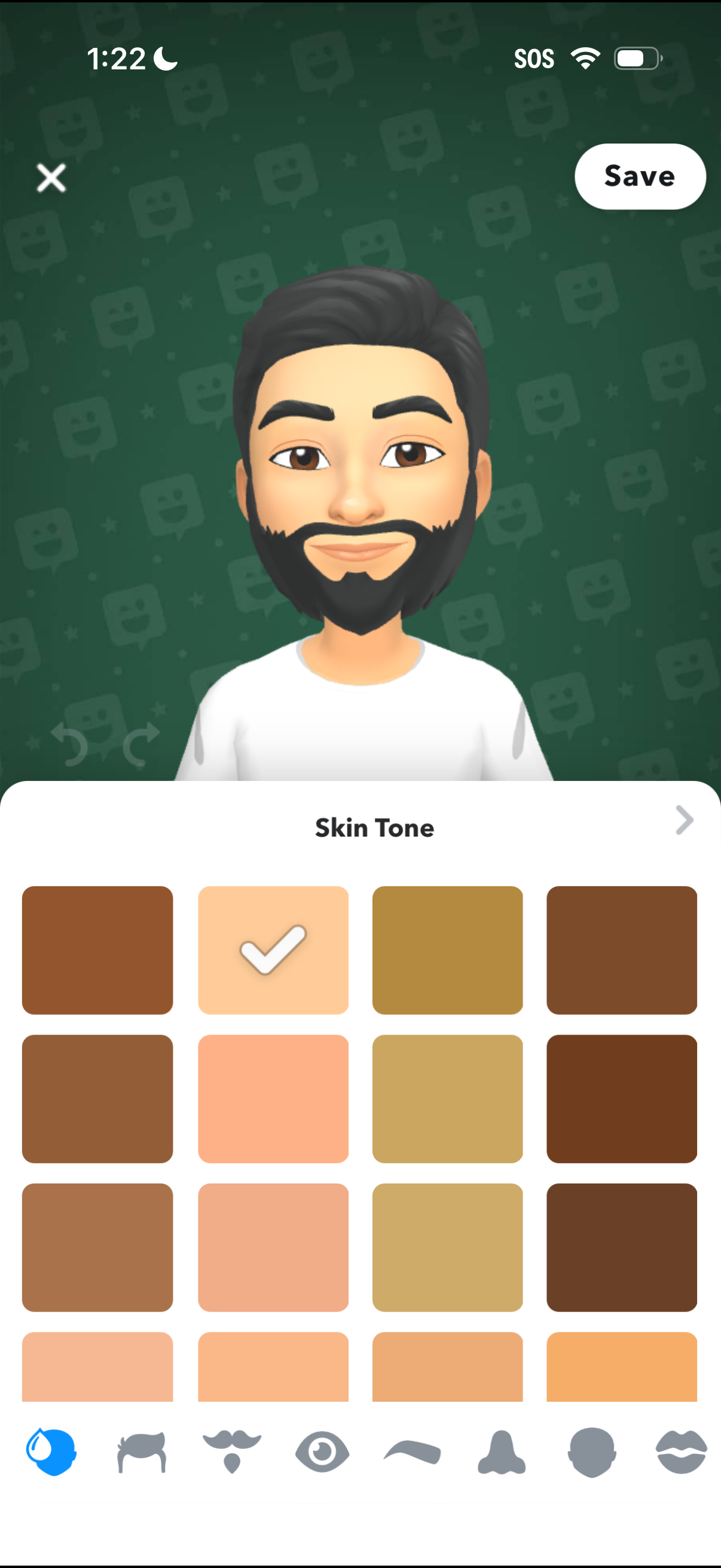
Avatar editor customization screen showing a live character preview and a skin tone selector grid with multiple swatches and the current choice checked. Users can switch to other facial feature categories via bottom icon tabs, undo/redo changes, close, or tap Save to apply updates.
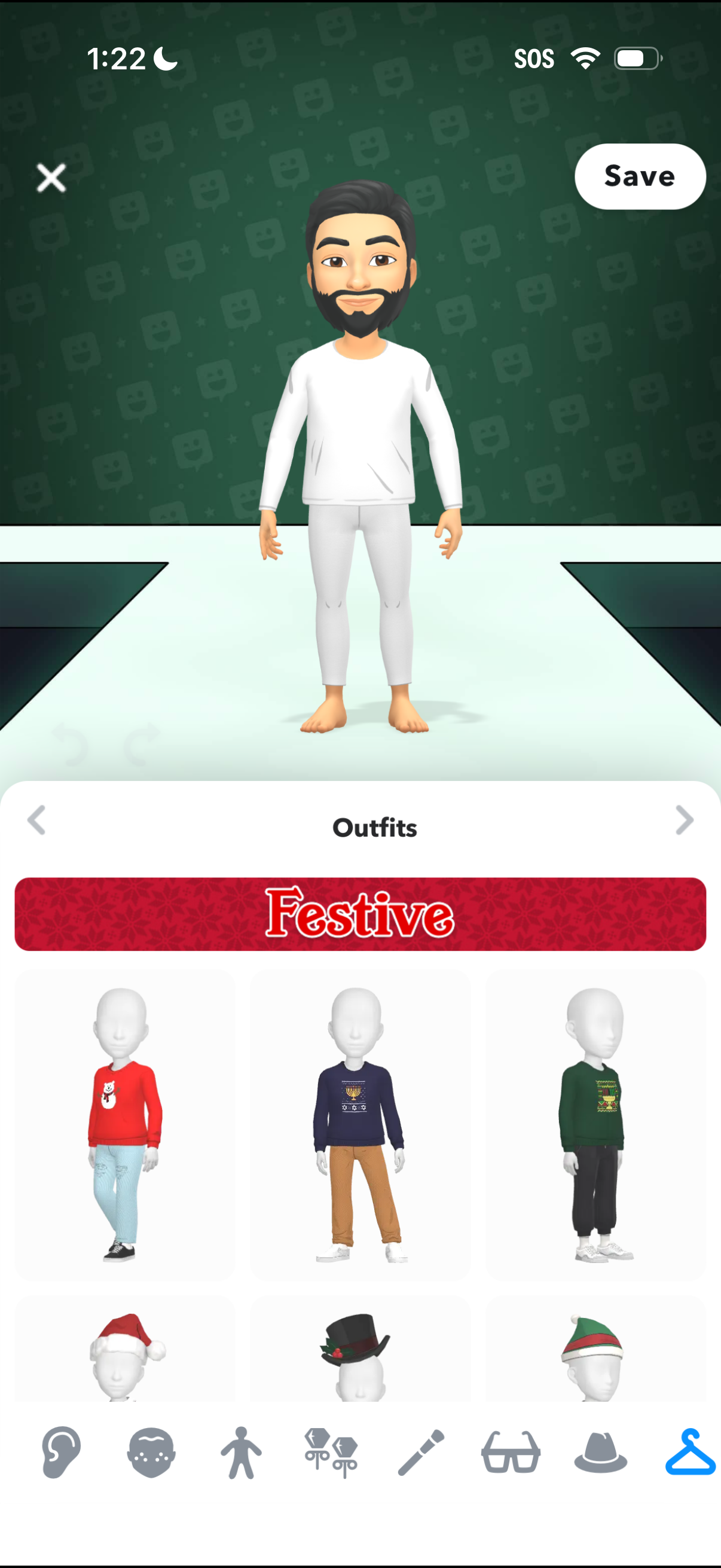
Avatar customization screen for choosing outfits, showing a 3D character preview with a scrollable “Festive” clothing collection grid. Users can browse categories via bottom tabs, navigate between outfit sections, and save changes or close the editor.
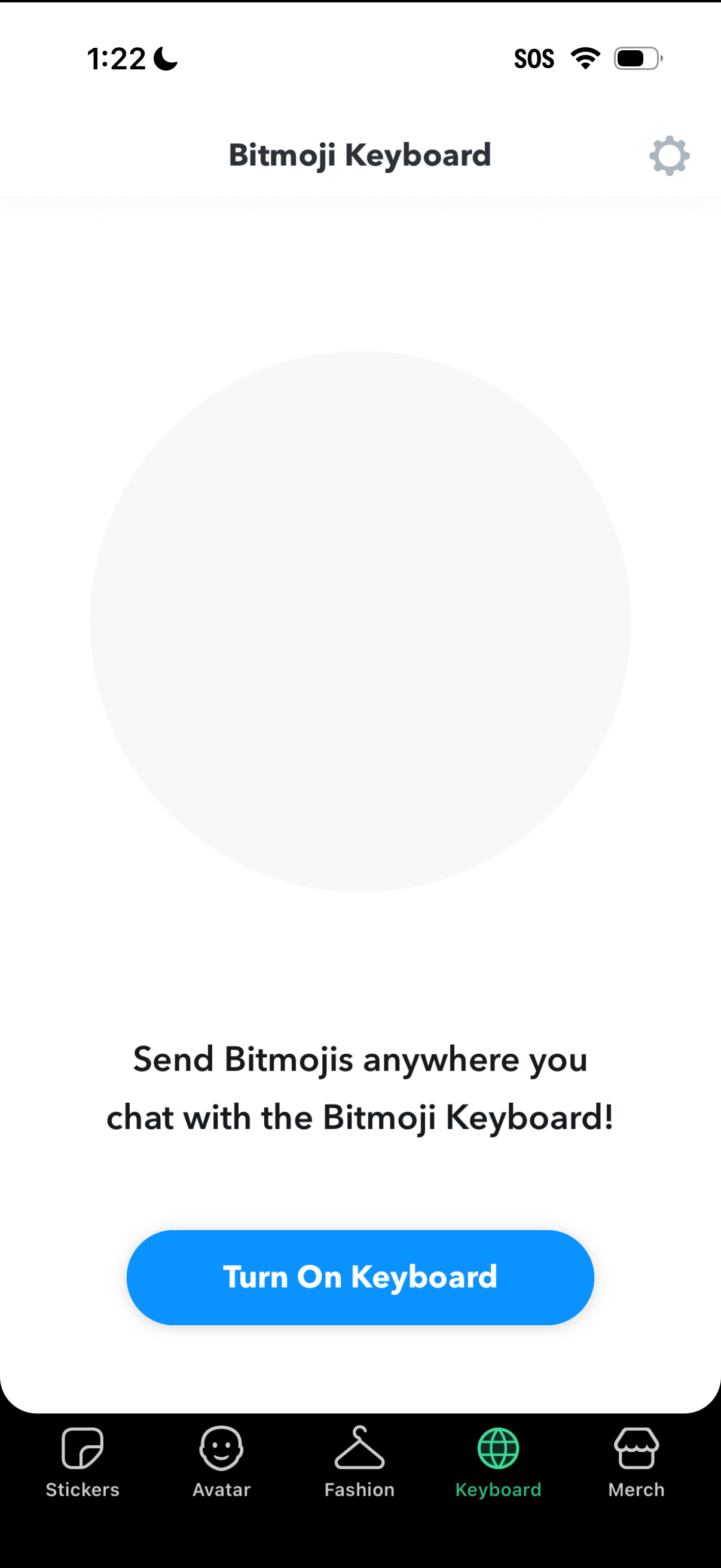
Onboarding screen for enabling the Bitmoji Keyboard, explaining that users can send Bitmojis anywhere they chat and prompting activation with a prominent “Turn On Keyboard” button. A settings icon provides access to keyboard configuration, with a bottom tab bar for navigating to stickers, avatar, fashion, keyboard, and merch sections.