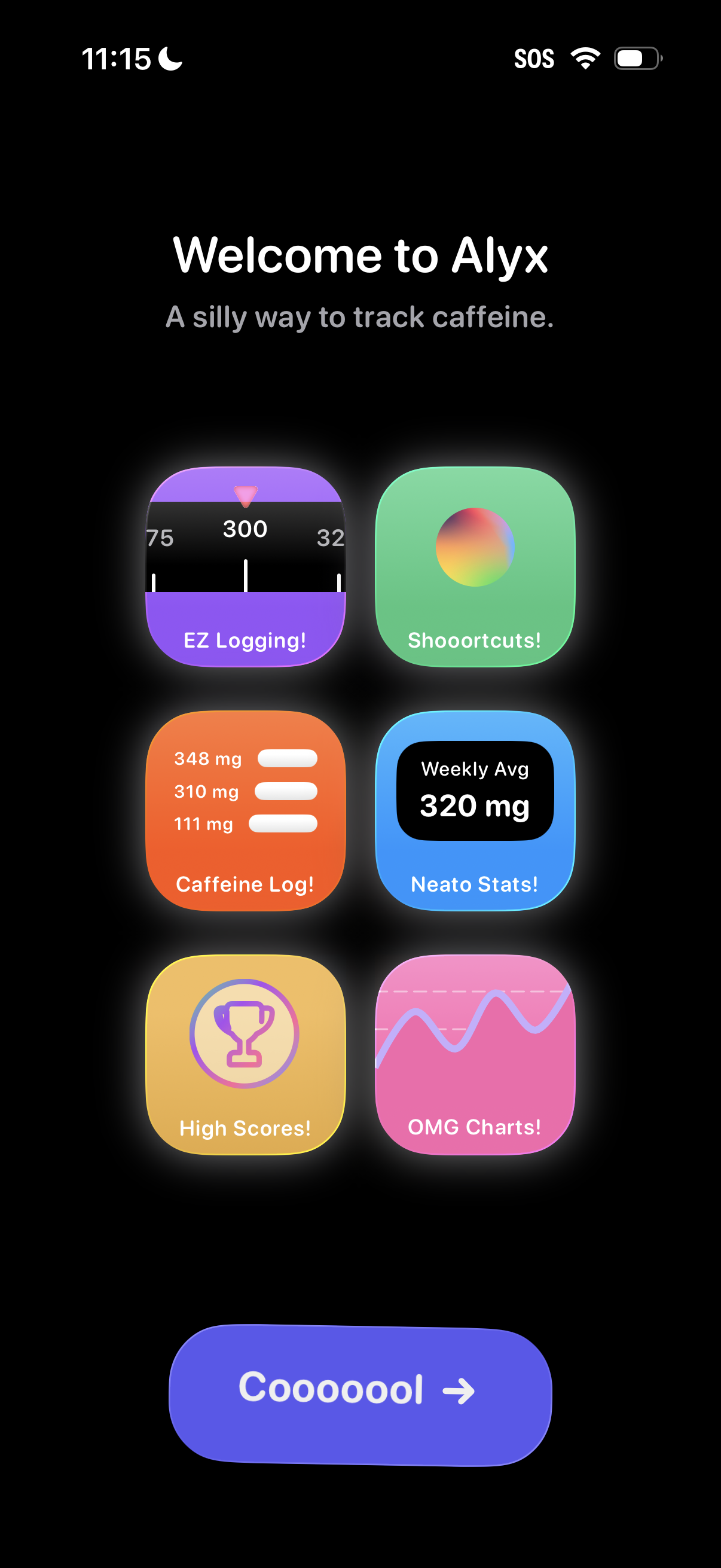
Welcome/onboarding screen for a caffeine tracking app introducing key features with playful icon tiles for quick logging, shortcuts, caffeine log, weekly stats, high scores, and charts. A prominent “Continue” button advances to the next step.
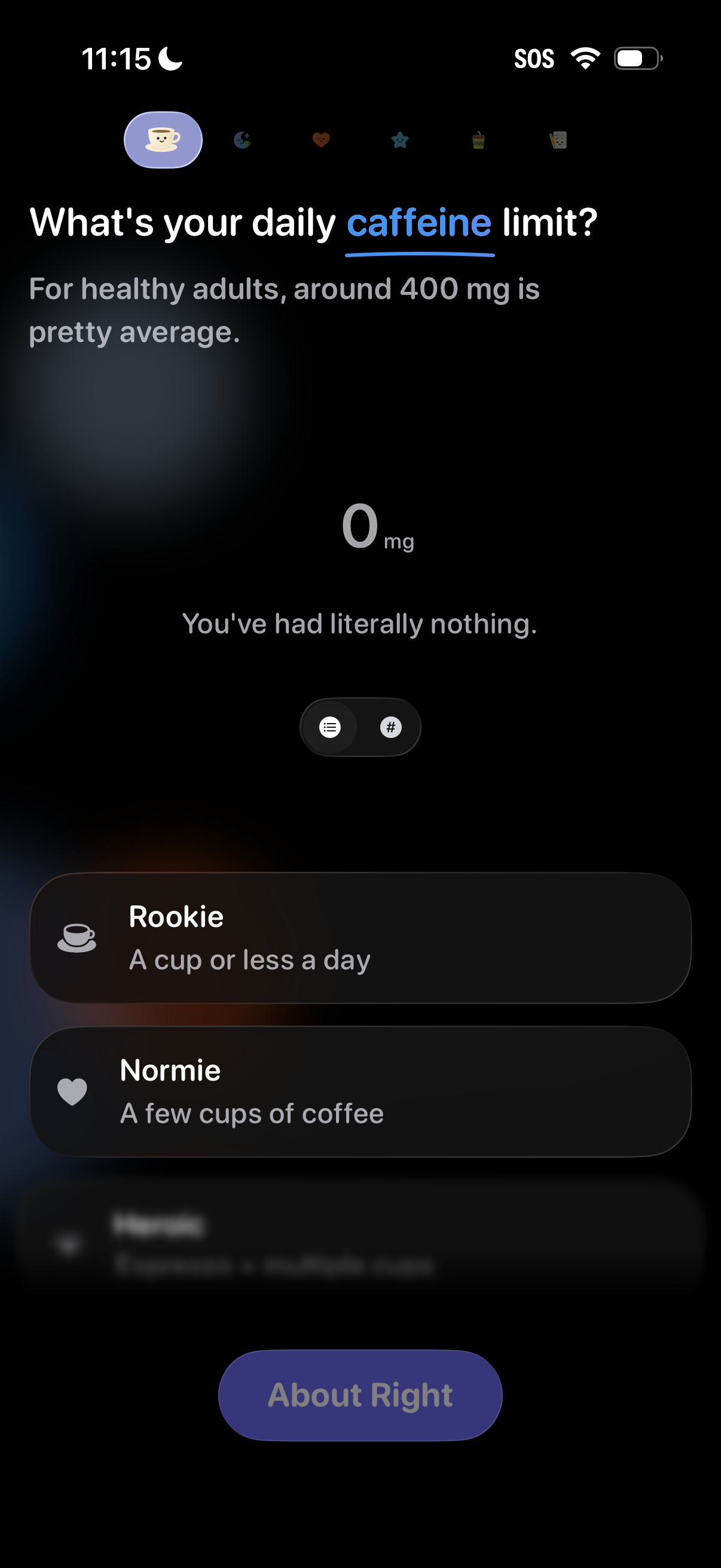
Onboarding questionnaire screen for a caffeine tracking app asking users to choose their daily caffeine limit, showing guidance text and current intake in mg. Users select from tiered options like “Rookie” or “Normie” and continue via a primary “About Right” button.
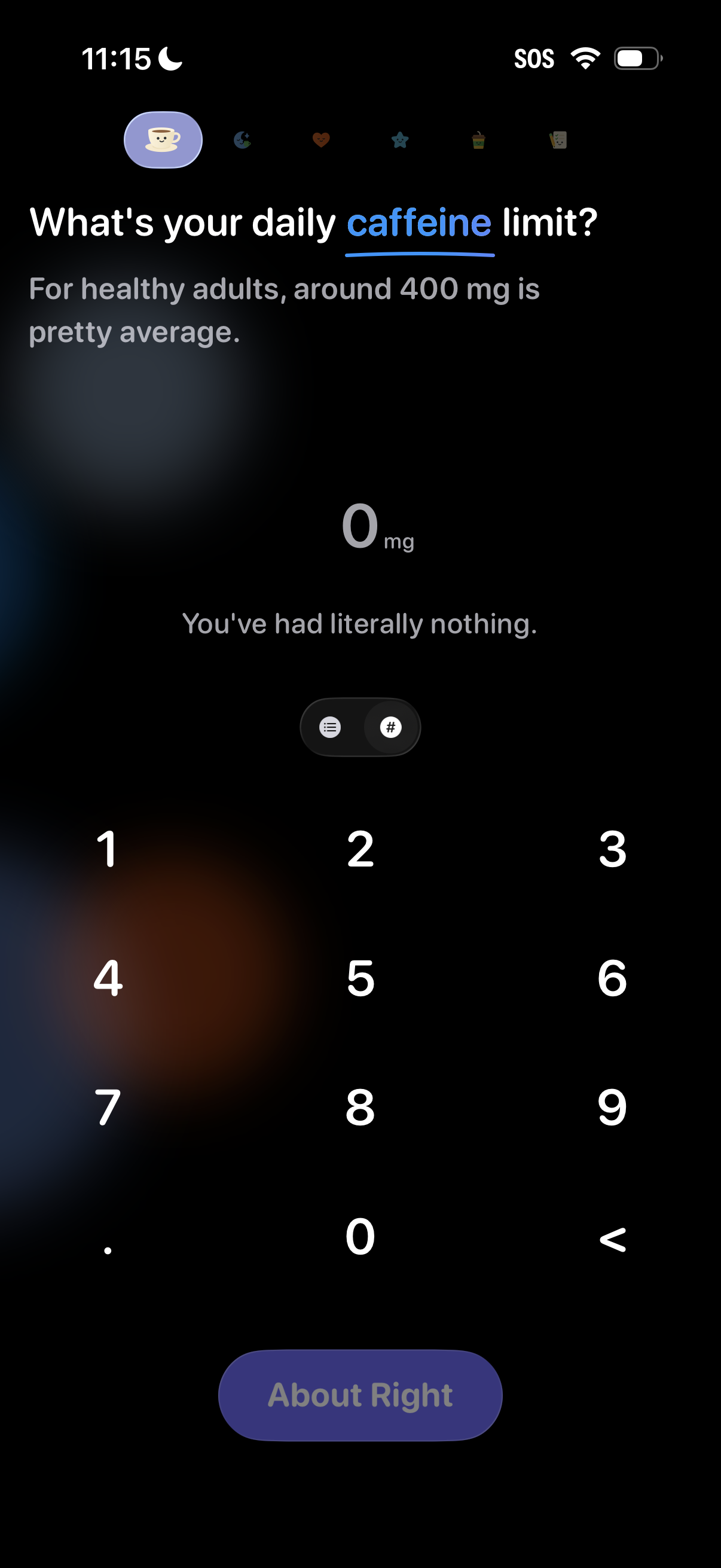
Onboarding setup screen for a caffeine tracking app asking the user to enter their daily caffeine limit in mg, with guidance text about average intake. Includes a numeric keypad for input and a primary “About Right” button to confirm and continue.
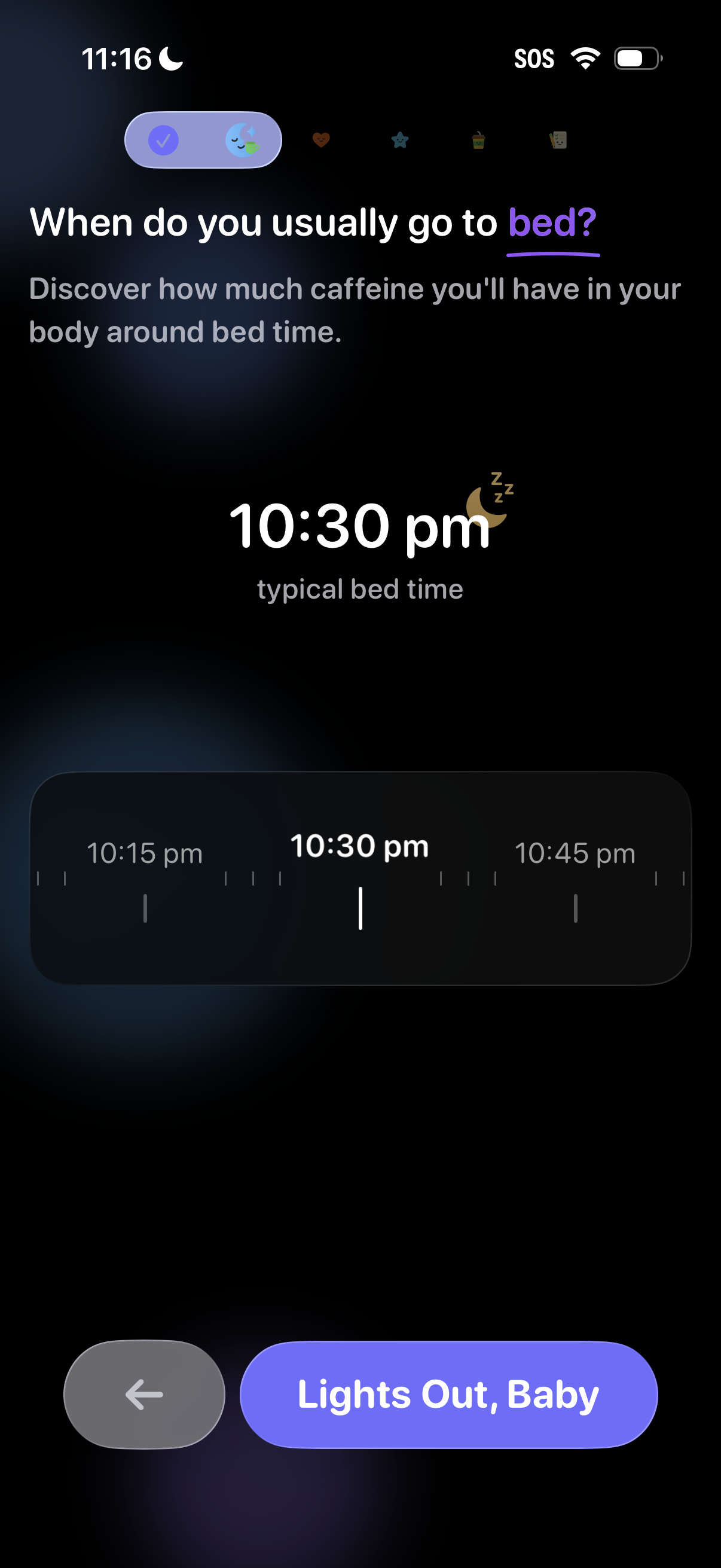
Onboarding screen in a caffeine or sleep tracking app asking the user to set their usual bedtime to estimate caffeine levels at bedtime. Users select a typical bed time with a horizontal time picker and continue with a primary “Lights Out” button or go back.
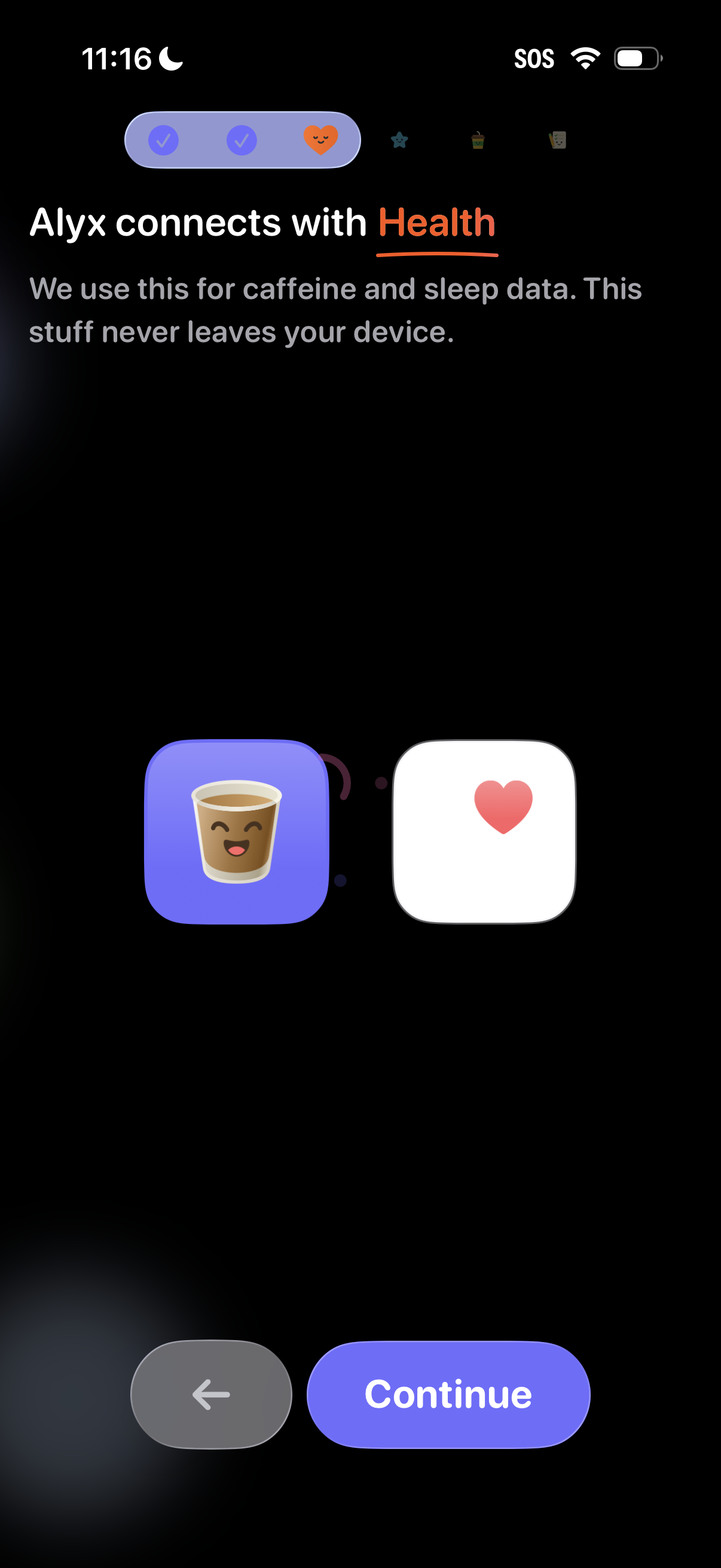
Onboarding permission screen prompting the user to connect the app with Apple Health to access caffeine and sleep data, with a privacy note that data stays on-device. Includes back navigation and a primary Continue button to proceed with the Health integration.
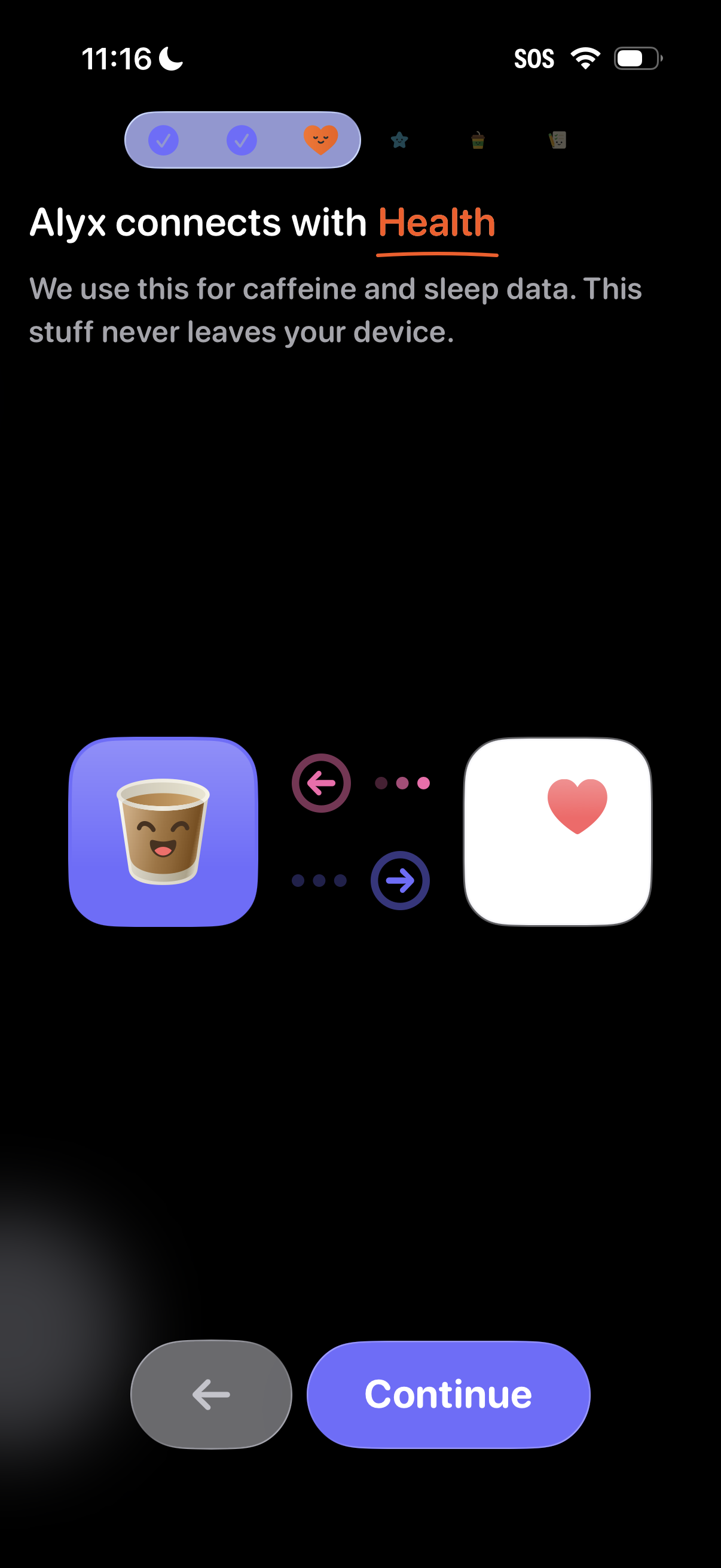
Onboarding screen prompting the user to connect the app to Apple Health to import caffeine and sleep data, with a reassurance that data stays on-device. Includes a back button and a primary “Continue” call to action to proceed with Health integration setup.
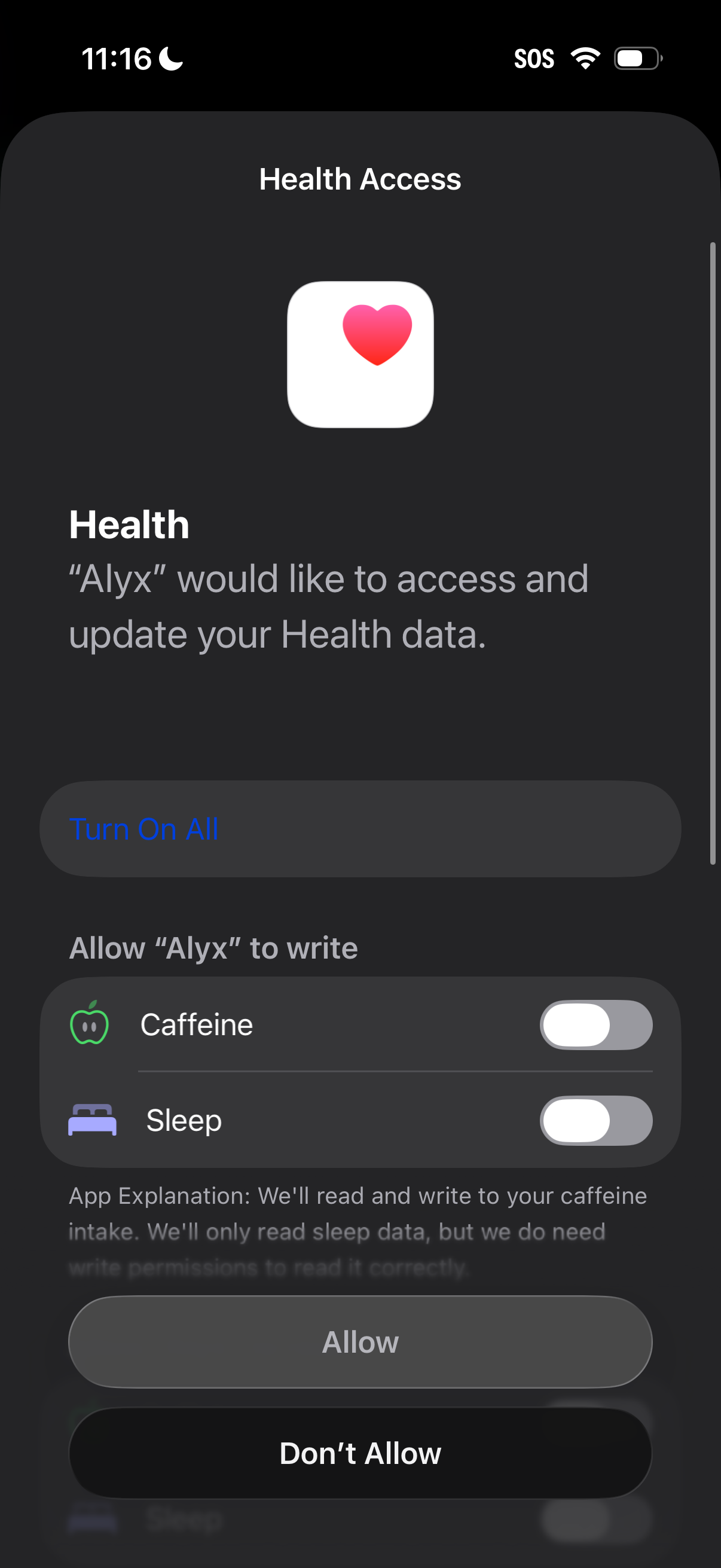
iOS Health Access permission screen asking the user to allow an app to access and update Health data, with a “Turn On All” option and individual toggles for specific data types like caffeine and sleep. Primary actions are to grant access via Allow or deny via Don’t Allow.
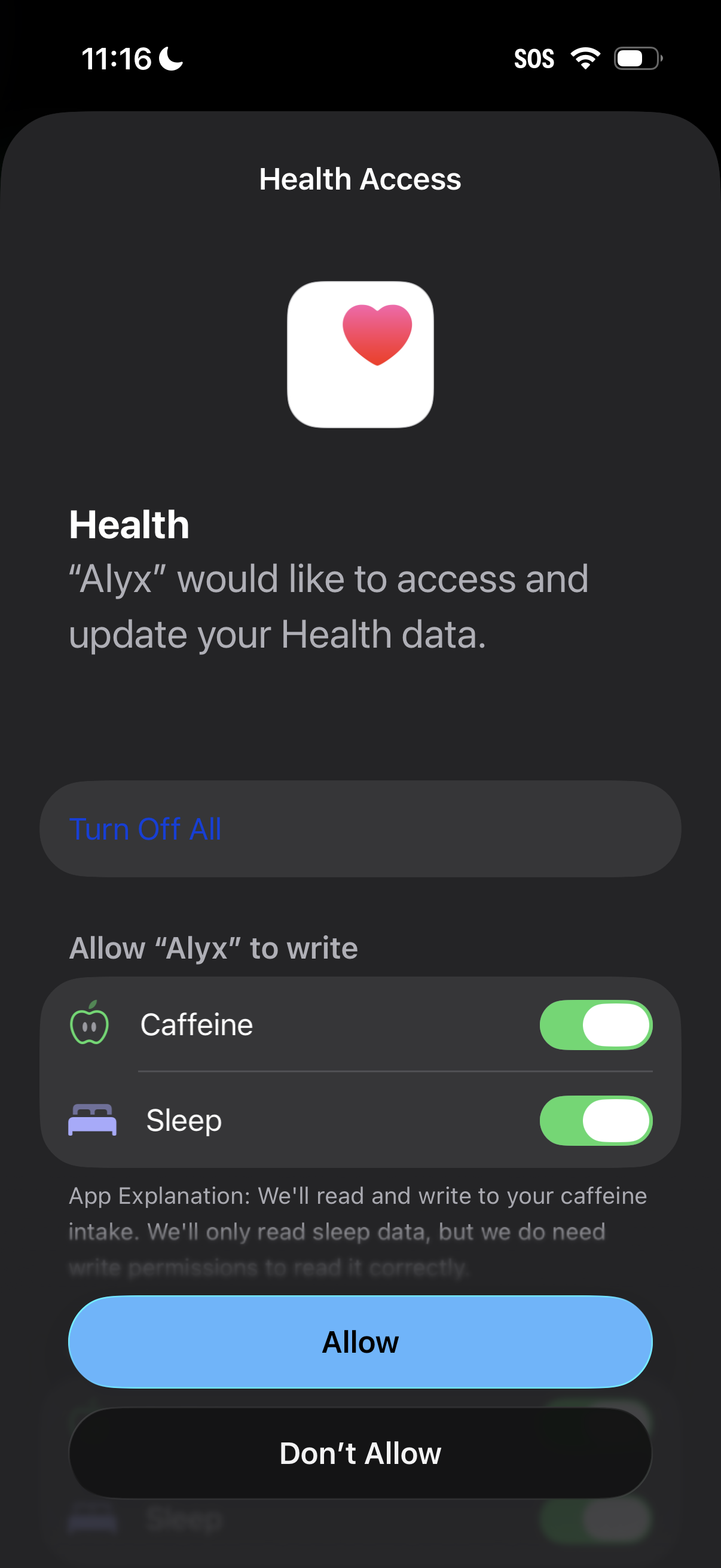
iOS Health Access permission prompt where an app requests access to read and update Apple Health data, with granular toggles for categories like caffeine and sleep plus a “Turn Off All” option. Users can confirm or deny sharing via primary actions “Allow” or “Don’t Allow.
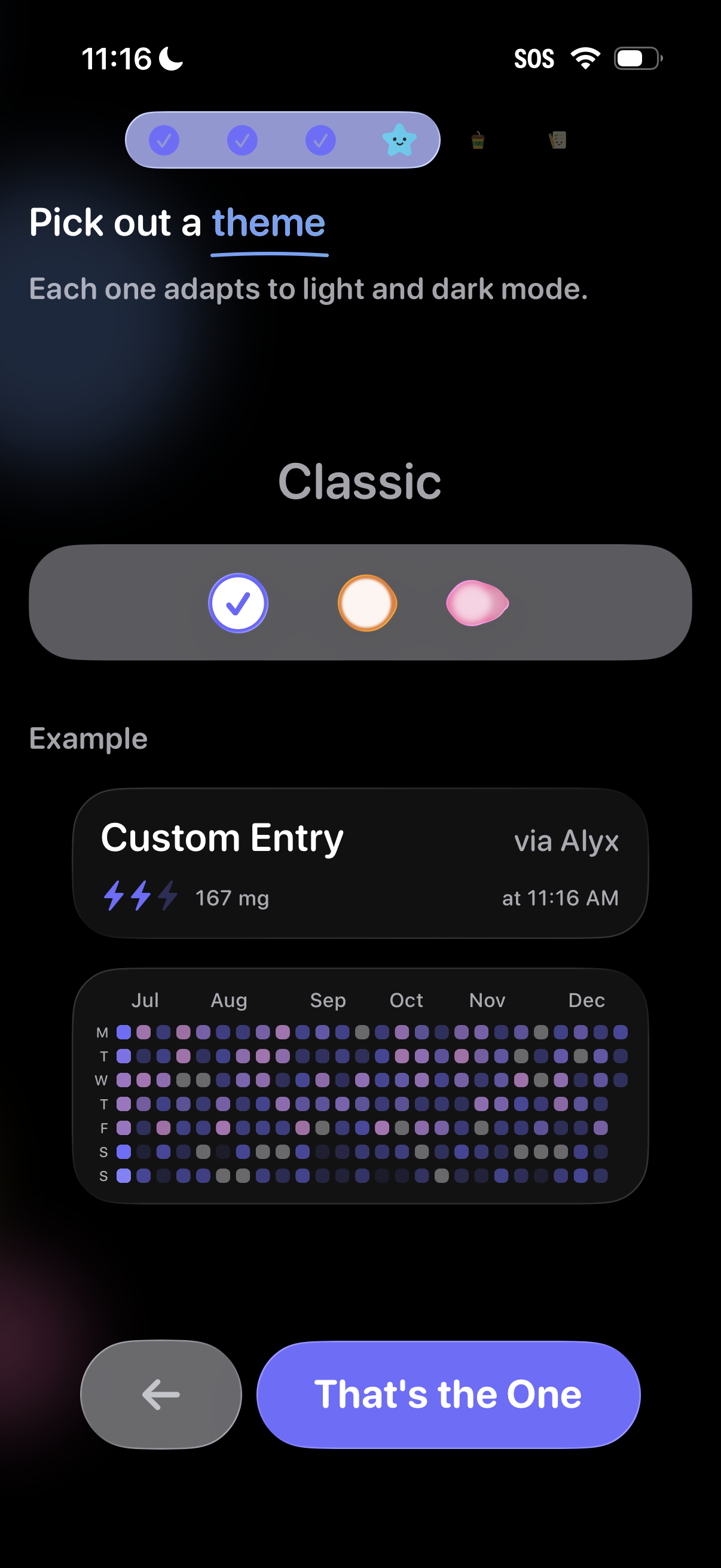
Theme selection step in an onboarding flow where users pick a visual style that adapts to light and dark mode, with segmented options and a live preview of the app UI. Includes back navigation and a primary confirmation button to apply the chosen theme.
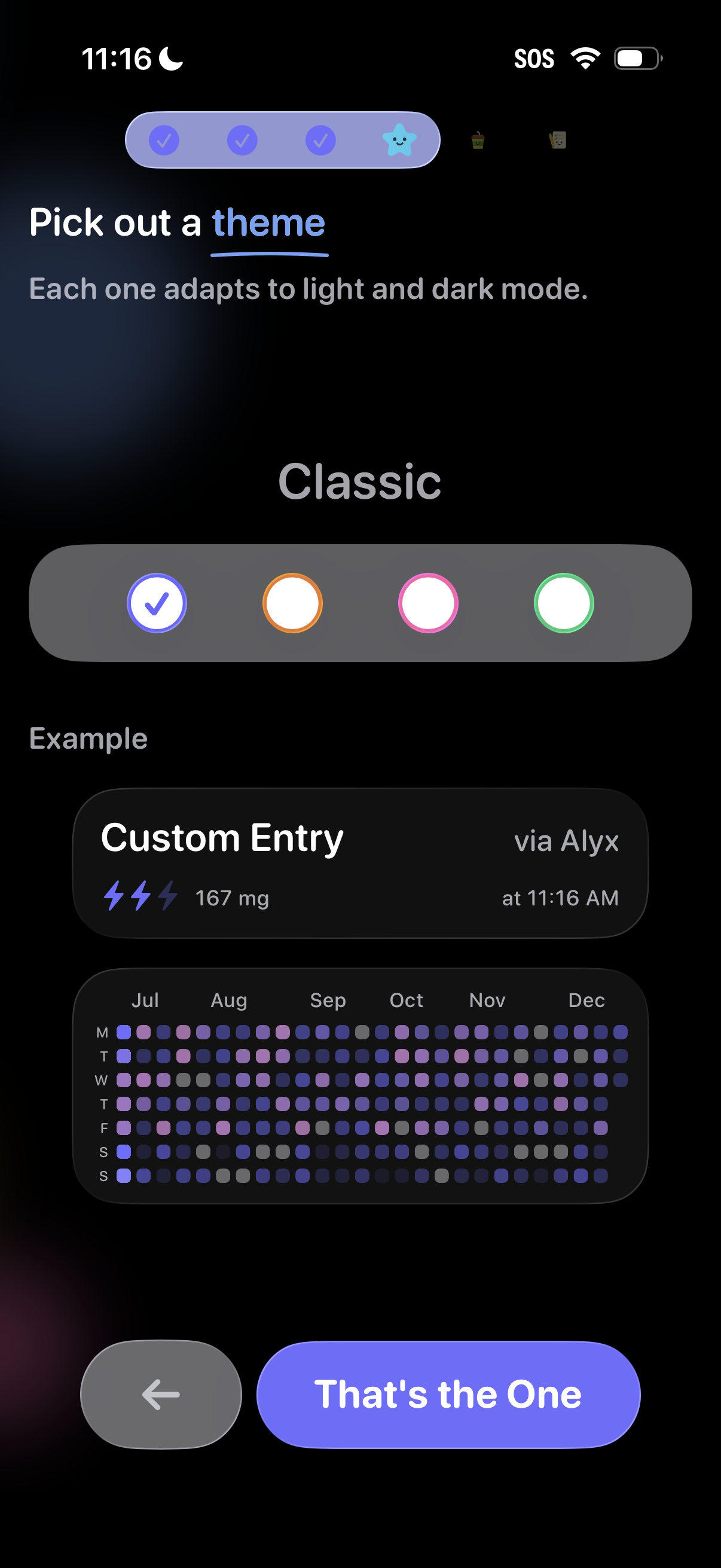
Onboarding customization screen for picking an app theme that adapts to light and dark mode, with a color selector for the “Classic” theme and a live preview of how entries and a calendar heatmap will look. Bottom navigation includes a back button and a primary “That’s the One” confirmation action to apply the selected theme.
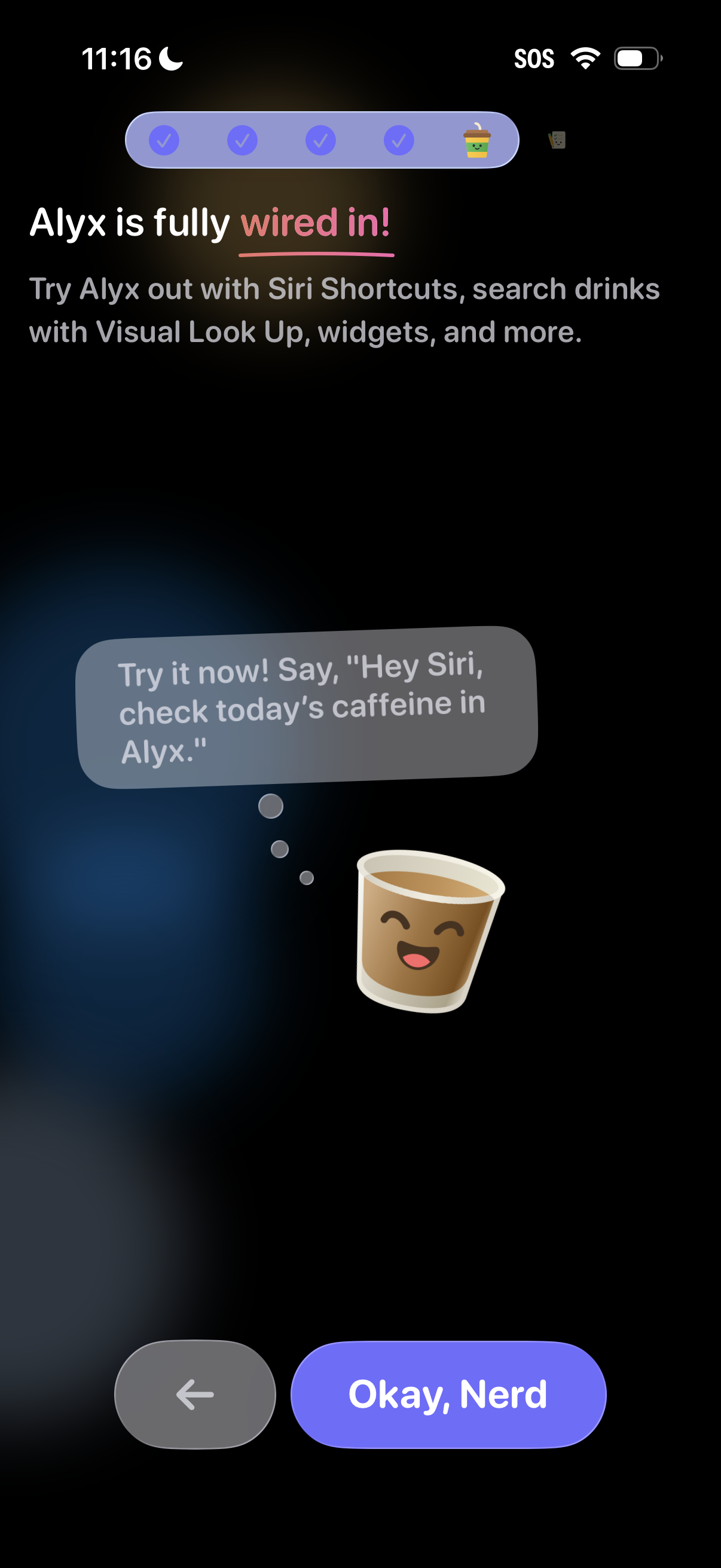
Onboarding completion screen confirming the app is fully set up and highlighting integrations like Siri Shortcuts, Visual Look Up, and widgets to search drinks and track caffeine. Includes a suggested voice command example and a primary “Okay” button to finish, with a back button for navigation.
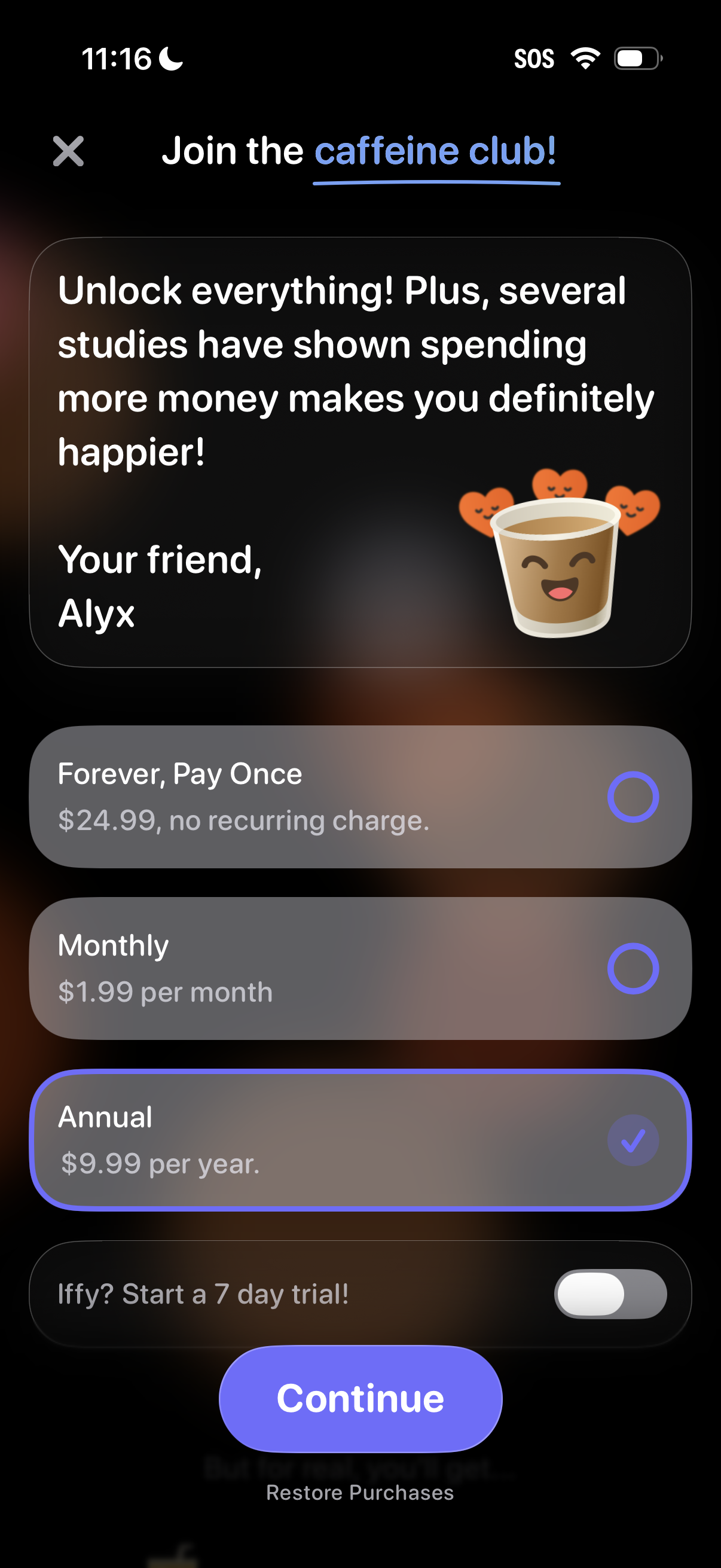
Subscription paywall screen inviting users to “Join the caffeine club” to unlock premium features, with selectable pricing plans for lifetime (one-time), monthly, or annual billing and an optional 7‑day trial toggle. Primary action is a “Continue” purchase button, with options to close the modal and restore purchases.
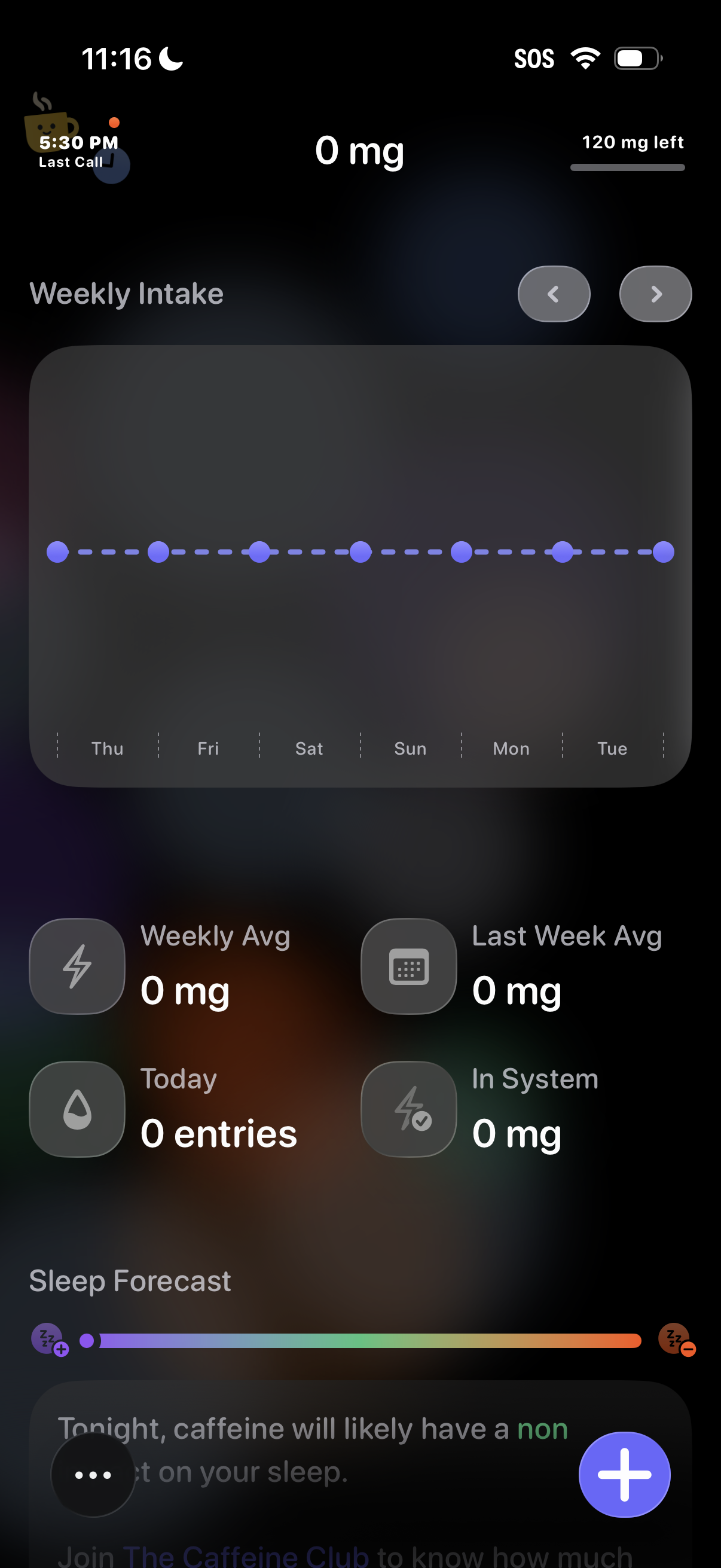
Caffeine tracking dashboard showing current intake in mg, remaining daily limit, and a weekly intake chart by day with navigation arrows to switch weeks. Summary stats display weekly average, last week average, today’s entries, and caffeine in system, plus a sleep forecast section and a floating action button to add a new caffeine entry.