start listing item
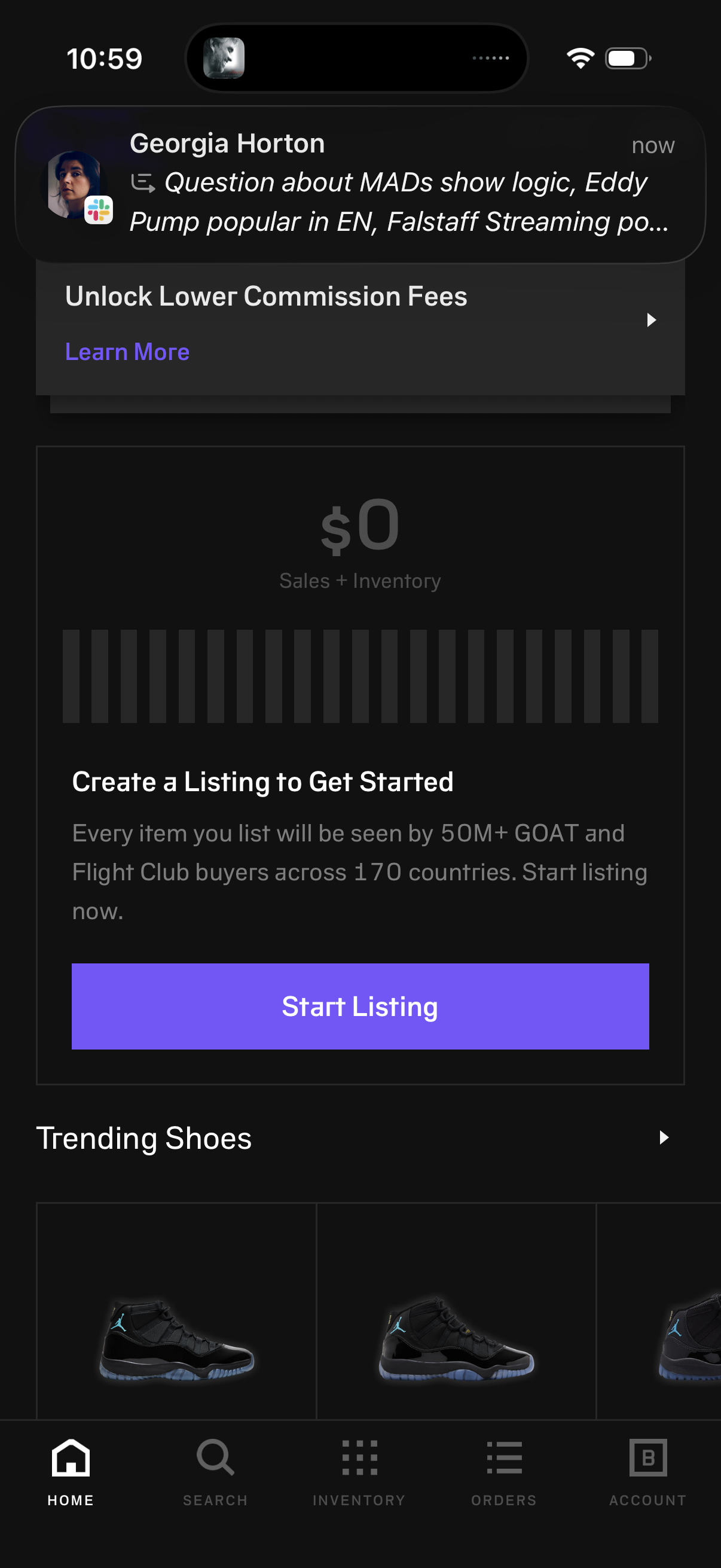
Marketplace seller home dashboard showing sales and inventory summary with a prompt to create a first listing, including a primary “Start Listing” CTA. The screen also features a promotional banner to unlock lower commission fees and a “Trending Shoes” product carousel, with bottom navigation for Home, Search, Inventory, Orders, and Account.
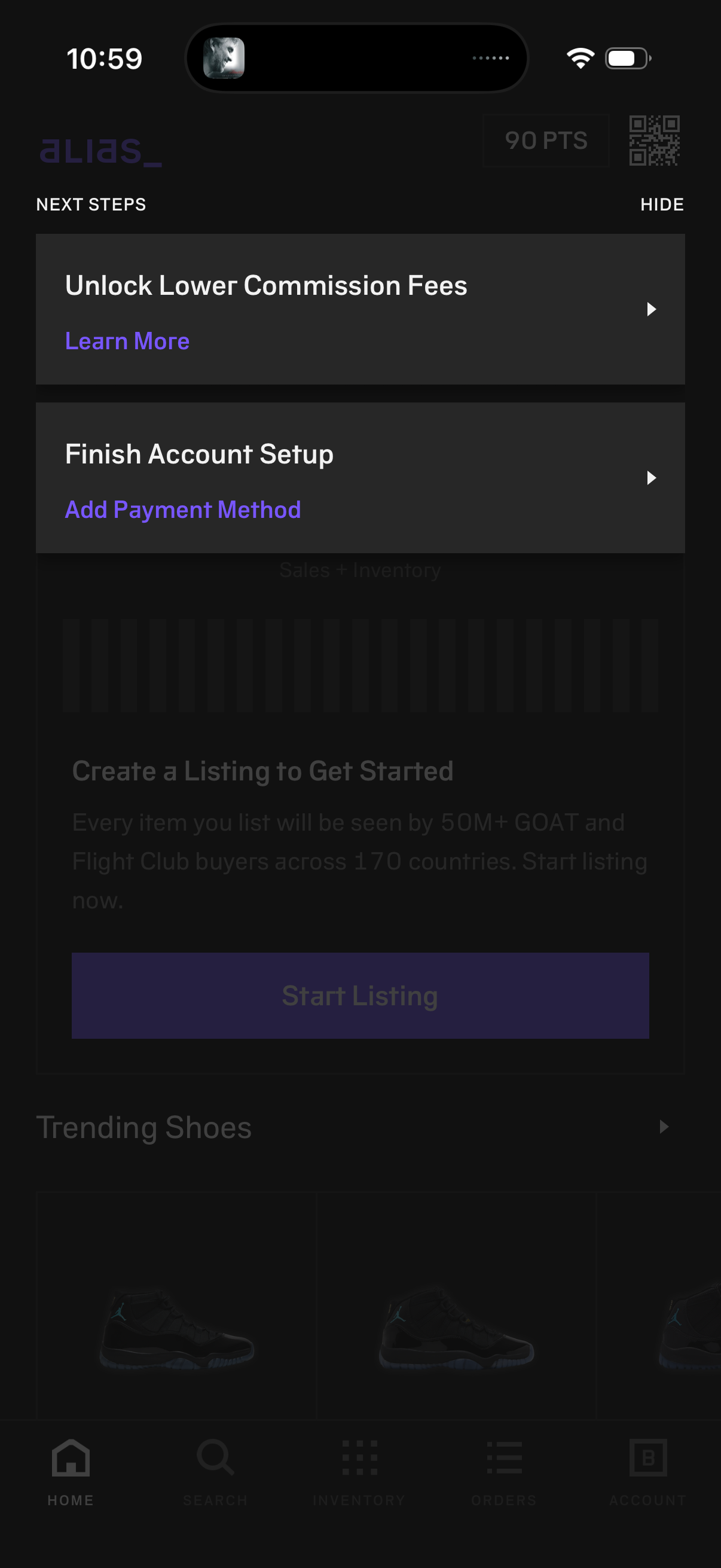
Home dashboard with a “Next steps” onboarding panel prompting the user to unlock lower commission fees and finish account setup by adding a payment method, with links to learn more or continue and a hide option. Background shows a seller marketplace feed with a CTA to start listing items and a bottom tab bar for home, search, inventory, orders, and account.
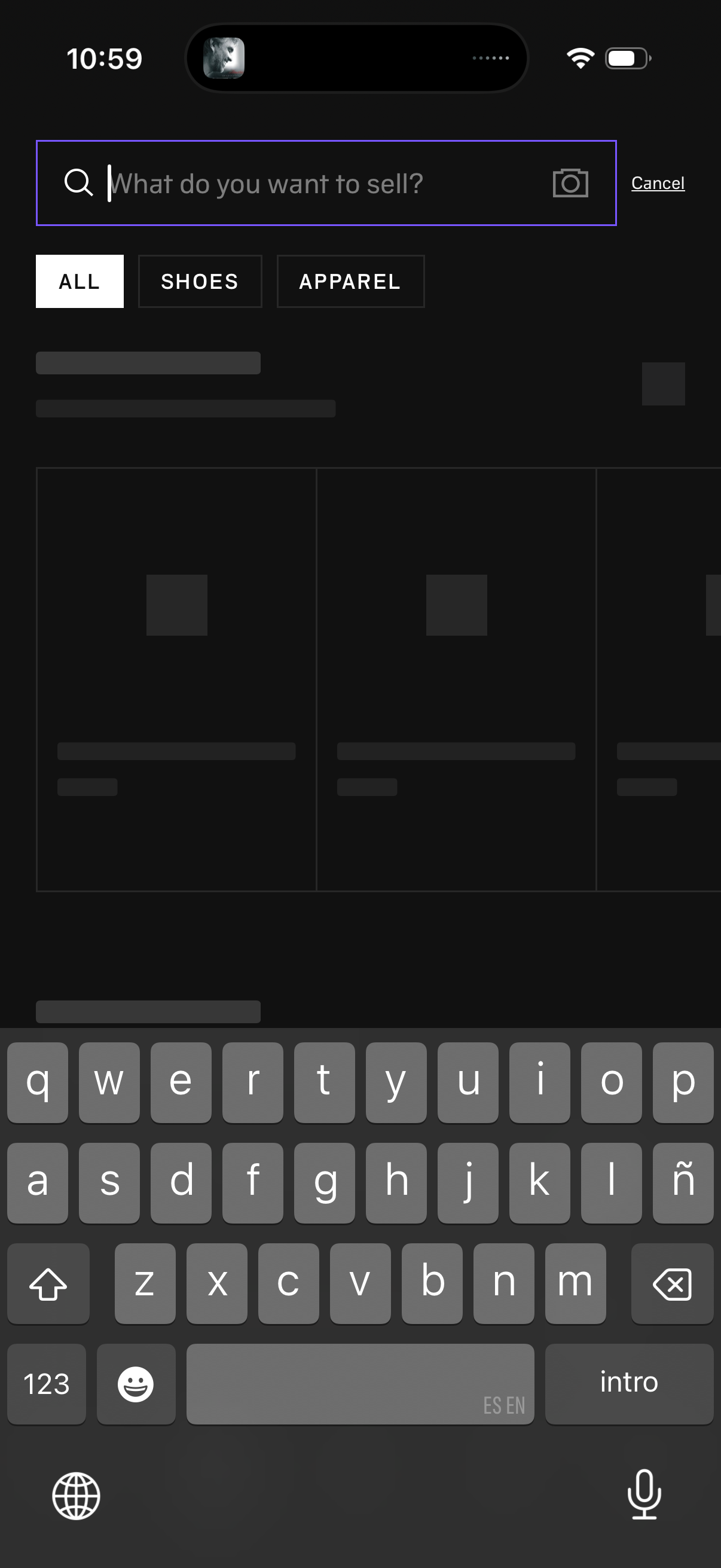
Marketplace selling search screen with a search bar asking “What do you want to sell? ”, including a camera icon for visual/photo search and a Cancel action.
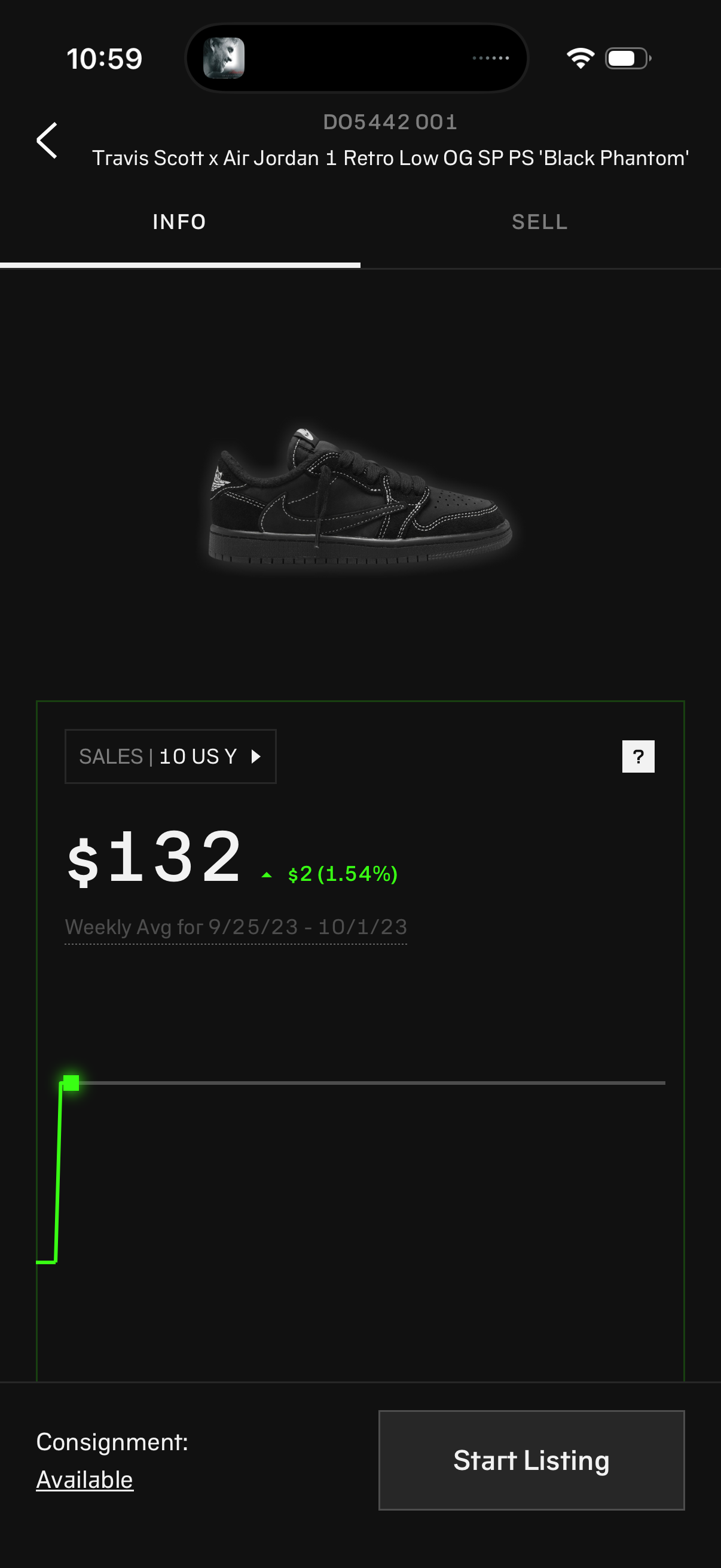
Product detail screen for a sneaker resale marketplace showing the item image and name, sales price analytics with a selectable size filter and weekly average price change graph. Includes tabs to switch between Info and Sell, plus consignment availability and a primary CTA to start listing the item for sale.
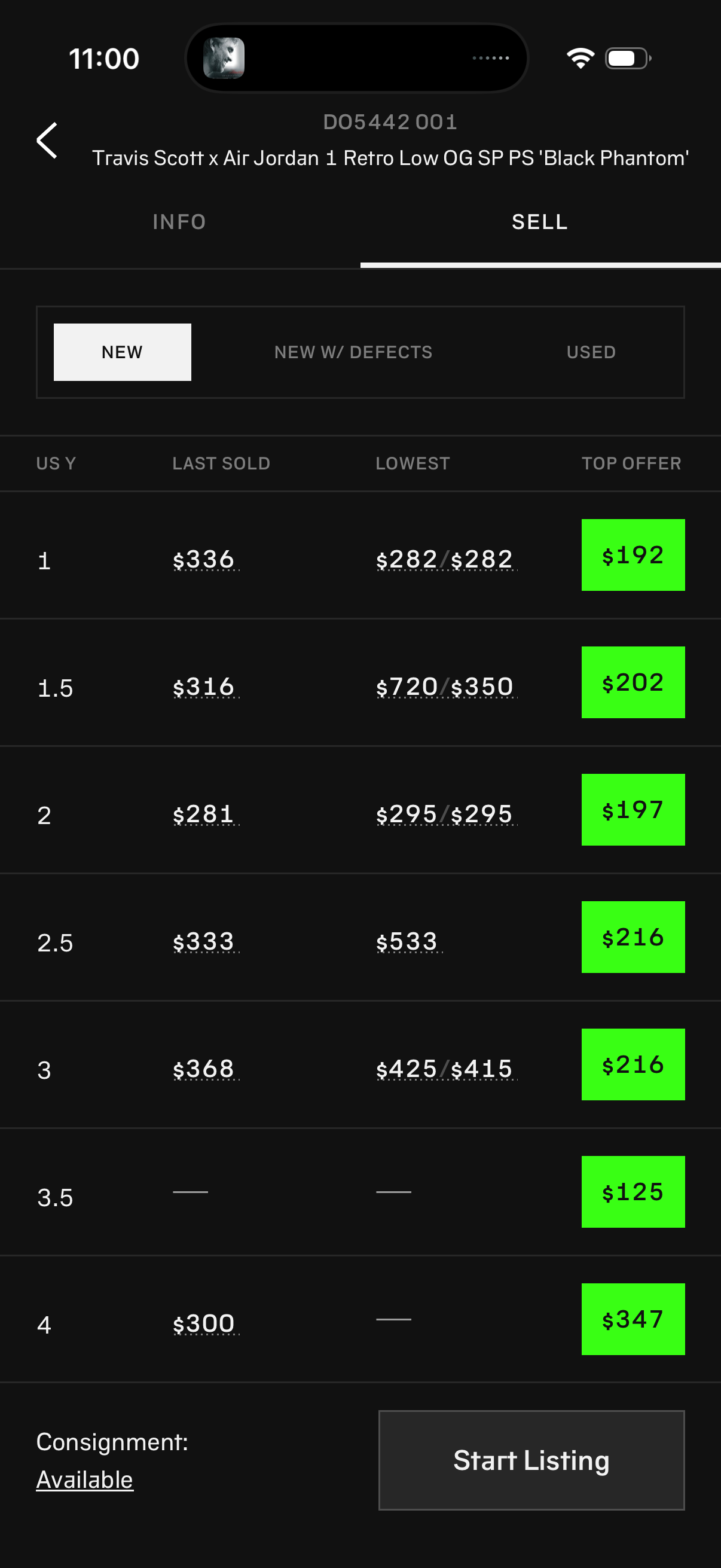
Sell flow for a sneaker marketplace listing, showing a size-by-size pricing table with last sold price, lowest ask, and top offer/bid for the selected condition (new, new with defects, or used). Users can review market prices and tap “Start Listing” to create a sale listing, with an option indicating consignment availability.
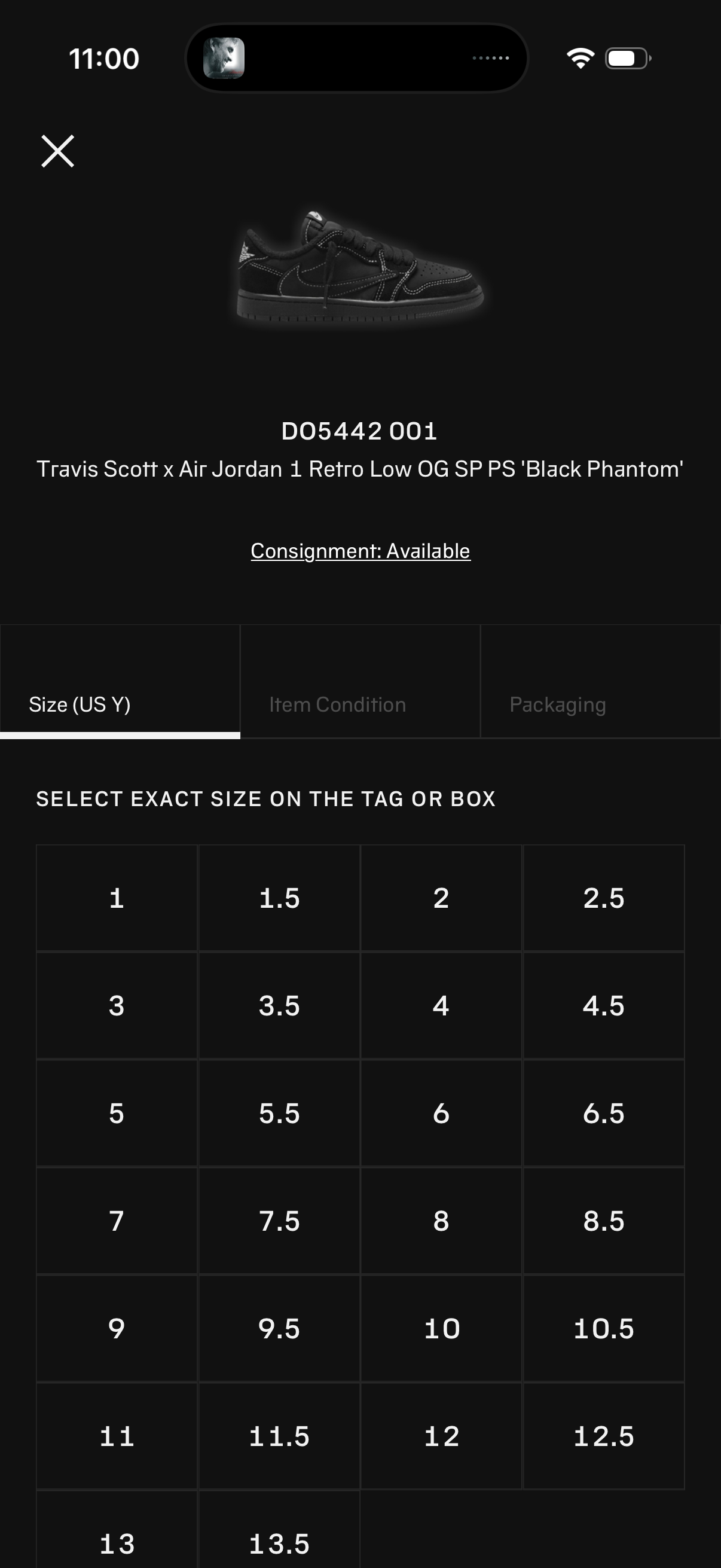
Product authentication/consignment setup screen for a sneaker showing the item photo, SKU and name, with a consignment availability indicator. The user is on the “Size (US Y)” step and must select the exact size from a grid of size options, with tabs for other steps like item condition and packaging.
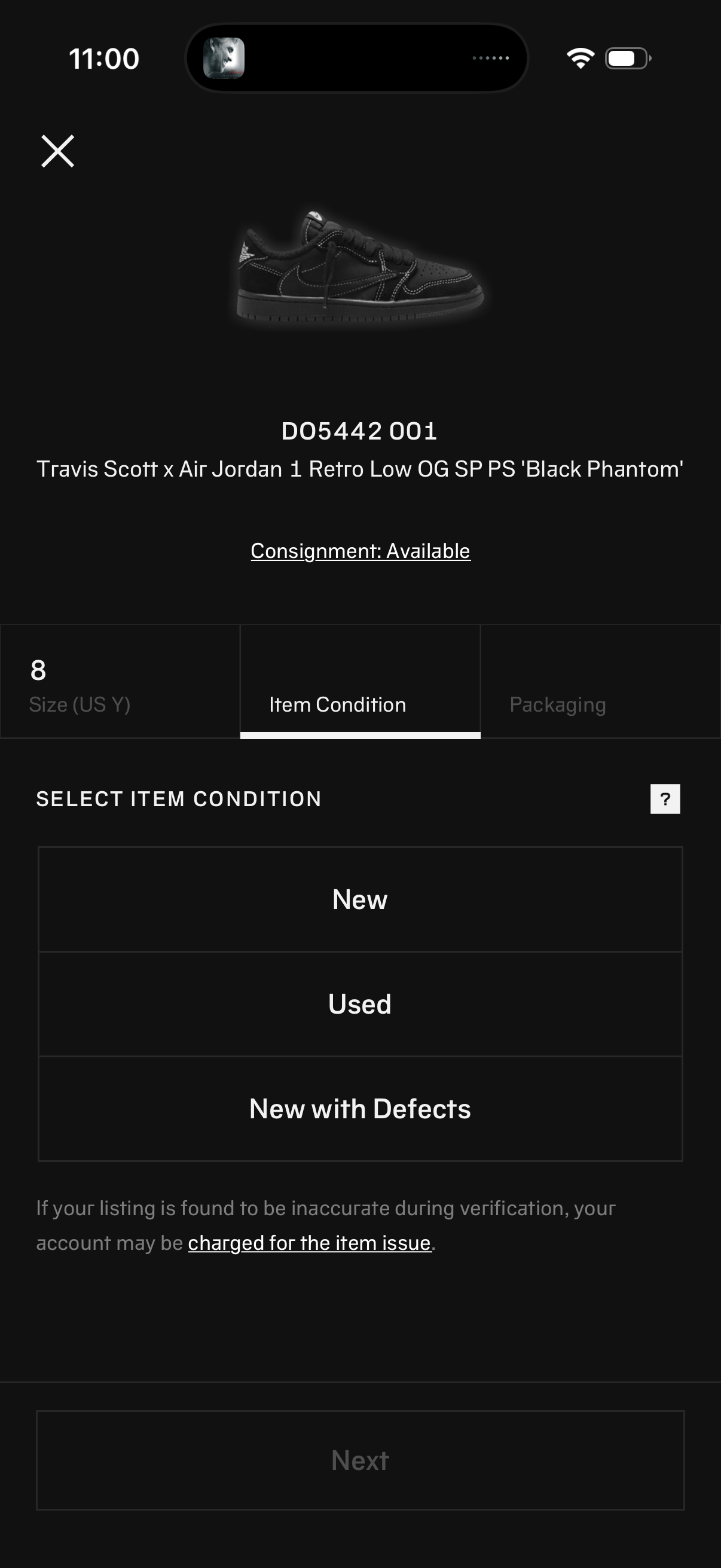
Product listing flow for sneakers showing the selected size and an Item Condition step, with product image/details and consignment availability. User chooses a condition option (New, Used, New with Defects) before tapping Next to continue.
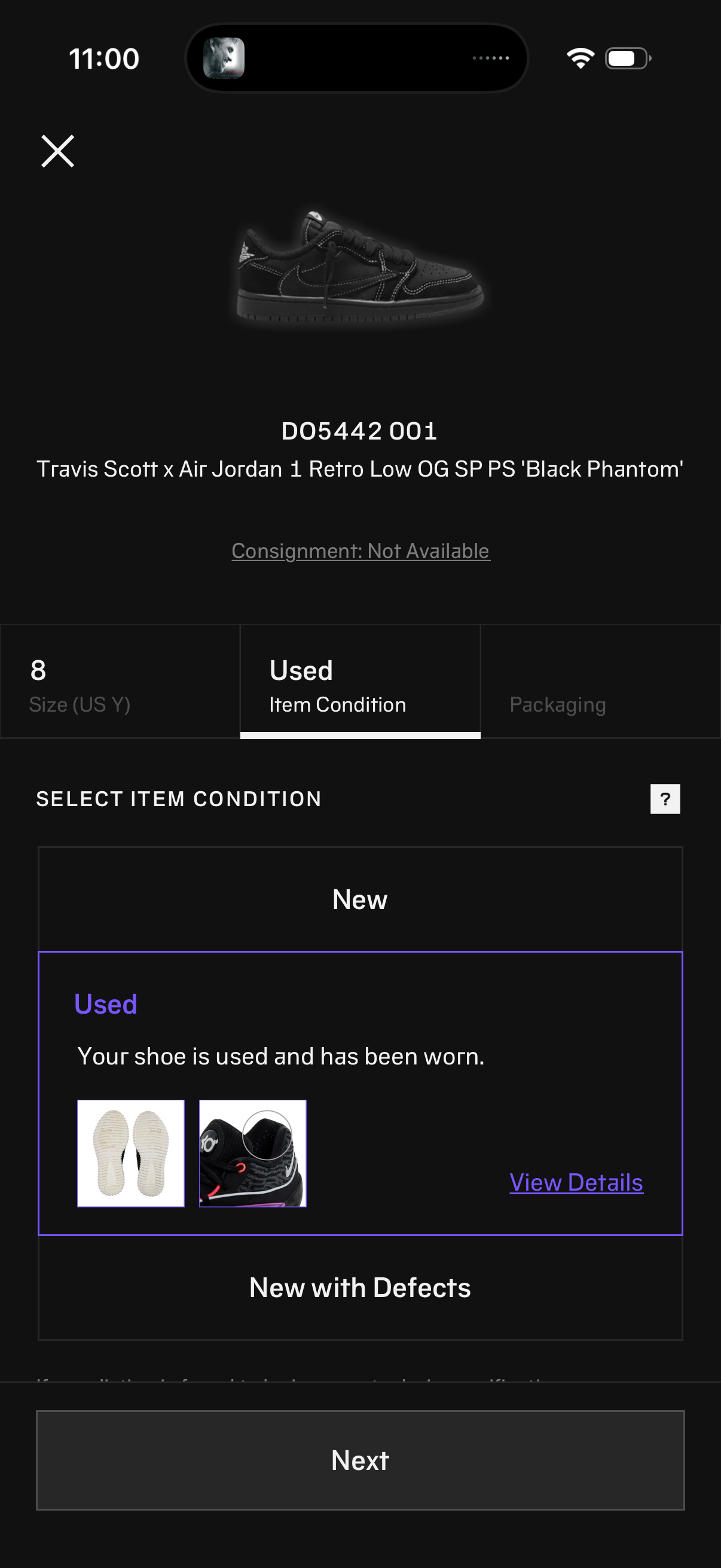
Product listing flow for selling/consigning sneakers, showing the selected shoe and a step to choose item condition (New, Used, New with Defects) with a “View details” link and a Next button to continue. Includes a step indicator for size, condition, and packaging plus a consignment availability status.
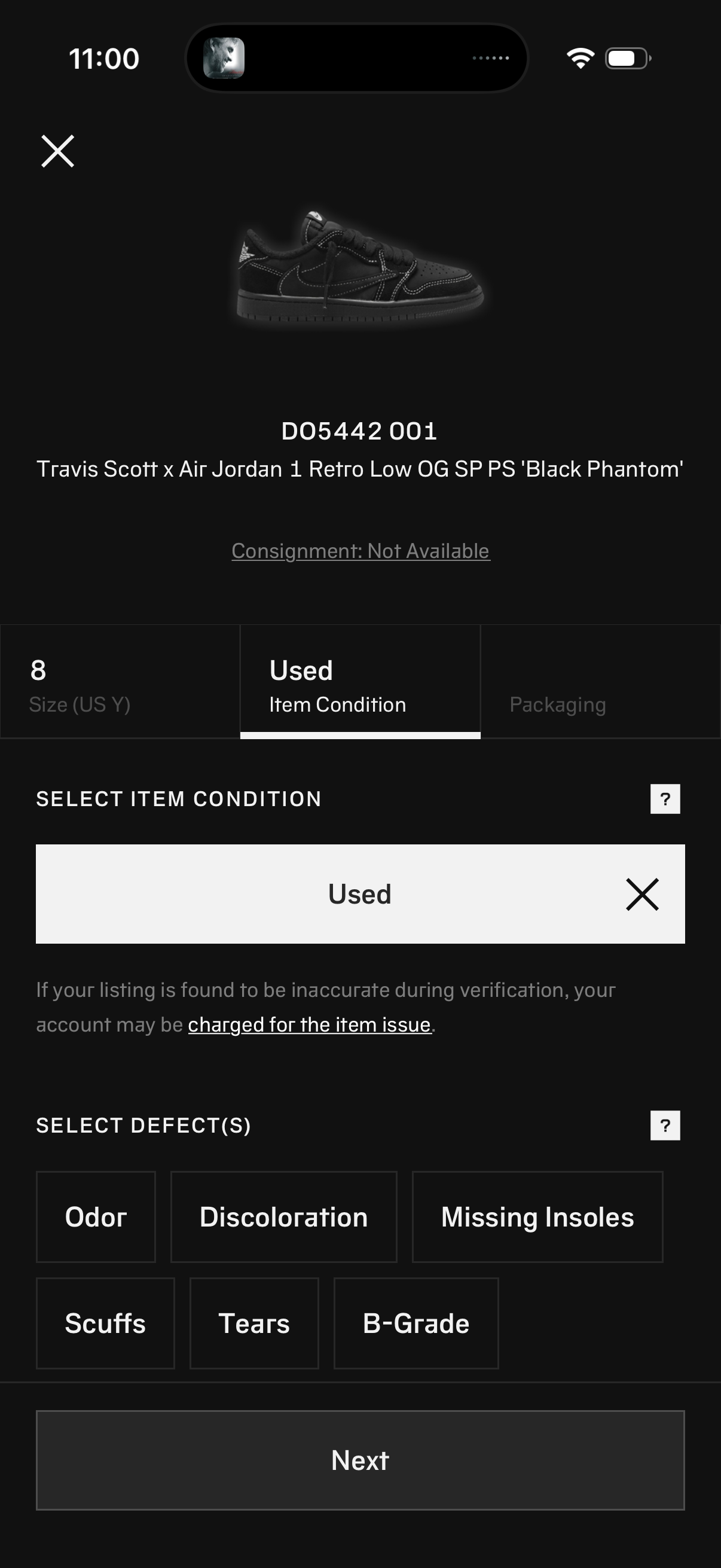
Product listing flow for reselling sneakers where the user sets size and selects item condition (e. g.
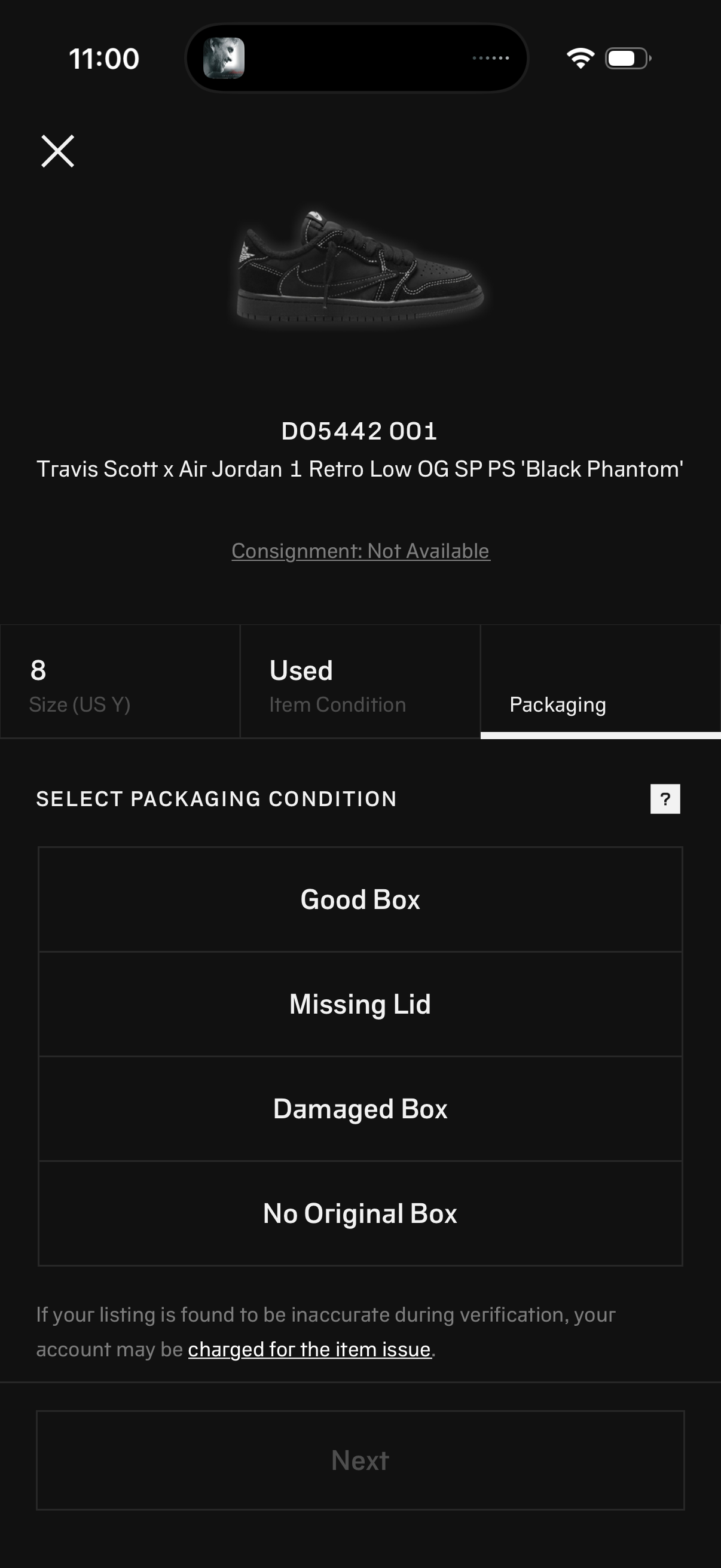
Product listing details screen for selling sneakers, showing the selected size and item condition and focusing on the Packaging step. Users choose a packaging condition from options like Good Box, Missing Lid, Damaged Box, or No Original Box, with a help icon, consignment availability notice, and a disabled Next button until a selection is made.
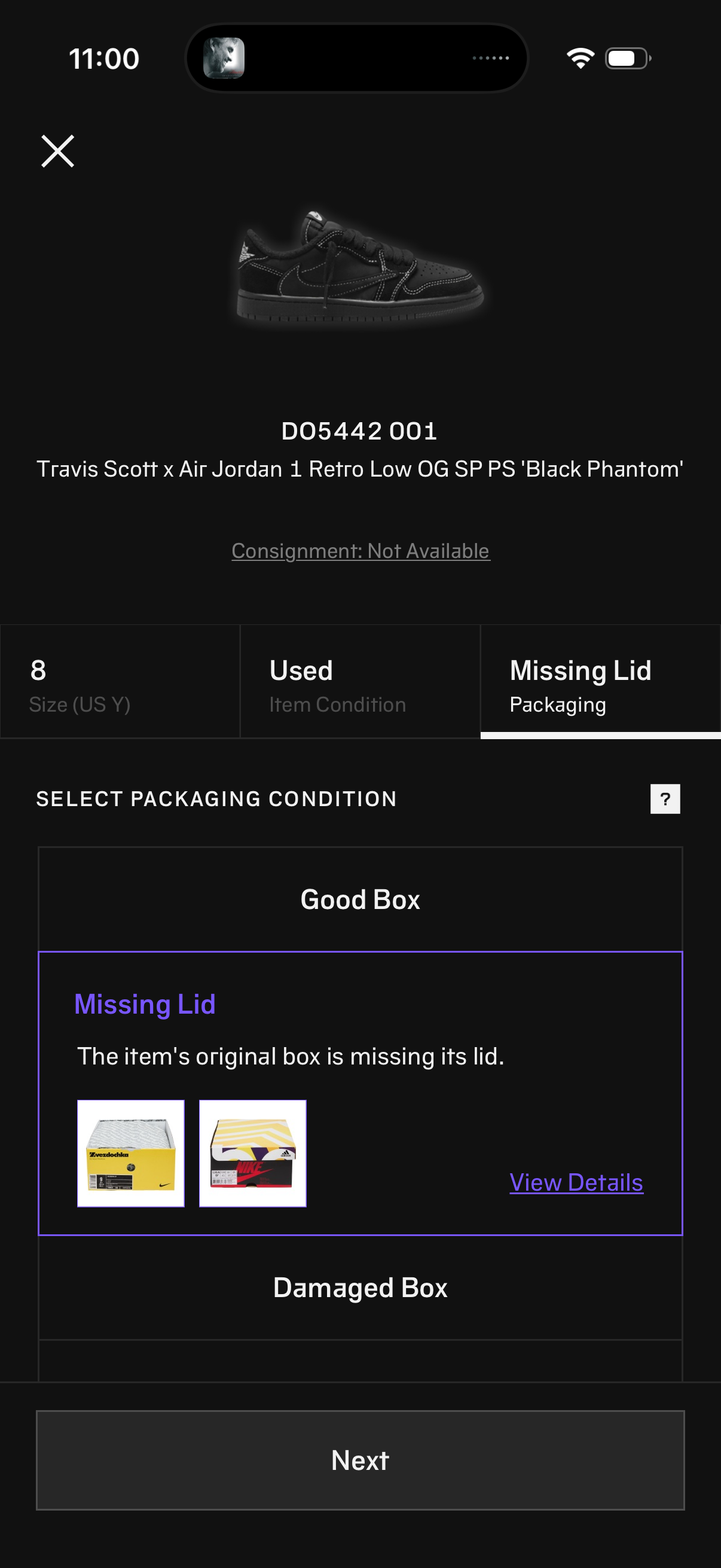
Product consignment/listing screen for sneakers showing the selected size and item condition, with a step to choose packaging condition (e. g.
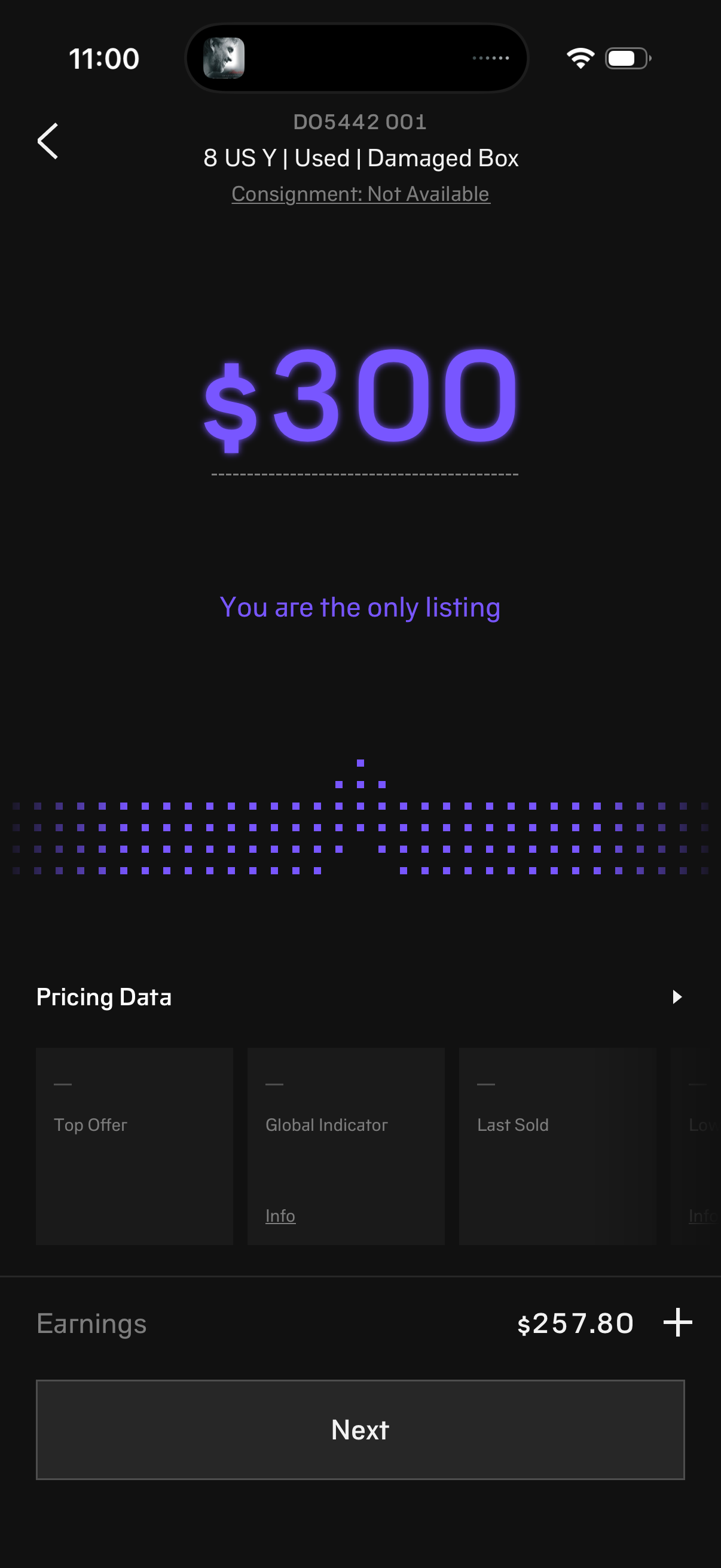
Product listing pricing screen for a marketplace resale app showing the recommended sale price with a price chart and “You are the only listing” availability message. Includes expandable pricing data cards (top offer, global indicator, last sold), an earnings estimate with add fee option, and a primary Next button to proceed with listing.
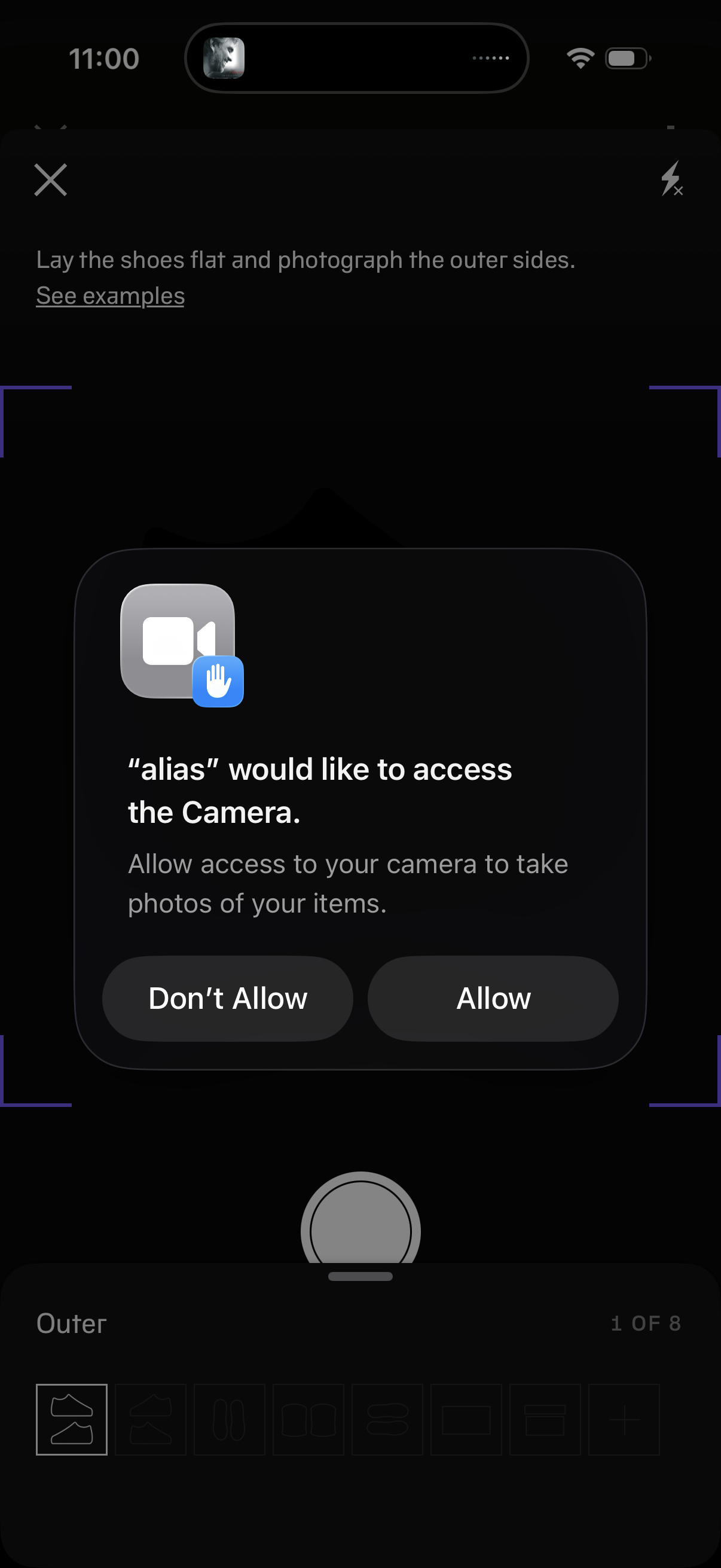
In-app camera capture screen for listing shoes/items, showing framing guides and instructions with a link to view photo examples and a step indicator for multiple required shots. An iOS system permission prompt overlays the screen asking to allow or deny camera access.
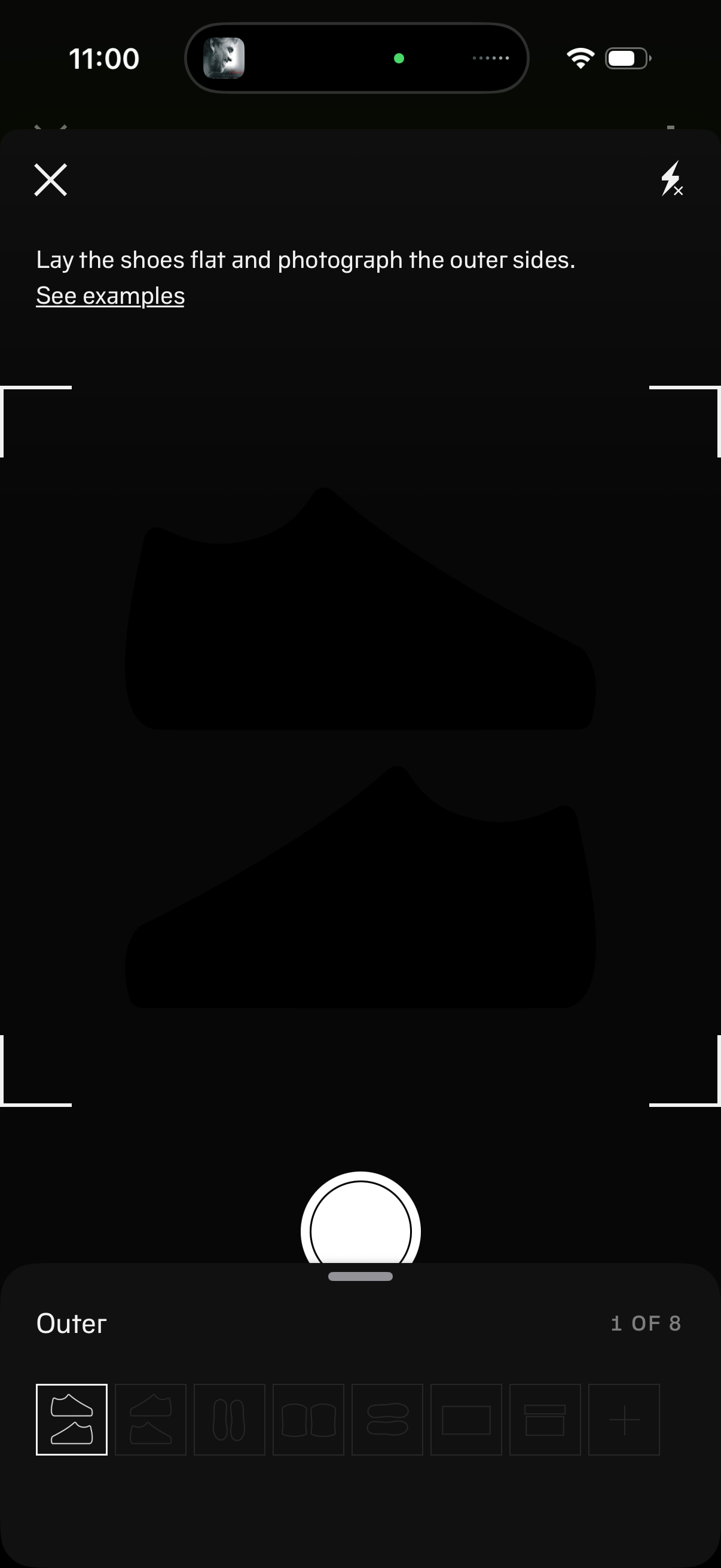
In-app camera capture screen for creating a shoe listing, guiding the user to lay shoes flat and photograph the outer sides with an option to view example photos. Includes a shutter button, flash toggle, close action, and a step tracker with thumbnail icons showing required photo angles (e.
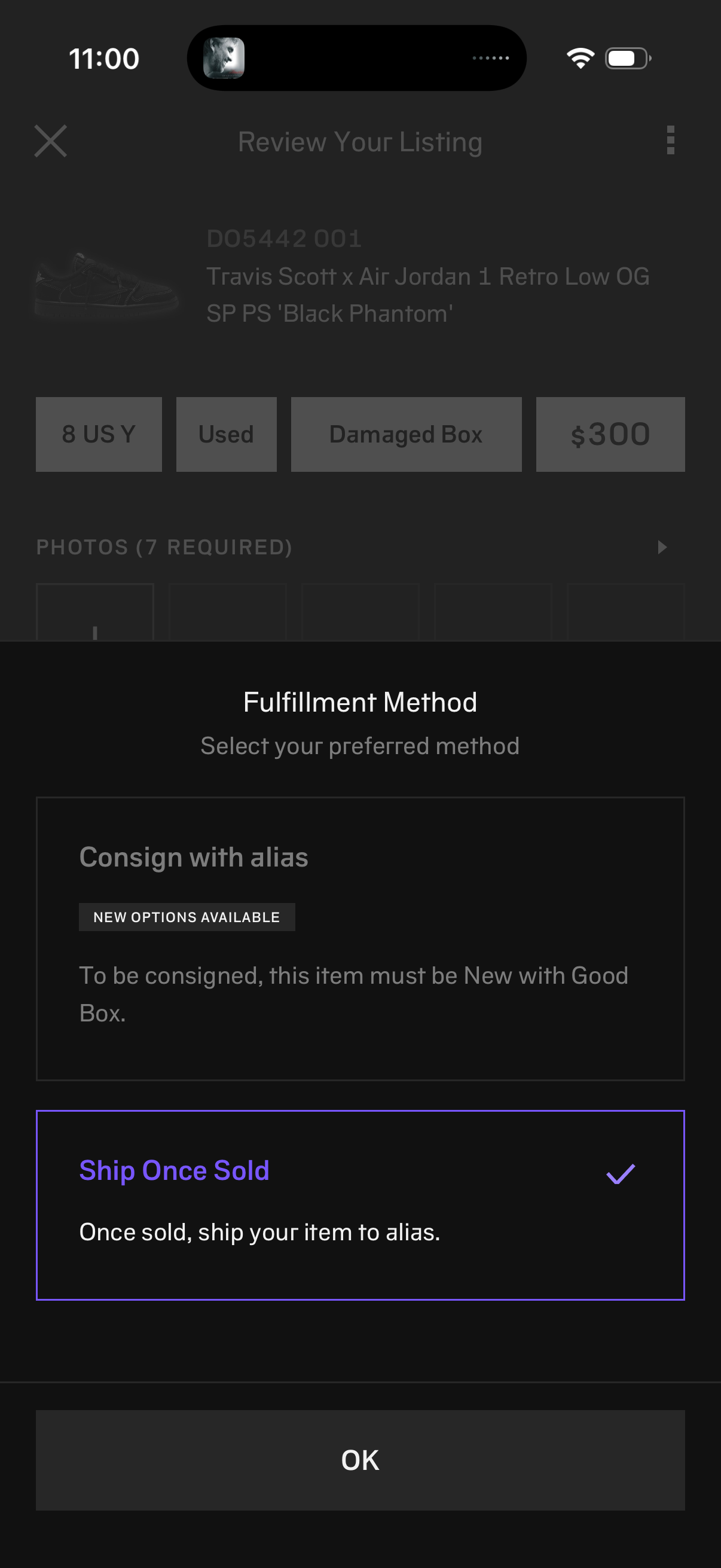
Modal bottom sheet for selecting a fulfillment method while reviewing a marketplace listing, presenting options like “Consign” versus “Ship once sold” with a selected state and confirmation via an OK button. Includes brief eligibility/help text for each option and can be dismissed with a close icon.
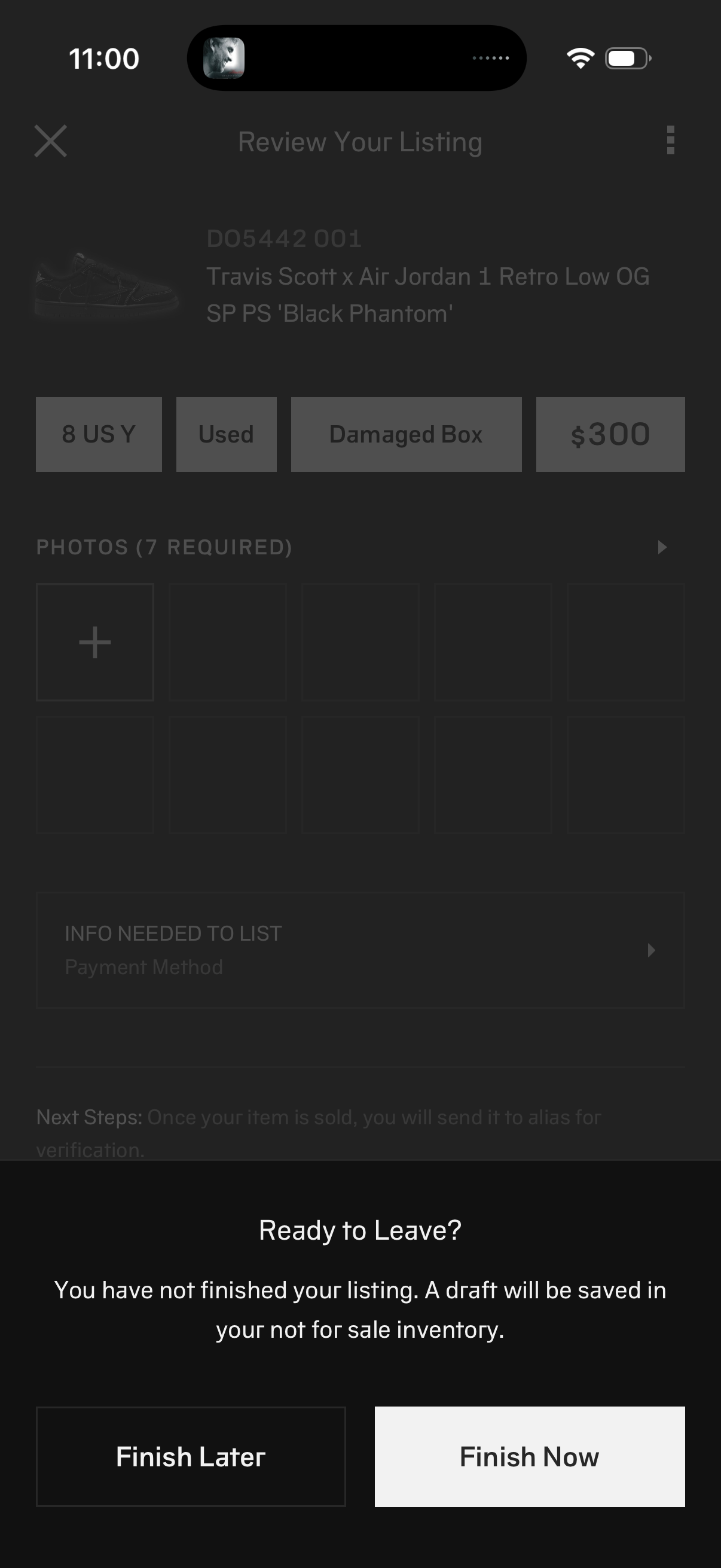
A marketplace “Review Your Listing” screen for selling an item, showing the product details (size, condition, box status, and price), required photo upload slots, and a section for missing listing info like payment method. An exit confirmation bottom sheet warns the listing isn’t finished and will be saved as a draft, with actions to Finish Later or Finish Now.
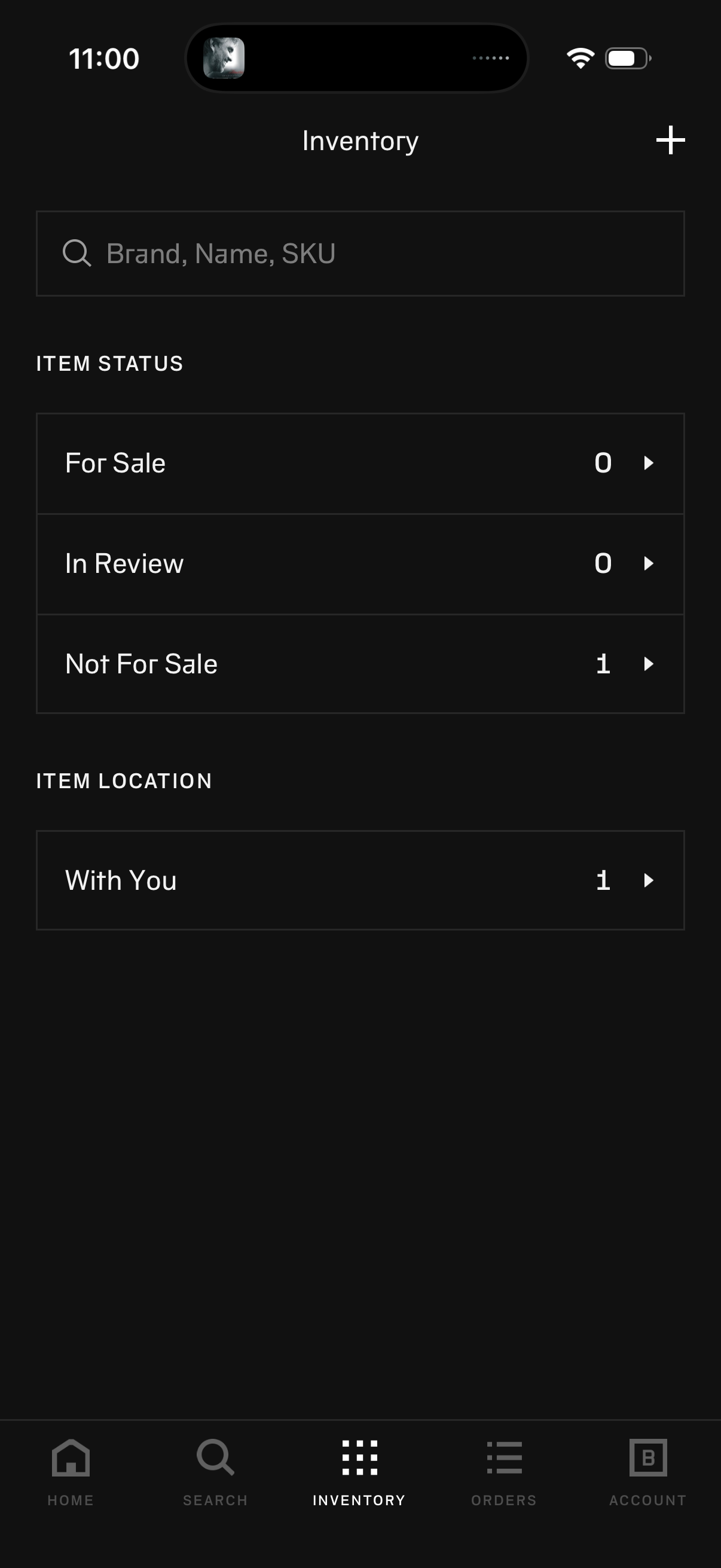
Inventory management dashboard with a search bar to find items by brand, name, or SKU and categorized lists showing item counts by status (For Sale, In Review, Not For Sale) and location (With You). Includes a plus button to add new inventory items and navigation to other sections like Home, Search, Orders, and Account.