Onboarding
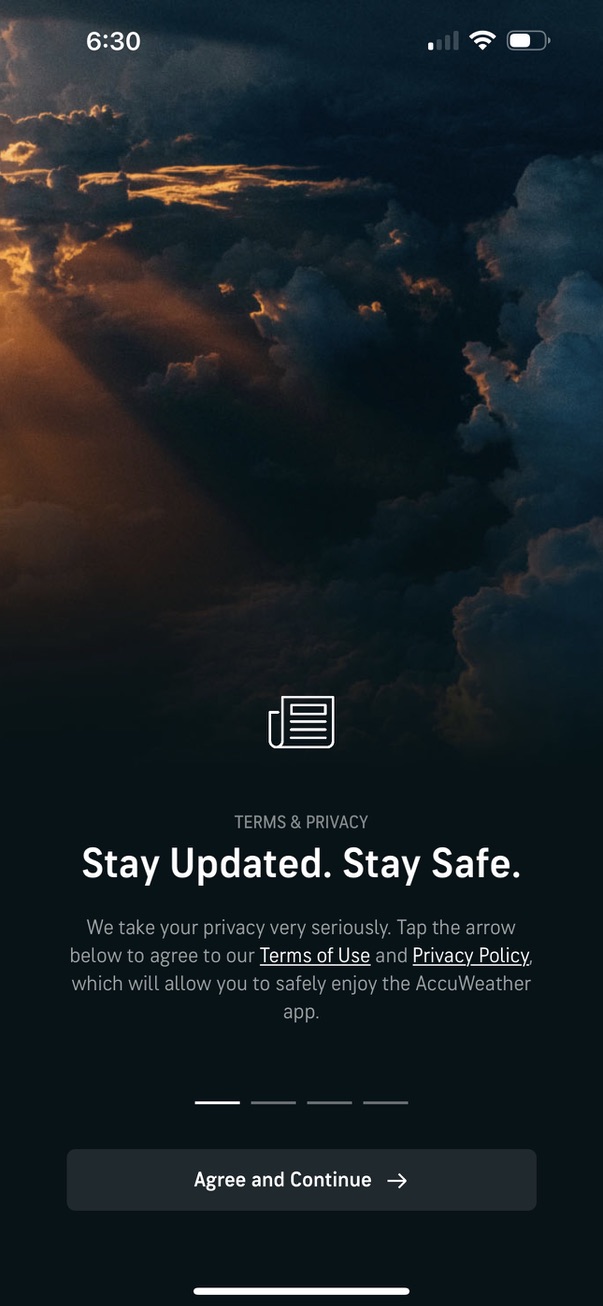
Onboarding terms and privacy consent screen for a weather app, explaining agreement to Terms of Use and Privacy Policy before continuing. Includes progress indicator dots and a primary “Agree and Continue” button to proceed.

Onboarding screen requesting location permissions to enable hyper-local weather forecasts, severe alerts, news, and stories based on the user’s current location. Includes explanatory copy, a pagination indicator for the onboarding flow, and a primary “Next” button to proceed.
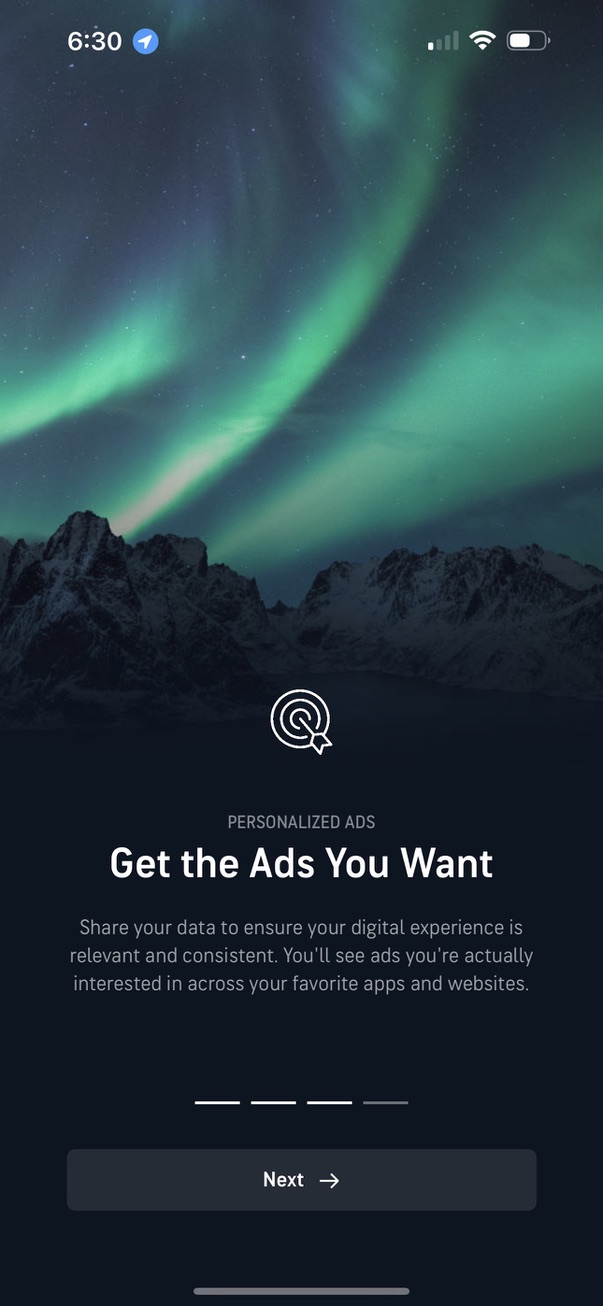
Onboarding/permission education screen explaining personalized ads and asking users to share data to receive more relevant advertising across apps and websites. Includes a progress indicator for the multi-step intro and a primary “Next” button to continue.
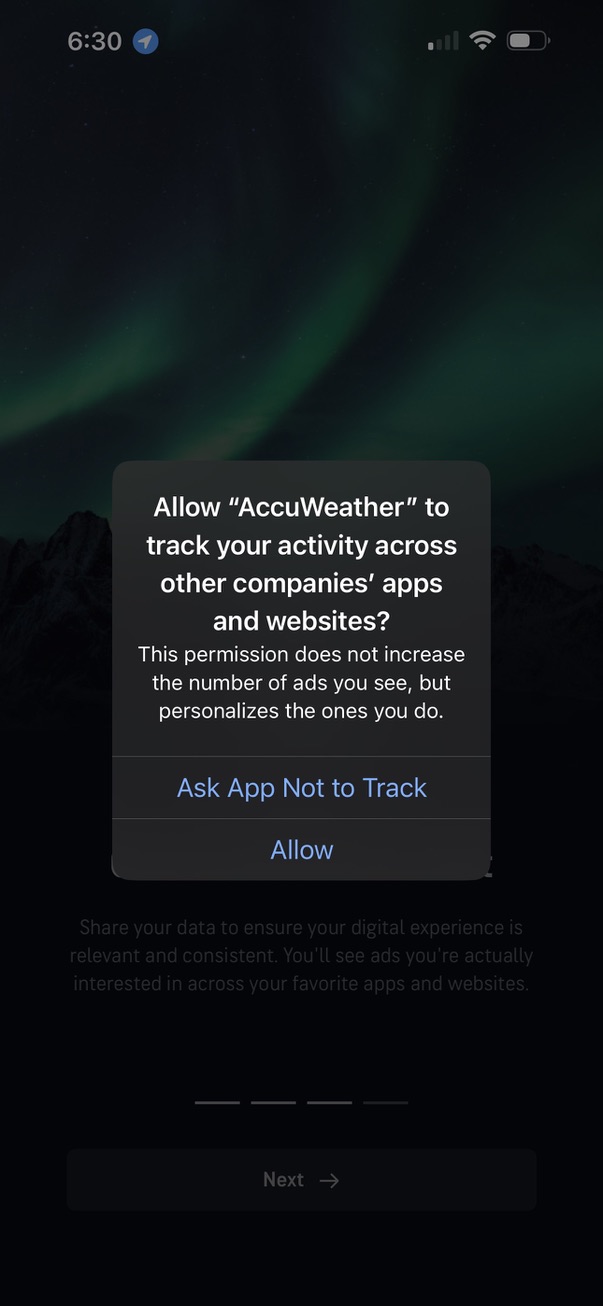
iOS App Tracking Transparency permission alert asking whether to allow the app to track user activity across other companies’ apps and websites for personalized ads. Modal dialog presents two actions: “Ask App Not to Track” or “Allow.
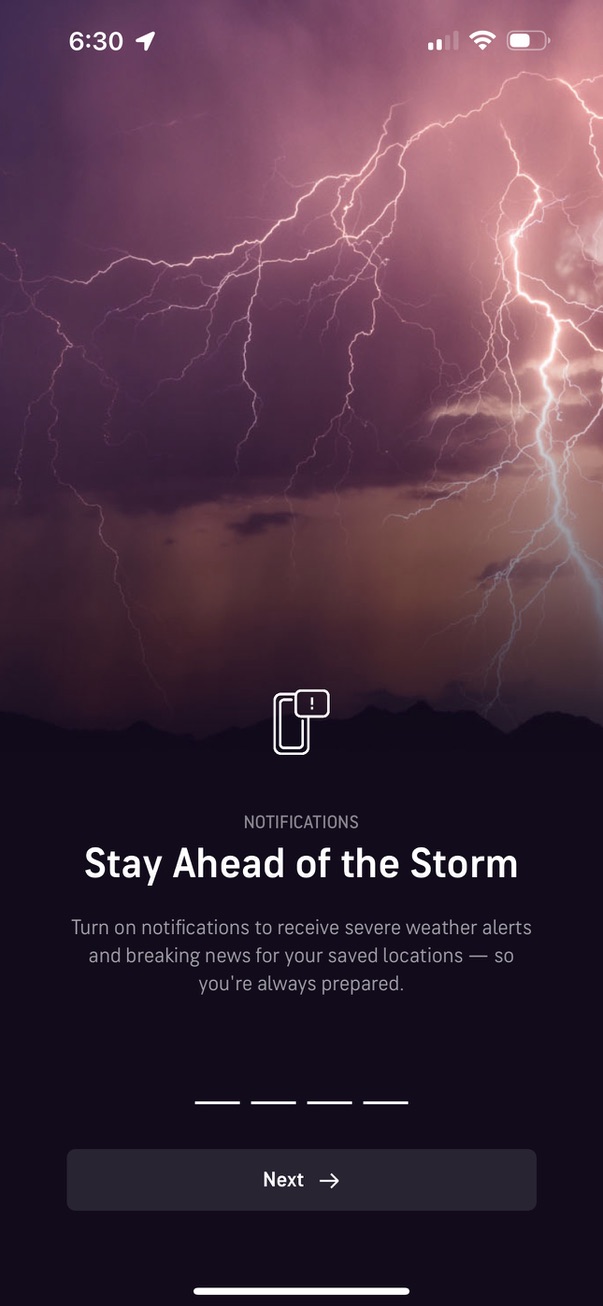
Onboarding permission screen for a weather app prompting the user to enable notifications to receive severe weather alerts and breaking news for saved locations. Includes a “Next” button and pagination indicator to continue through the onboarding flow.

iOS system permission prompt asking to allow a weather app to send notifications, explaining alerts/sounds/badges and offering actions to Allow, Allow in Scheduled Summary, or Don’t Allow. The prompt overlays an onboarding screen encouraging users to enable severe weather alerts with a disabled Next button beneath.
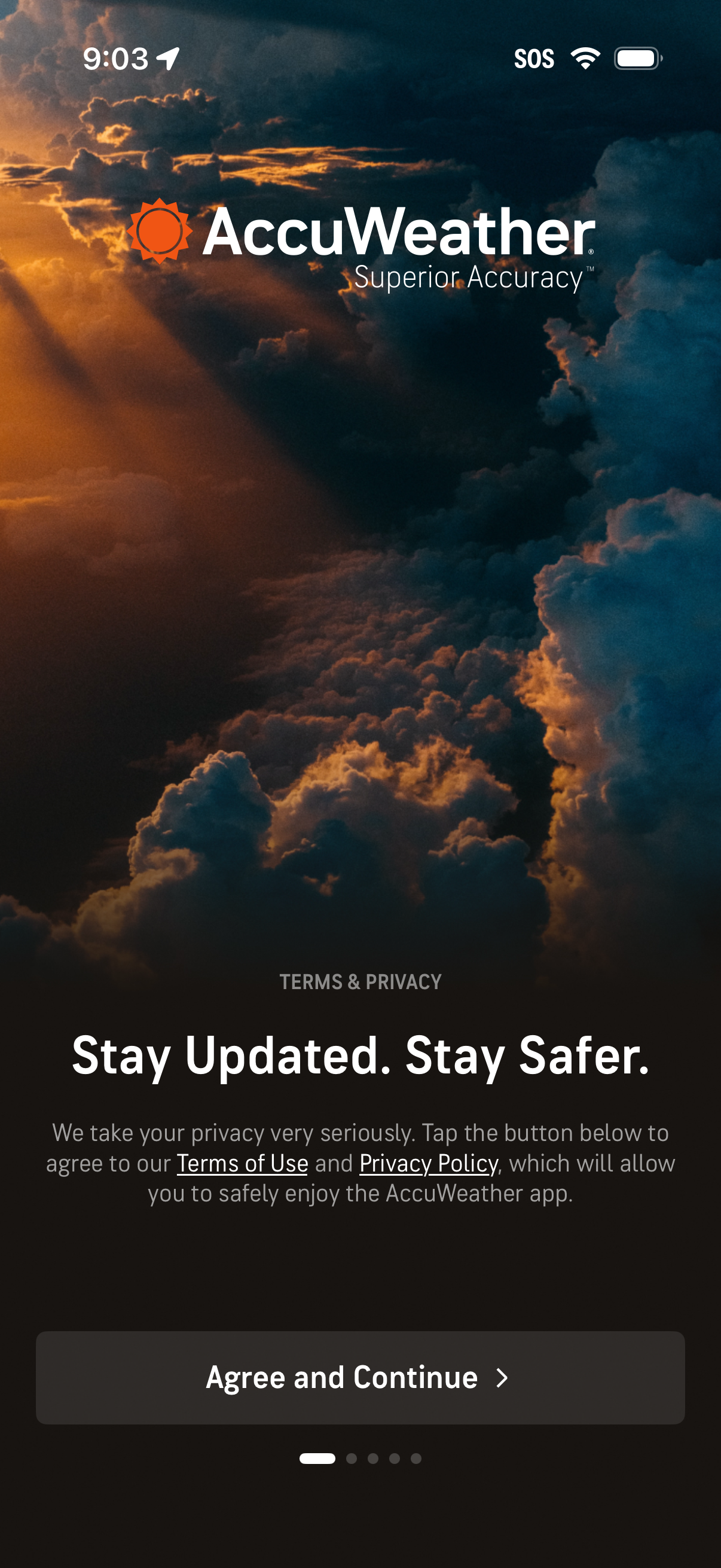
Onboarding welcome screen for a weather app that asks the user to accept Terms of Use and Privacy Policy before proceeding. Includes a short privacy explanation and a primary “Agree and Continue” call-to-action to start using the app.
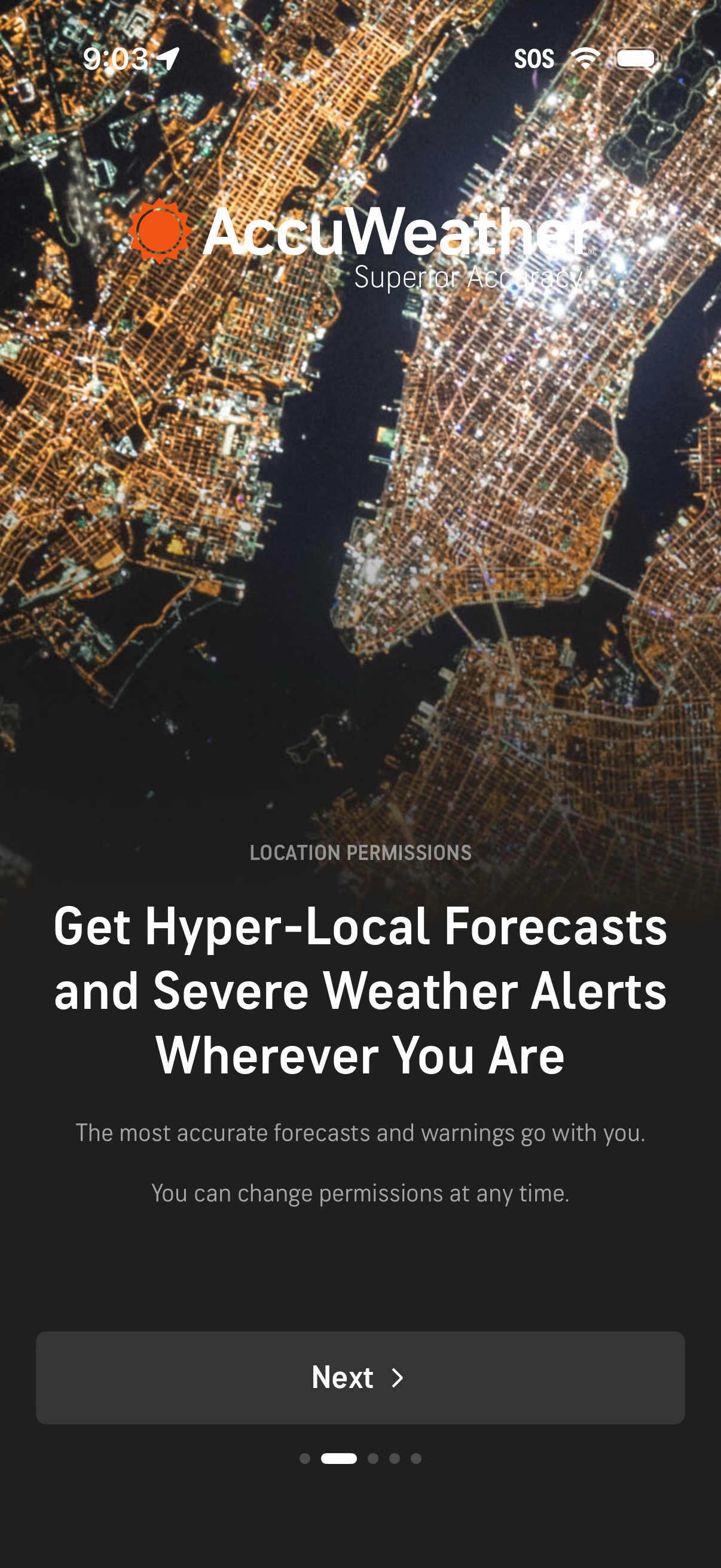
Onboarding screen for a weather app requesting location permissions to deliver hyper-local forecasts and severe weather alerts. Includes explanatory copy and a primary “Next” button to proceed through the setup flow.
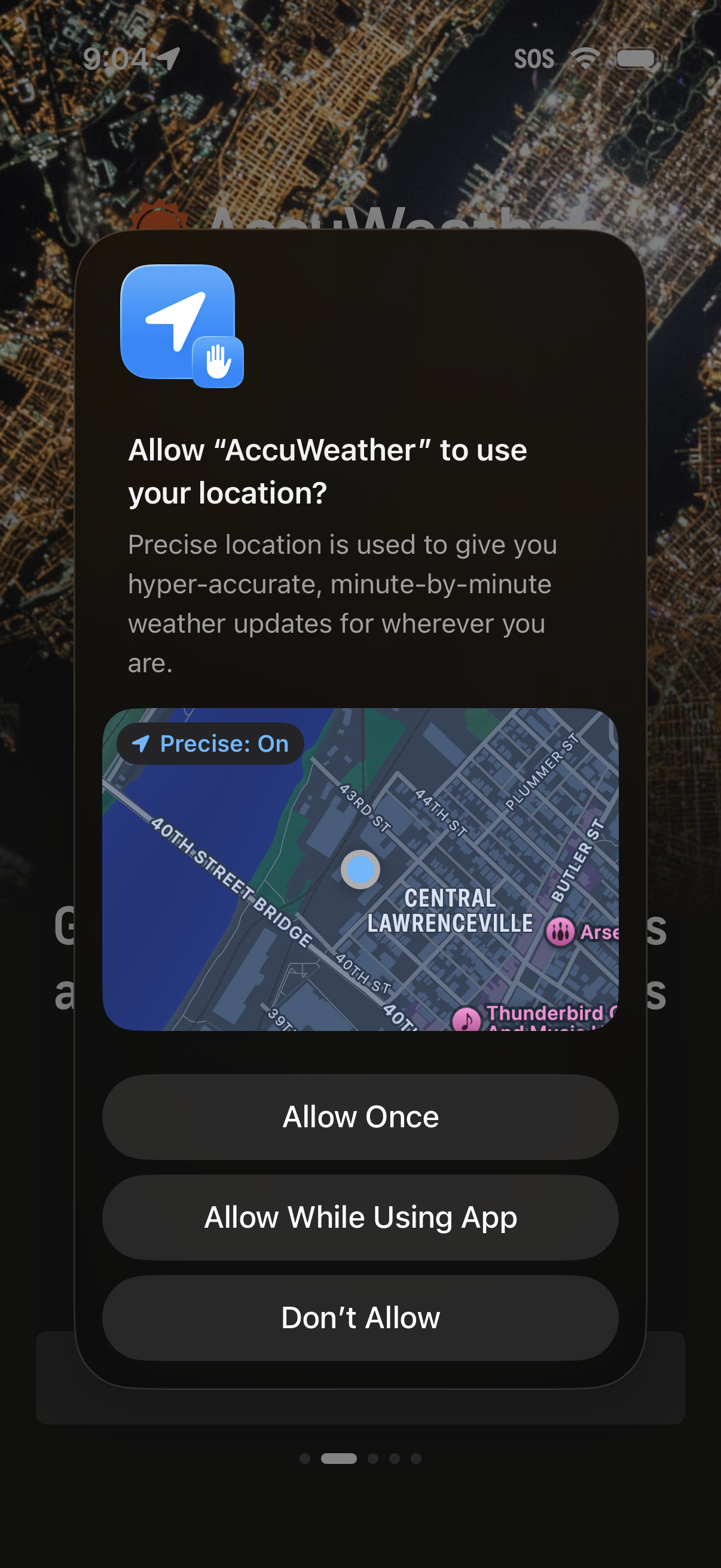
iOS location permission prompt asking to allow a weather app to use precise location for hyper-accurate, minute-by-minute updates, with a map preview and options to Allow Once, Allow While Using App, or Don’t Allow.
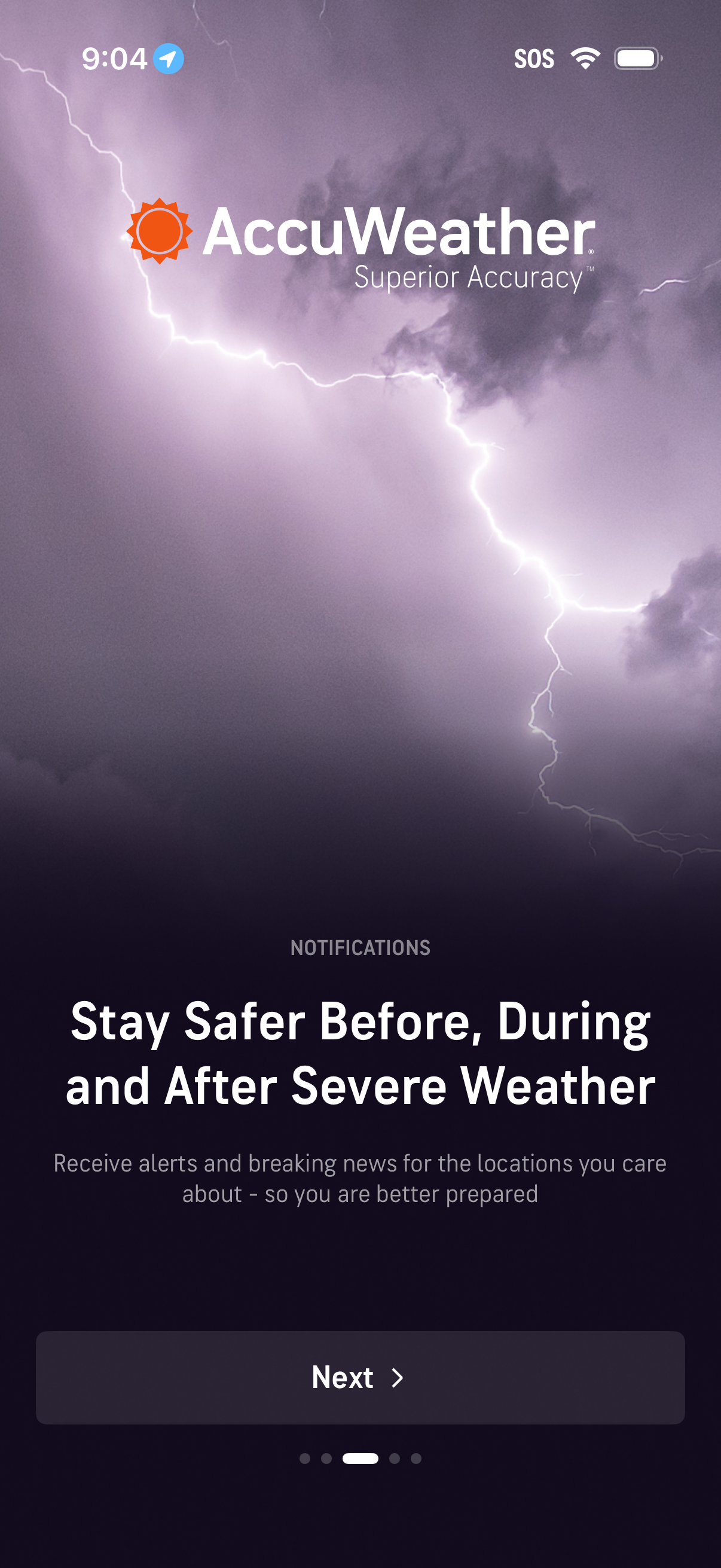
Onboarding carousel screen for a weather app highlighting push notifications for severe weather safety and alerts. Includes a full-screen storm background, feature headline and description text, pagination dots, and a primary “Next” button to continue setup.
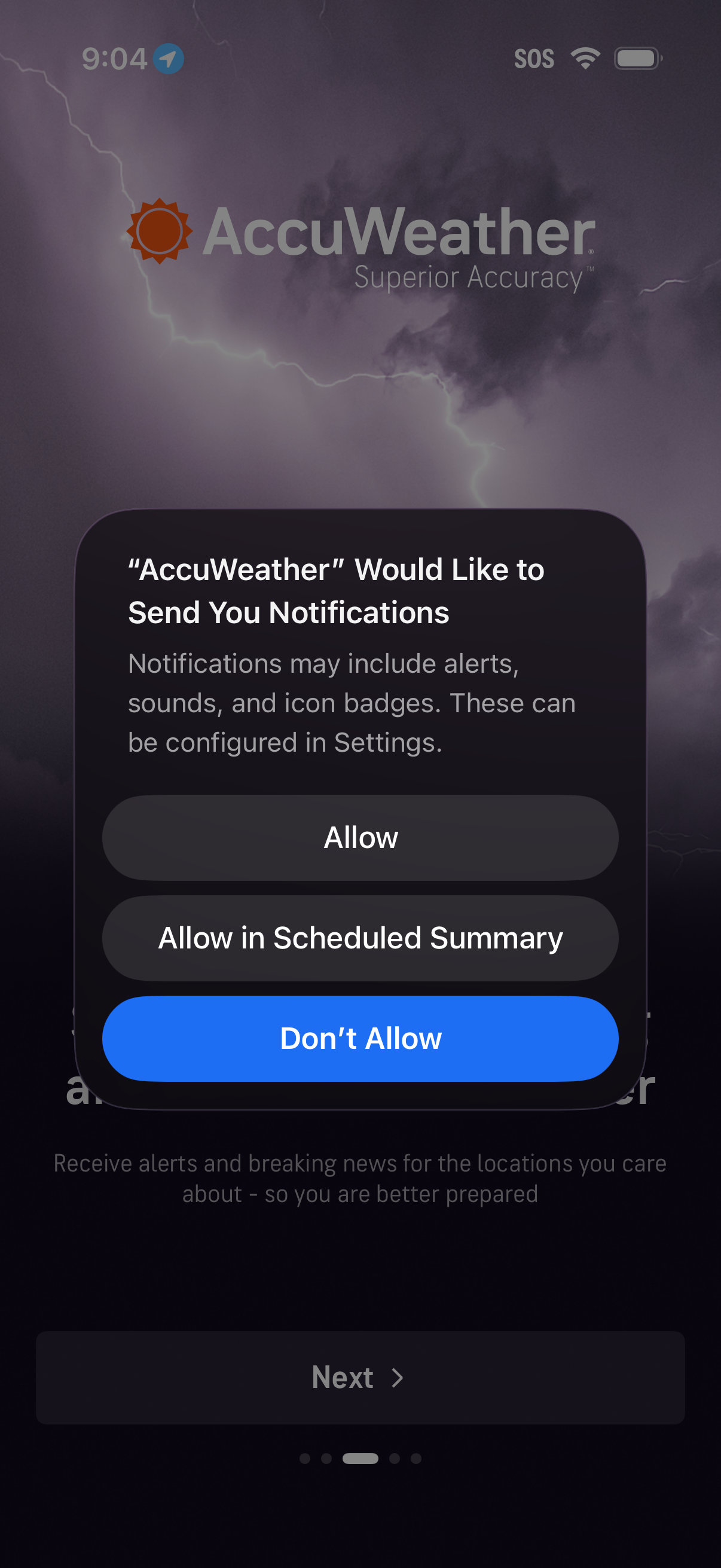
iOS system permission modal asking a weather app to send push notifications, explaining alerts/sounds/badges and offering actions to Allow, Allow in Scheduled Summary, or Don’t Allow during onboarding.
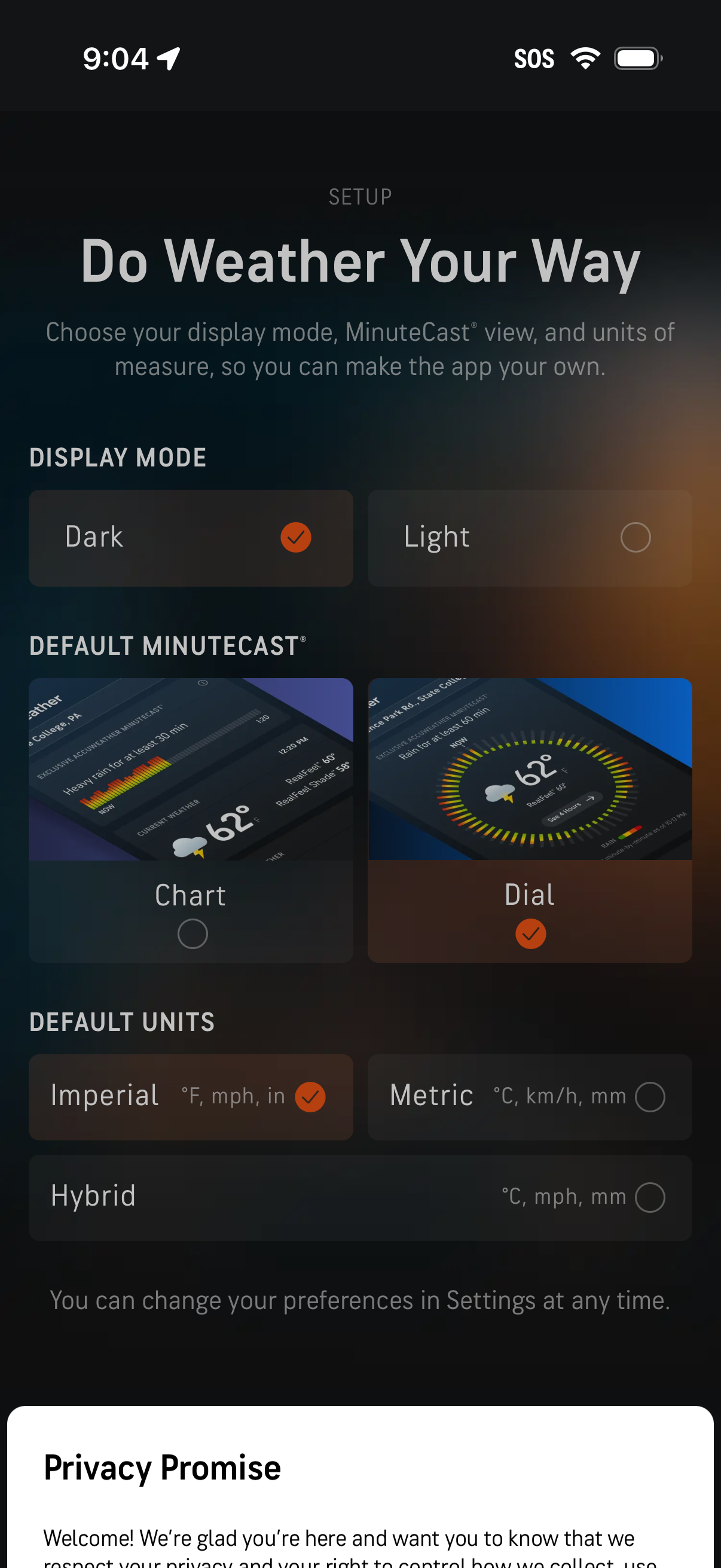
Weather app setup/preferences screen that lets users customize the experience by selecting display mode (dark or light), choosing a default MinuteCast view style (chart or dial), and setting measurement units (imperial, metric, or hybrid) via selectable option cards with radio indicators.
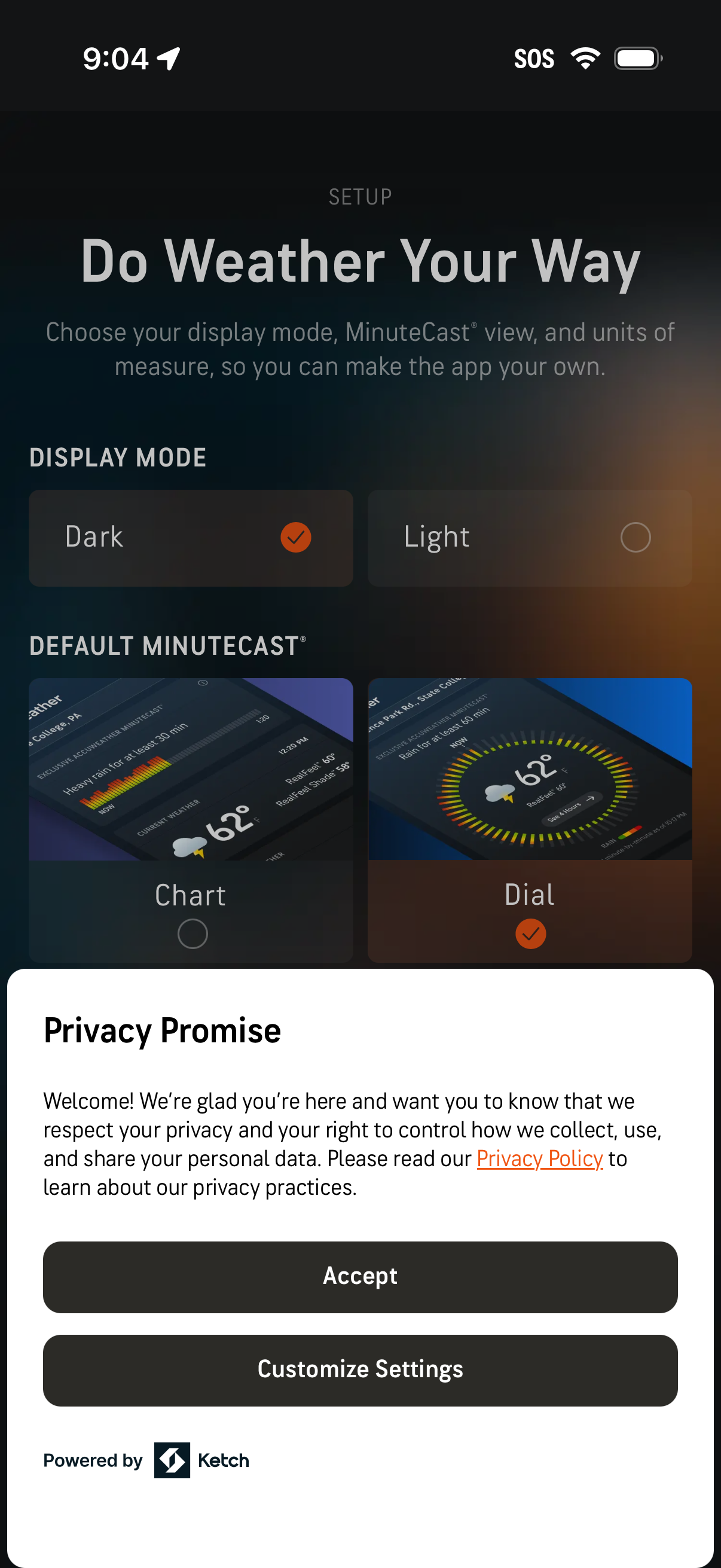
Weather app onboarding setup screen letting users customize the experience by choosing display mode (dark or light) and default MinuteCast forecast view (chart or dial). A privacy promise consent modal overlays the page with links to the privacy policy and primary actions to Accept or Customize Settings.
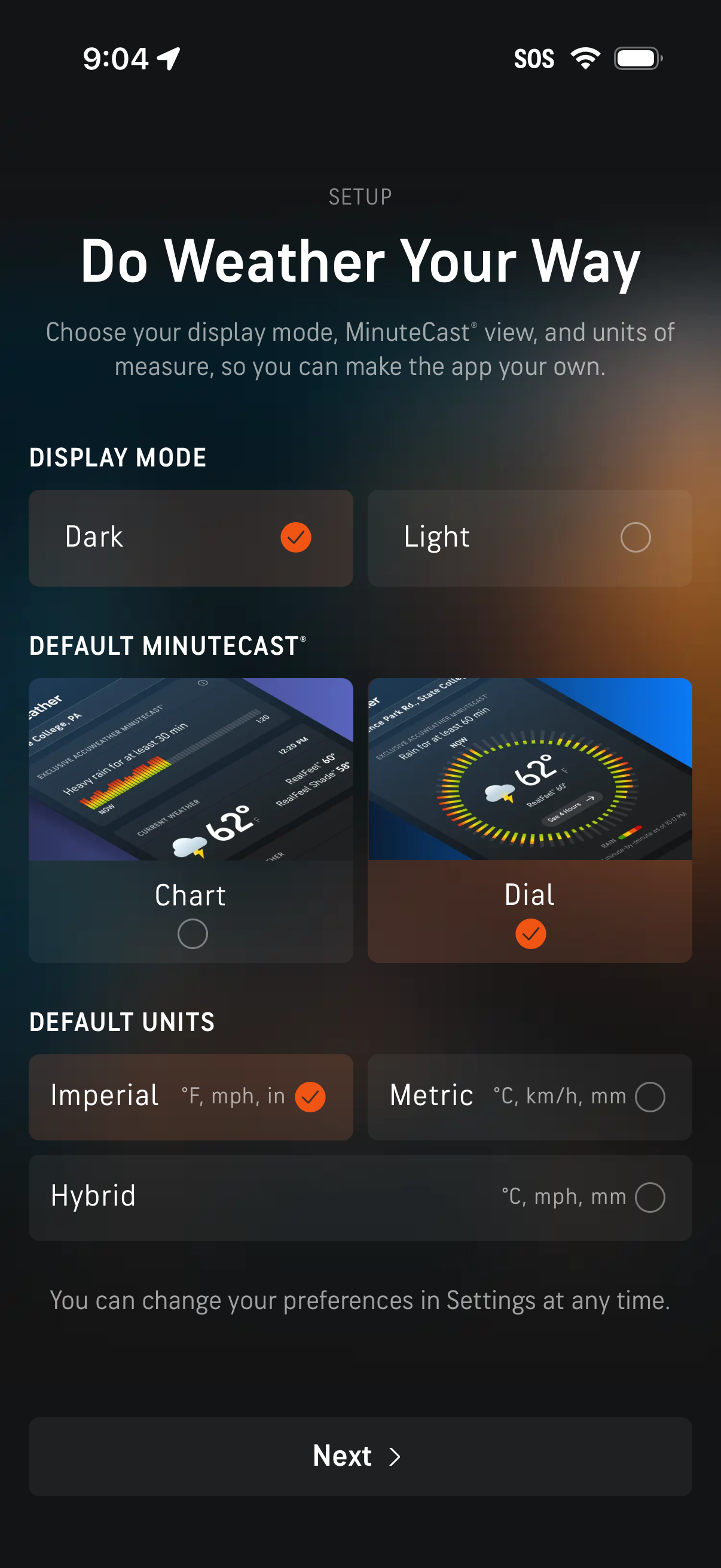
Weather app setup screen for personalizing preferences, letting users choose display mode (dark or light), select a default MinuteCast view style (chart or dial), and set default measurement units (imperial, metric, or hybrid). A “Next” button advances to continue onboarding.
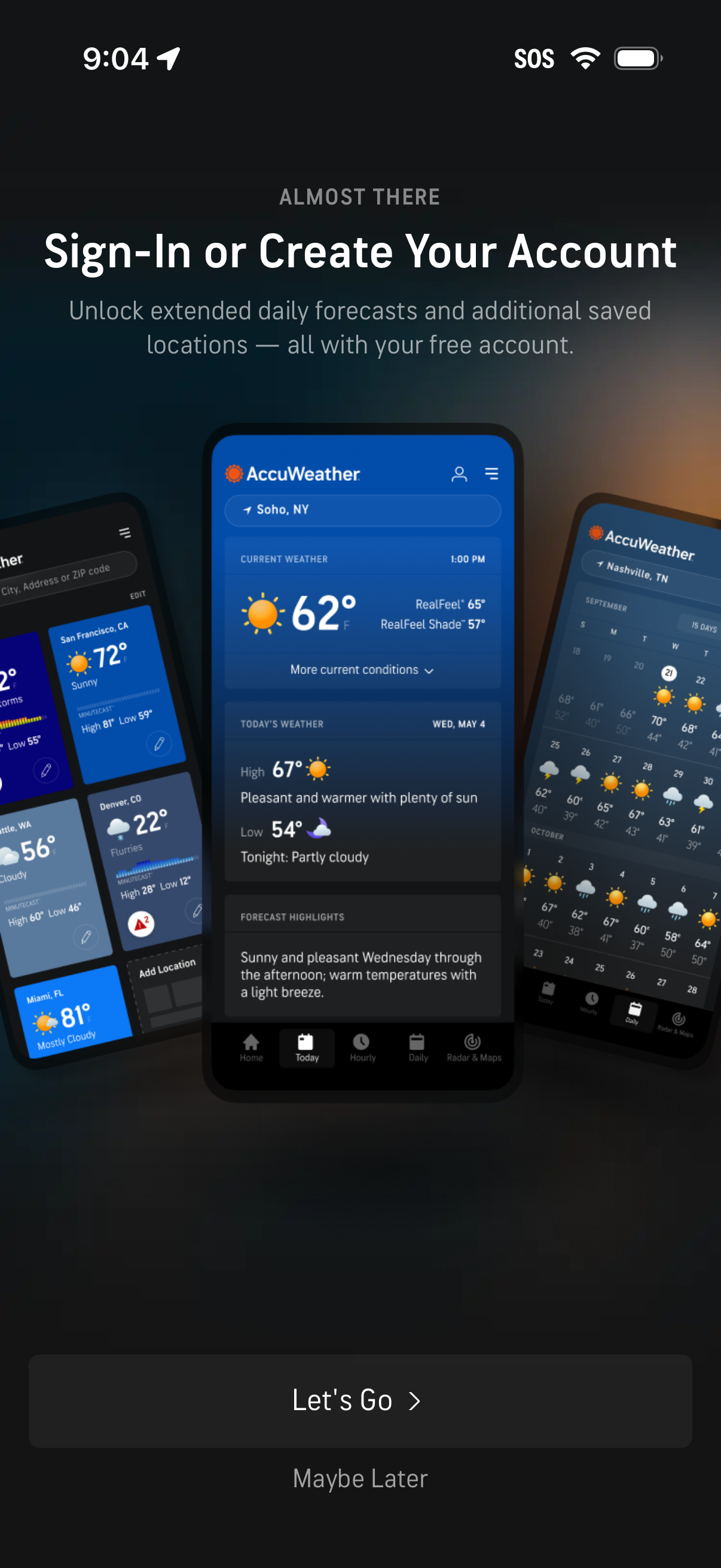
Onboarding prompt asking users to sign in or create a free account to unlock extended weather forecasts and additional saved locations. Screen provides primary CTA “Let’s Go” to proceed with authentication and a secondary “Maybe Later” option to skip.
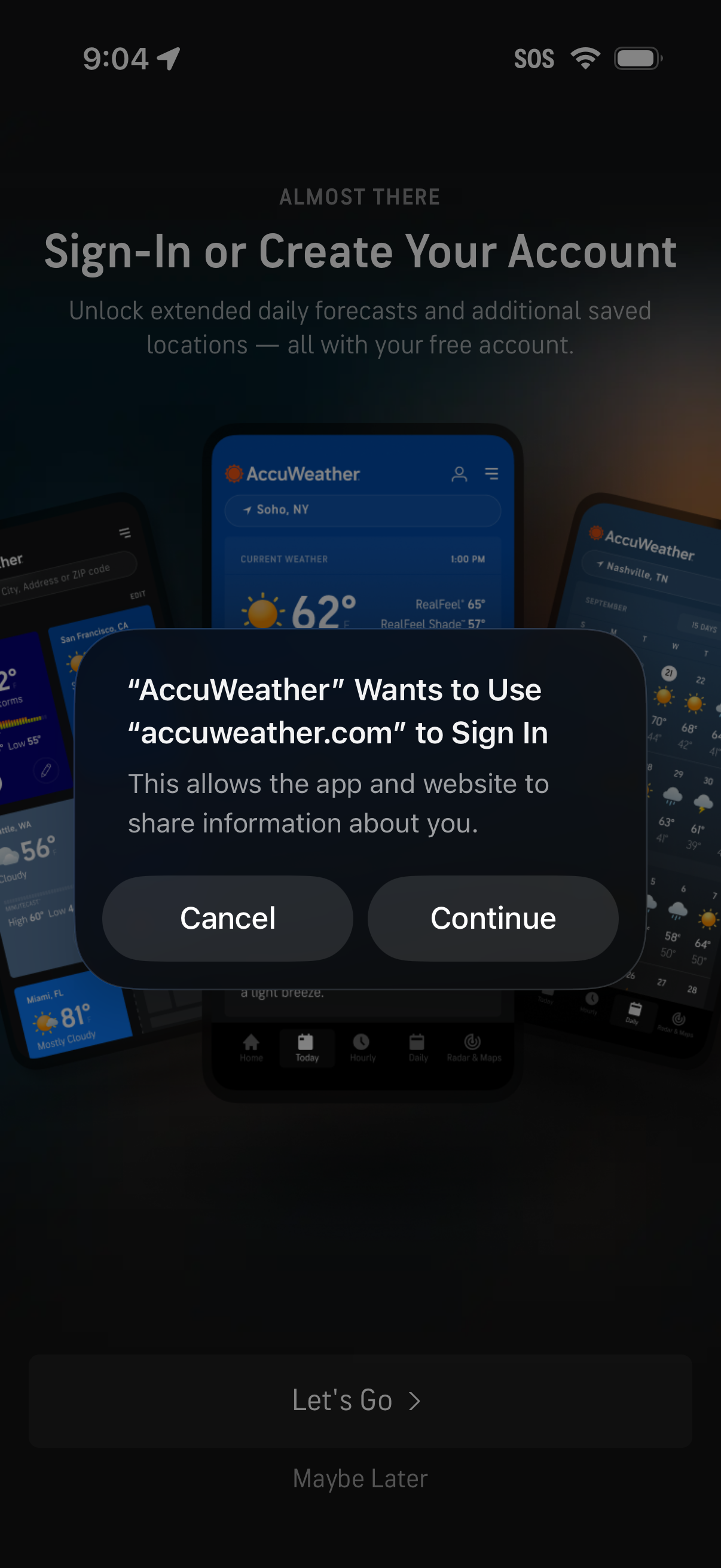
A weather app onboarding screen prompting users to sign in or create an account to unlock extended forecasts and save locations, with a native iOS web sign-in permission dialog asking to use the provider domain and offering Cancel or Continue. The background includes a “Let’s Go” primary action and a “Maybe Later” option to skip account setup.
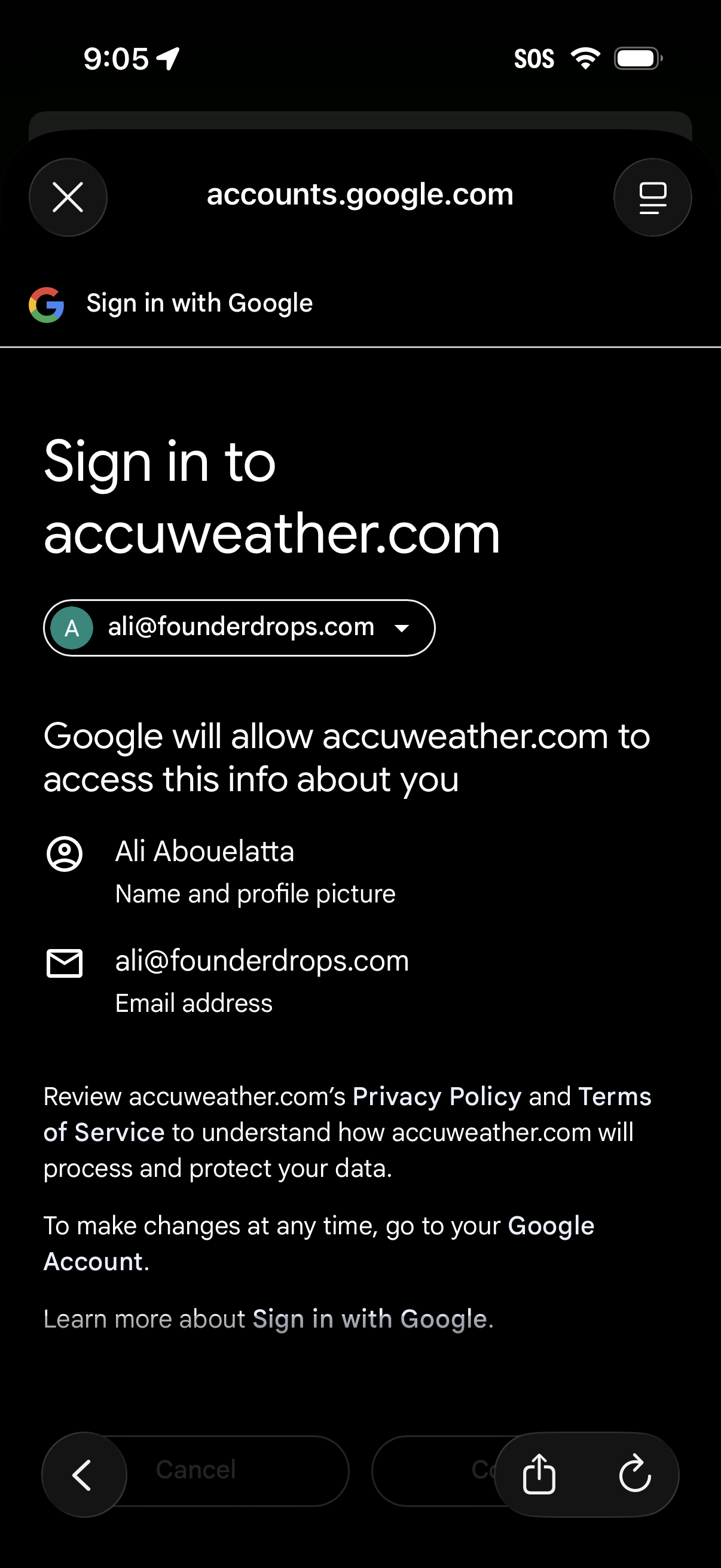
Google “Sign in with Google” OAuth consent screen for logging into a third-party site, showing the selected Google account and what profile data (name/profile picture and email address) will be shared. Includes links to the site’s privacy policy/terms and actions to cancel or continue the sign-in.
Minimal success confirmation screen showing a centered checkmark icon with subtle confetti accents on a blurred gradient background, used to indicate an action completed successfully with no additional options or details.
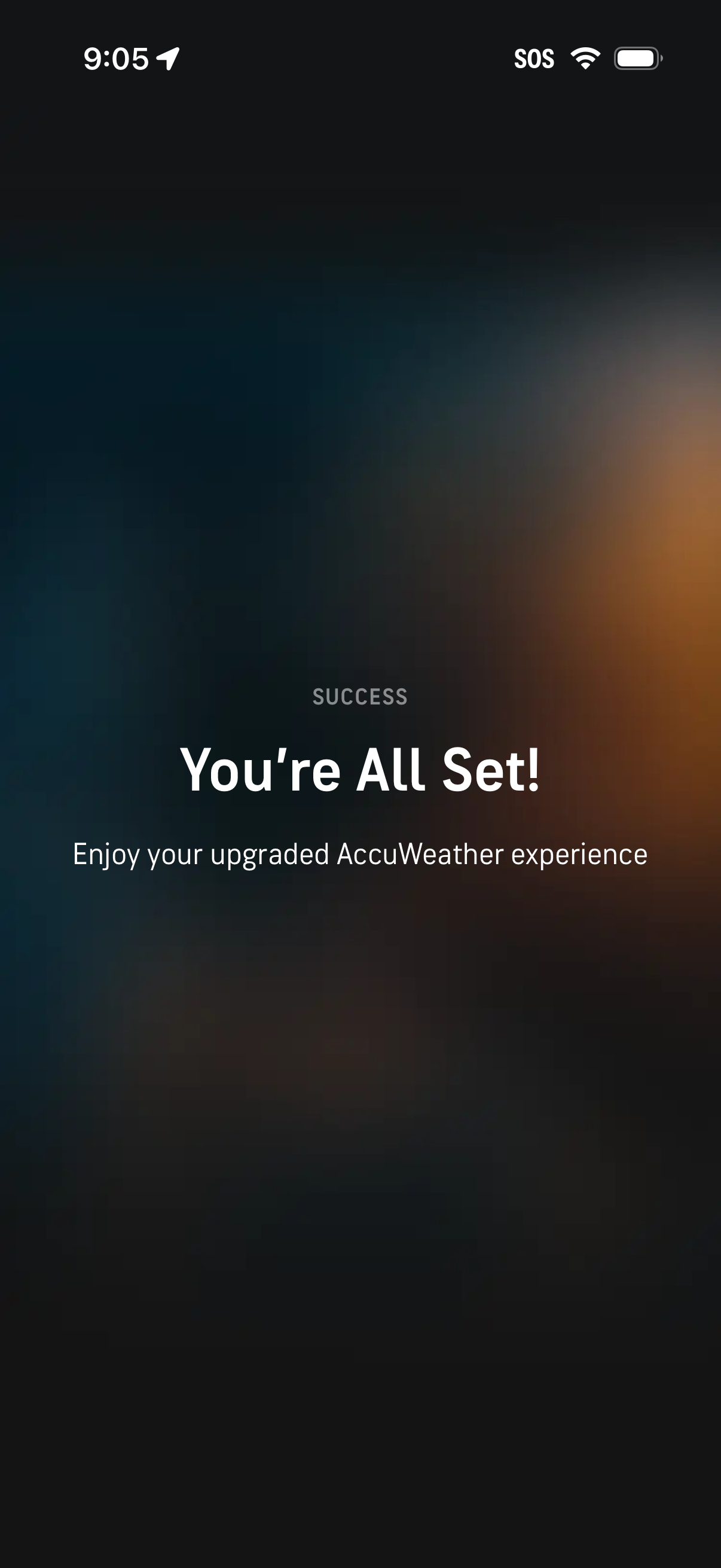
Confirmation success screen shown after upgrading or completing setup, displaying “You’re All Set! ” and a message to enjoy the upgraded app experience.
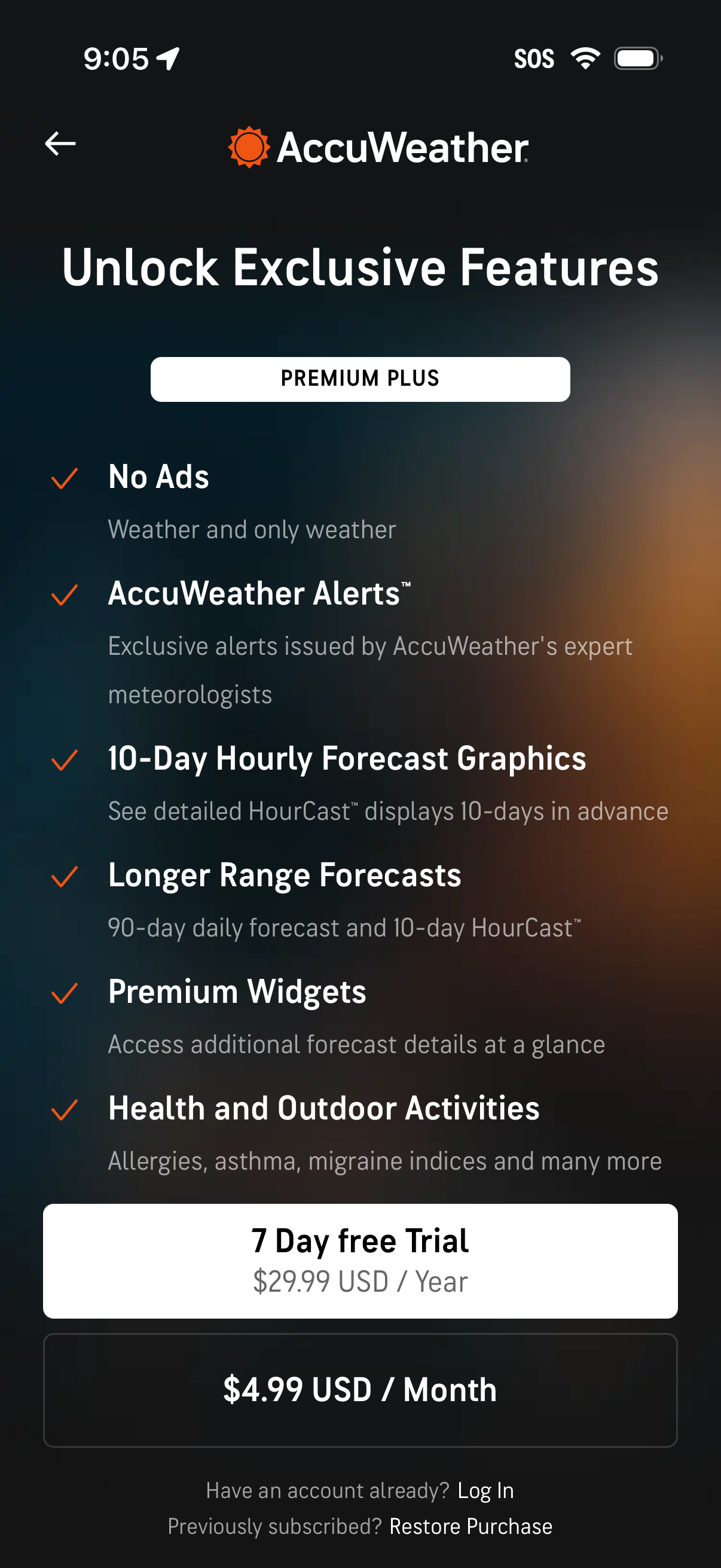
Weather app premium subscription upsell screen prompting users to “Unlock Exclusive Features” with a list of benefits like no ads, expert alerts, extended hourly and longer-range forecasts, premium widgets, and health/outdoor activity insights. Includes plan selection and purchase CTAs for a 7‑day free trial annual price and a monthly price, plus links to log in or restore purchases.